Getting Started
MIDAS is an exploratory data analysis tool that runs in your browser. Your data is processed locally and never sent to external servers (details). No installation required - start analyzing right away.
Tutorial: Exploratory Data Analysis with the Iris Dataset
1. Open Sample Data
- Open MIDAS - the launcher screen appears
- Click Iris dataset from the "Sample Data" section
- The project screen opens
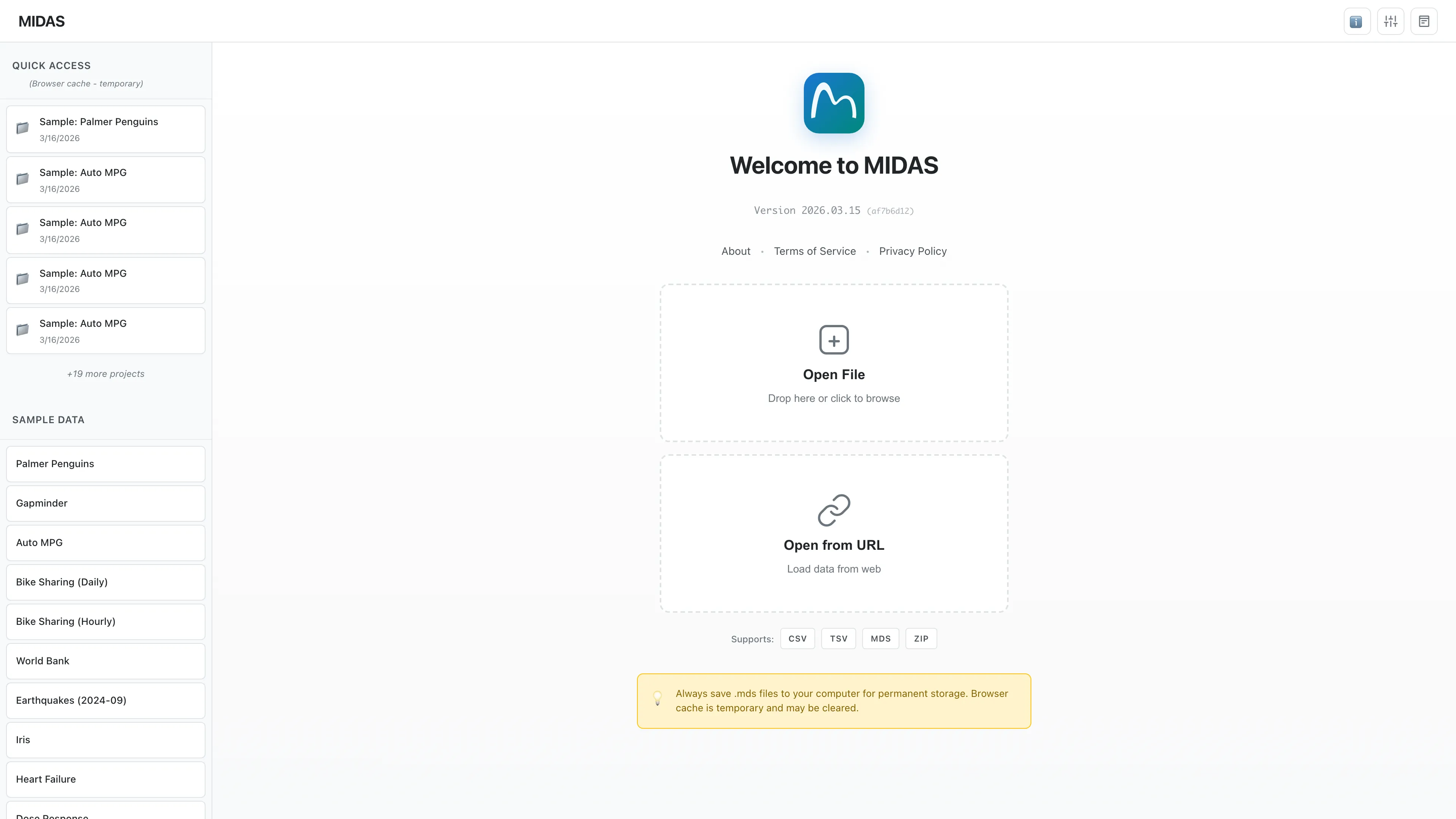
The Iris dataset contains measurements of petals and sepals from three species of iris flowers (150 rows × 5 columns).
2. Explore the Data
Three tabs open automatically:
- Data Table (left): Displays data in tabular format
- Statistics (top right): Shows statistics for selected columns
- Selected Rows (bottom right): Details of selected rows
Try the interactive demo below. Click columns to select them, or click rows to view their details.
View Live Demo
Click to launch the MIDAS application
Each column header shows the data type (float64, string, etc.) and measurement scale (interval, nominal, etc.). Click the button at the right edge of a column to sort by that column.
MIDAS automatically infers data types and measurement scales when loading data. If the inference is incorrect, right-click a column to change it. Measurement scales play an important role in statistical analysis and graph creation. See Data Preparation and Import for details.
3. View Basic Statistics
Let's check basic statistics to understand the data overview.
- Click a column name in the Data Table tab (e.g.,
sepal_length) - A histogram and statistics automatically appear in the Statistics tab on the upper right
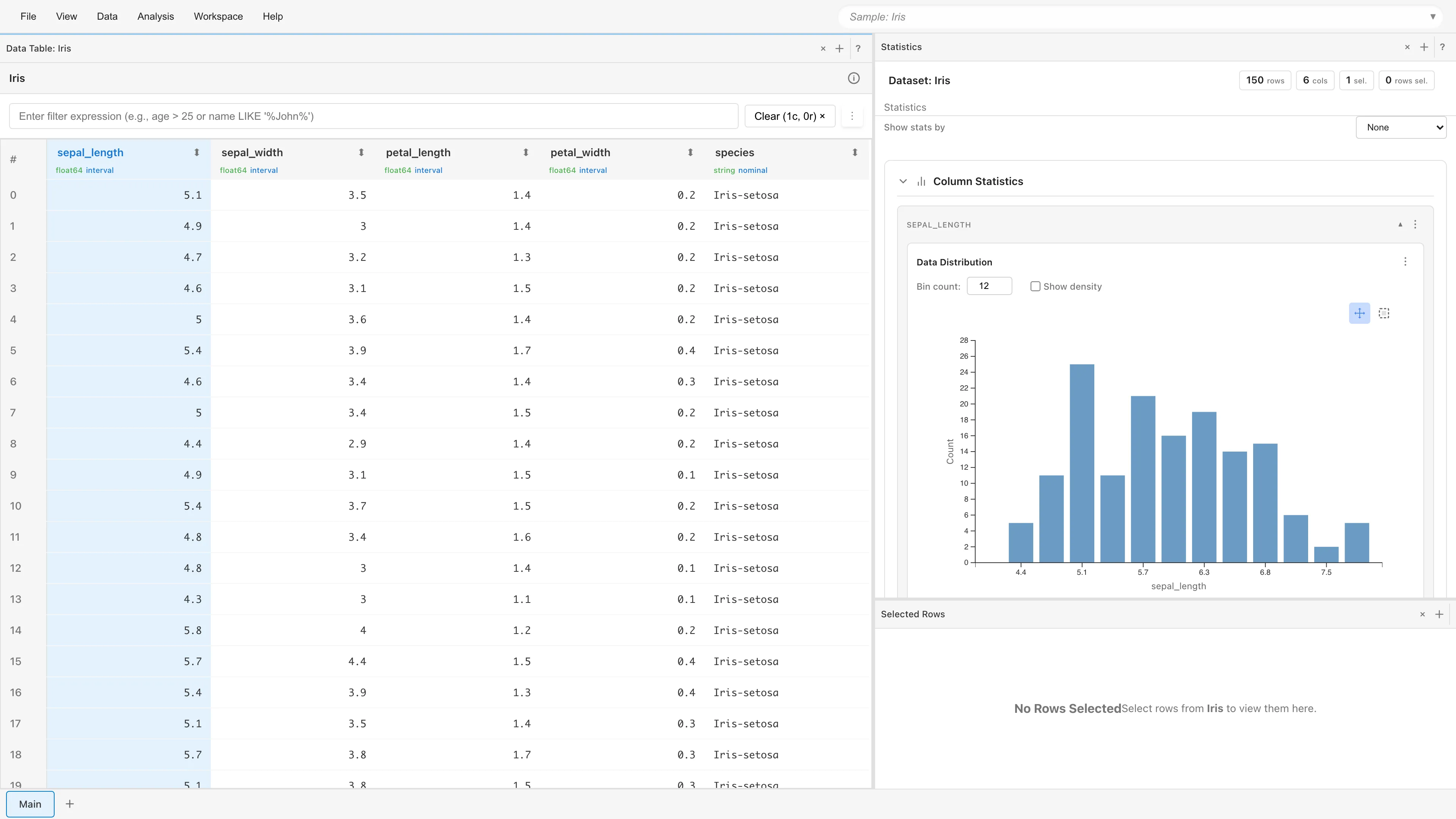
- Moments: mean, std (standard deviation), skewness, ex. kurt (excess kurtosis)
- Spread: iqr (interquartile range), range
- Quantiles: 0%(min), 1%, 5%, 10%, 25%, 50%, 75%, 90%, 95%, 99%, 100%(max)
Select rows from histogram:
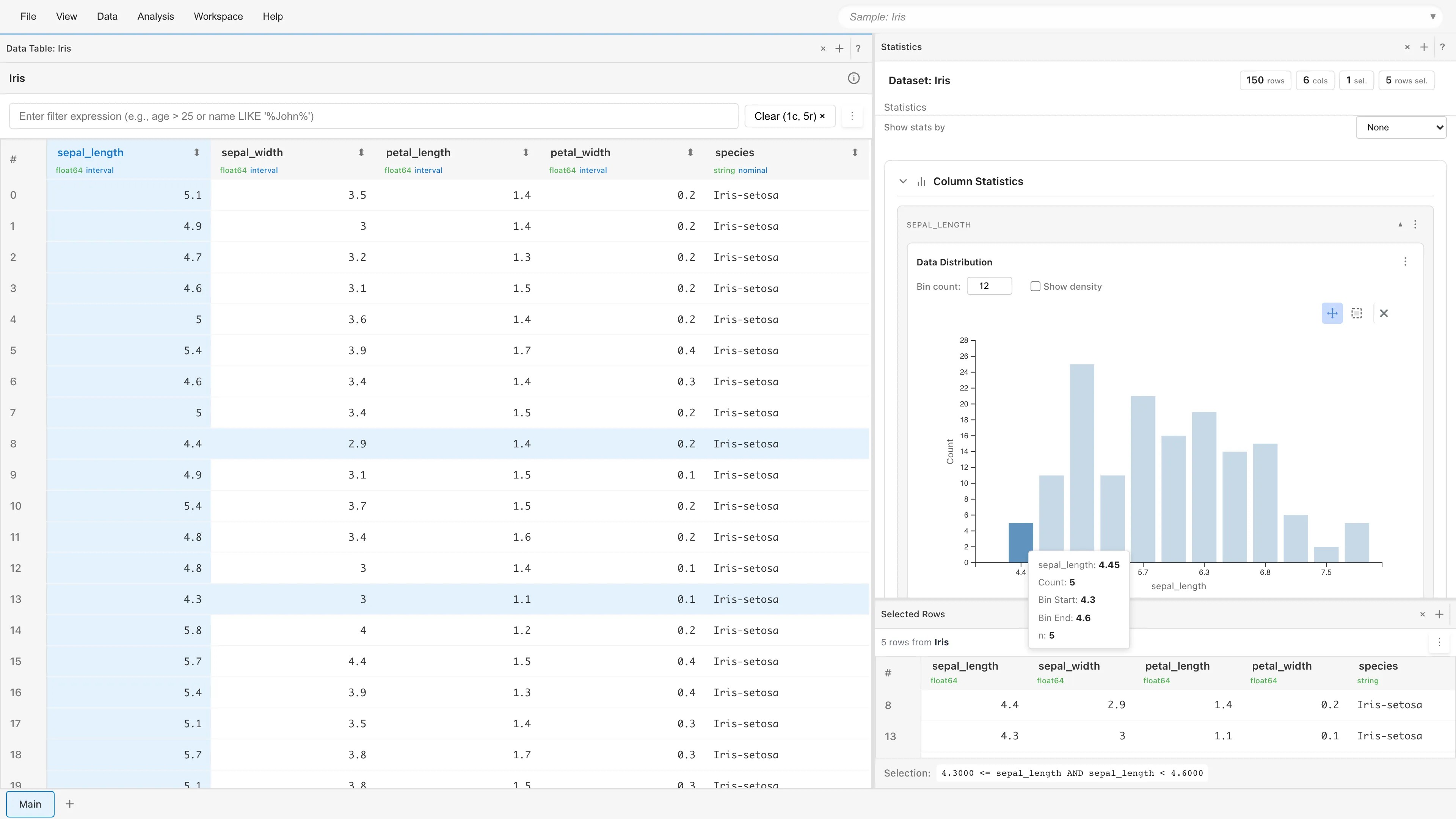
Click a bar in the histogram to select rows within that range. Details appear in the Selected Rows tab at the bottom right.
You can examine selected row data in detail or analyze only data within a specific range.
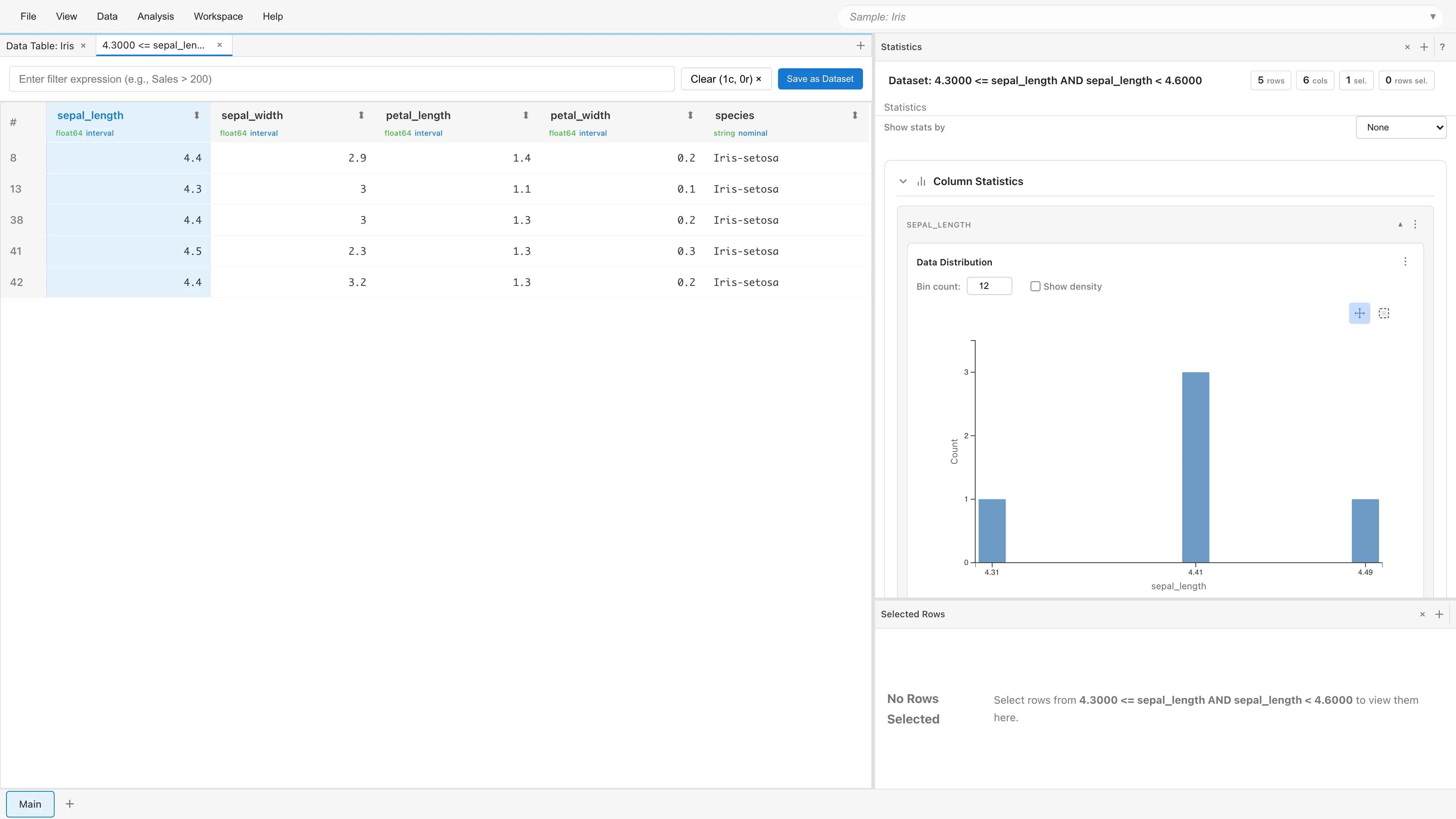
Double-click a bin to open a new Filtered Data tab containing only the data in that bin. The original dataset is not modified.
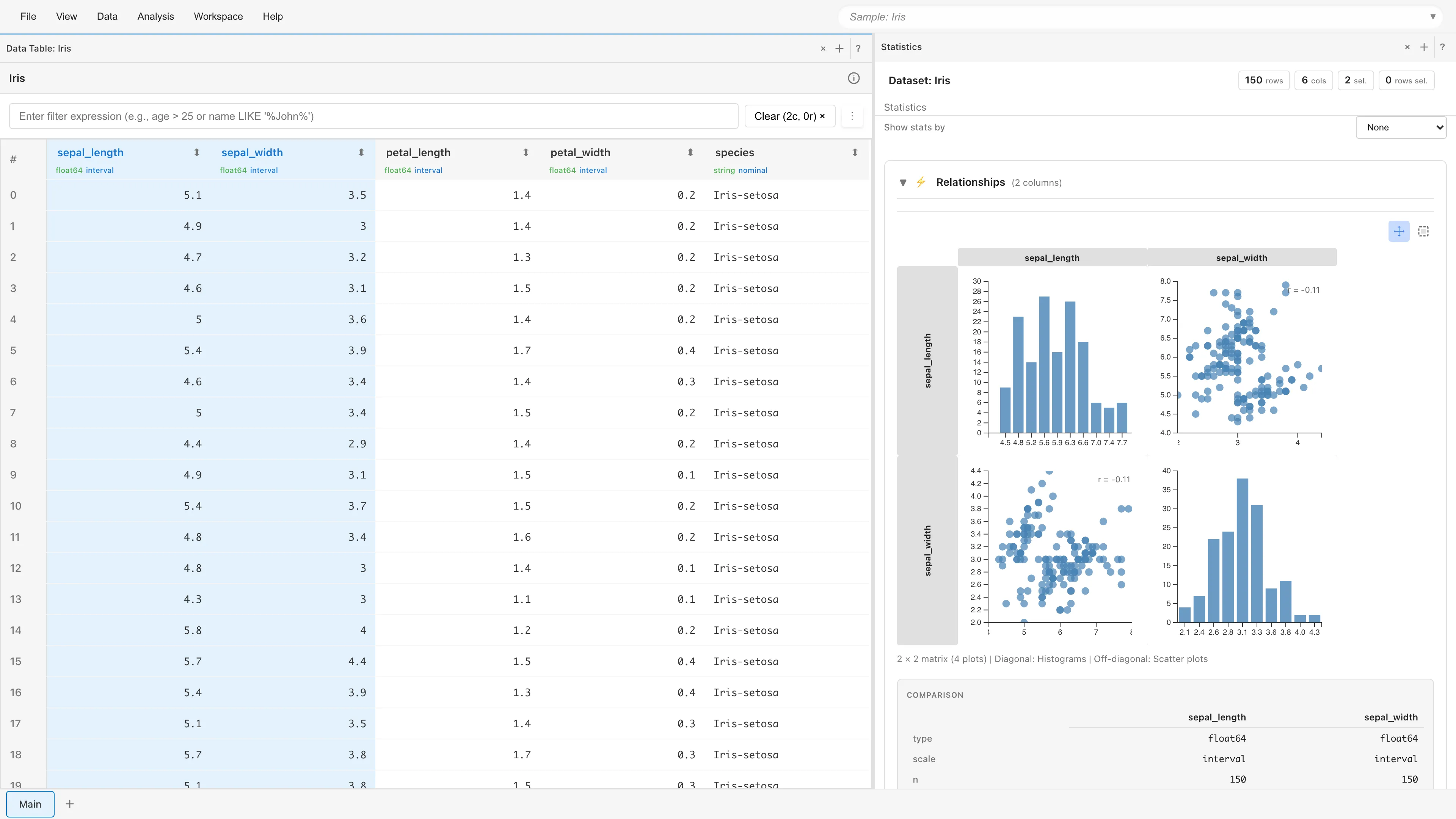
Select two columns to view relationships:
- With
sepal_lengthselected, Ctrl/Cmd+clicksepal_width - The Statistics tab displays a scatter plot matrix and statistics comparison
4. Create Graphs
Let's visualize the data to discover patterns.
Create a Scatter Plot
- Select Analysis → Graph Builder... from the menu bar
- Select Scatter Plot from the Graph Type dropdown
- Select from each dropdown:
- X-Axis:
sepal_length (interval)(sepal length) - Y-Axis:
sepal_width (interval)(sepal width) - Color (Optional):
species (nominal)(iris species)
- X-Axis:
- A scatter plot appears, color-coded by species
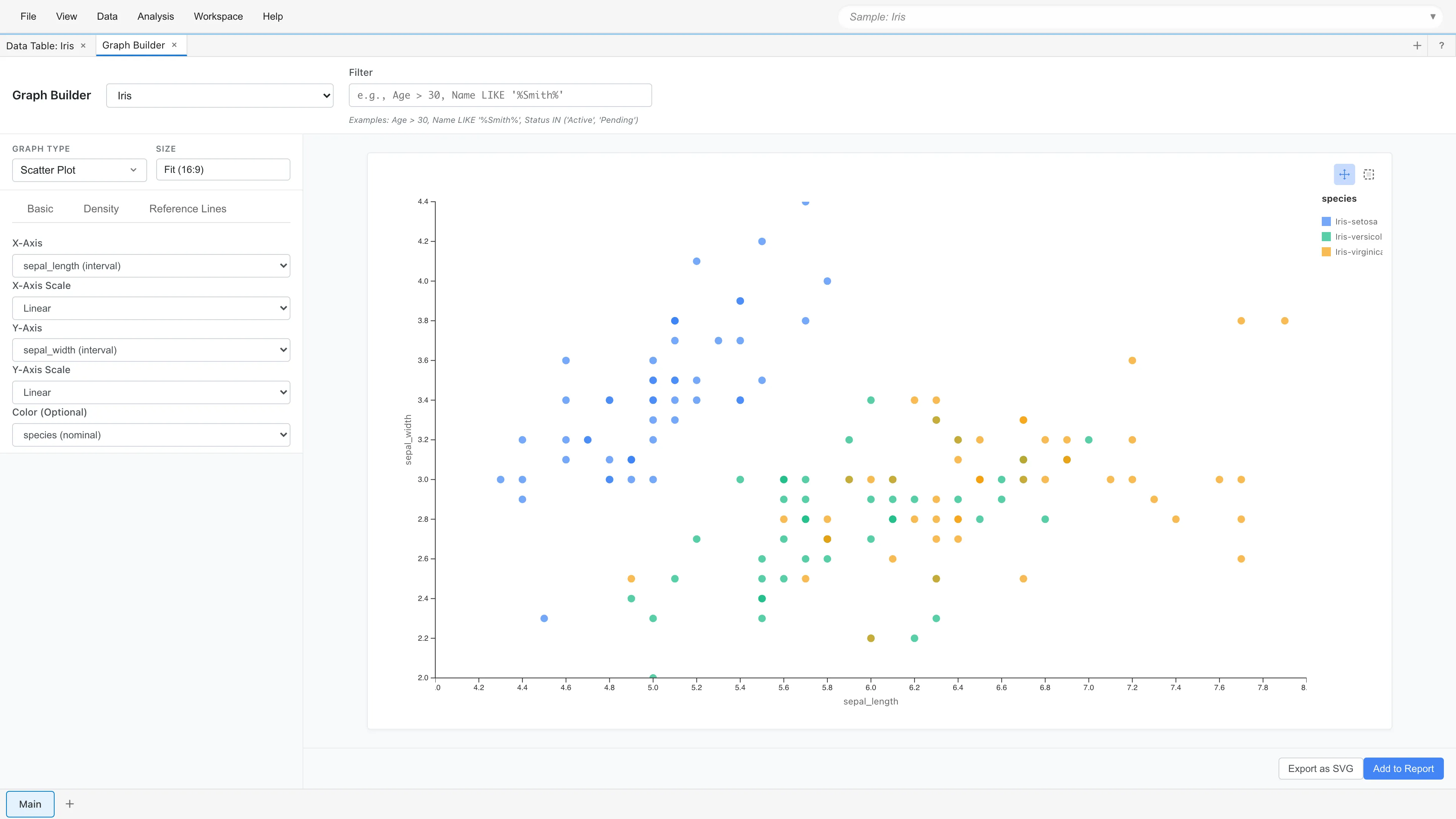
You can see that data clusters in different regions for each species.
See Creating Graphs and Advanced Graph Creation for more details.
5. Save Your Project
MIDAS offers two ways to save your work.
Save to Browser
- Select File → Save to Browser (or Ctrl/Cmd+S)
- The project is automatically saved to your browser
Next time you open MIDAS, saved projects appear in the "Quick Access" section of the launcher screen for quick resumption. Clearing browser data will delete saved projects, so export important projects as files too.
Export as File
- Select File → Export Project... (or Ctrl/Cmd+Shift+S)
- Confirm or edit the filename (defaults to project name)
- Click Save
- A project file (.mds format) is downloaded
Exported MDS files can be shared with other users. Files are automatically signed with a digital signature, enabling author verification and tamper detection. See Project Files (MDS) for details.
Open an Exported File
- In the MIDAS launcher screen, click Open File
- Select a saved
.mdsfile - The project loads and restores to its saved state
Next steps
- Creating Graphs - Create bar charts, scatter plots, pair plots, and more
- Data Preparation and Import - Load your own CSV files
- Hypothesis Testing - t-tests and nonparametric tests for two-group comparisons
- Regression Analysis - Model data with linear regression
See also
- Project Files (MDS) - Project file format and data privacy
- Sample Datasets - Other sample data included in MIDAS
- Data Types and Measurement Scales - Statistical meaning of measurement scales
- Advanced Graph Creation - Flexible visualization with Grammar of Graphics
- PWA and Offline Use - Install as an app and work offline