Advanced Graph Creation
Graph Types such as Bar Chart, Histogram, and Scatter Plot draw graphs in a fixed format with minimal setup. Use Custom Graph when the graph you want does not fit a fixed format: overlaying a regression line on a scatter plot, overlaying a density curve on a histogram, or comparing subgroups with facets.
Custom Graph is based on the Grammar of Graphics, a framework that treats a graph as a combination of components. Once you understand the basic components, you can create diverse visualization patterns. This page explains each component by building graphs from the Auto MPG dataset (fuel efficiency data for 398 cars from 1970-1982).
Components of Grammar of Graphics
A Custom Graph consists of one or more Layers and graph-wide settings. A layer defines a single drawing and holds the following elements.
- Aesthetics: The mapping between variables (dataset columns) and visual attributes (position, color, size, etc.)
- Geometry: The visual representation of data (Point, Line, Bar, etc.)
- Statistics: Statistical transformations of data (binning, smoothing, etc.)
- Position: Position adjustment of elements (stacking, dodging, etc.)
The following elements are specified for the whole graph and shared by all layers.
- Data: The dataset to visualize
- Coordinates: Coordinate system (Cartesian coordinates, axis swapping, etc.)
- Facets: The structure when creating graphs composed of multiple small graphs
- Scales: How to convert data values to visual values
Overlaying multiple layers combines several drawings, such as a scatter plot and a regression line, into a single graph.
Aesthetics - Mapping Visual Attributes
Map data columns to visual attributes. The most basic is mapping two continuous variables to the x and y axes.
Data: Auto MPG
Aesthetics: x = weight, y = mpg
Geometry: Point
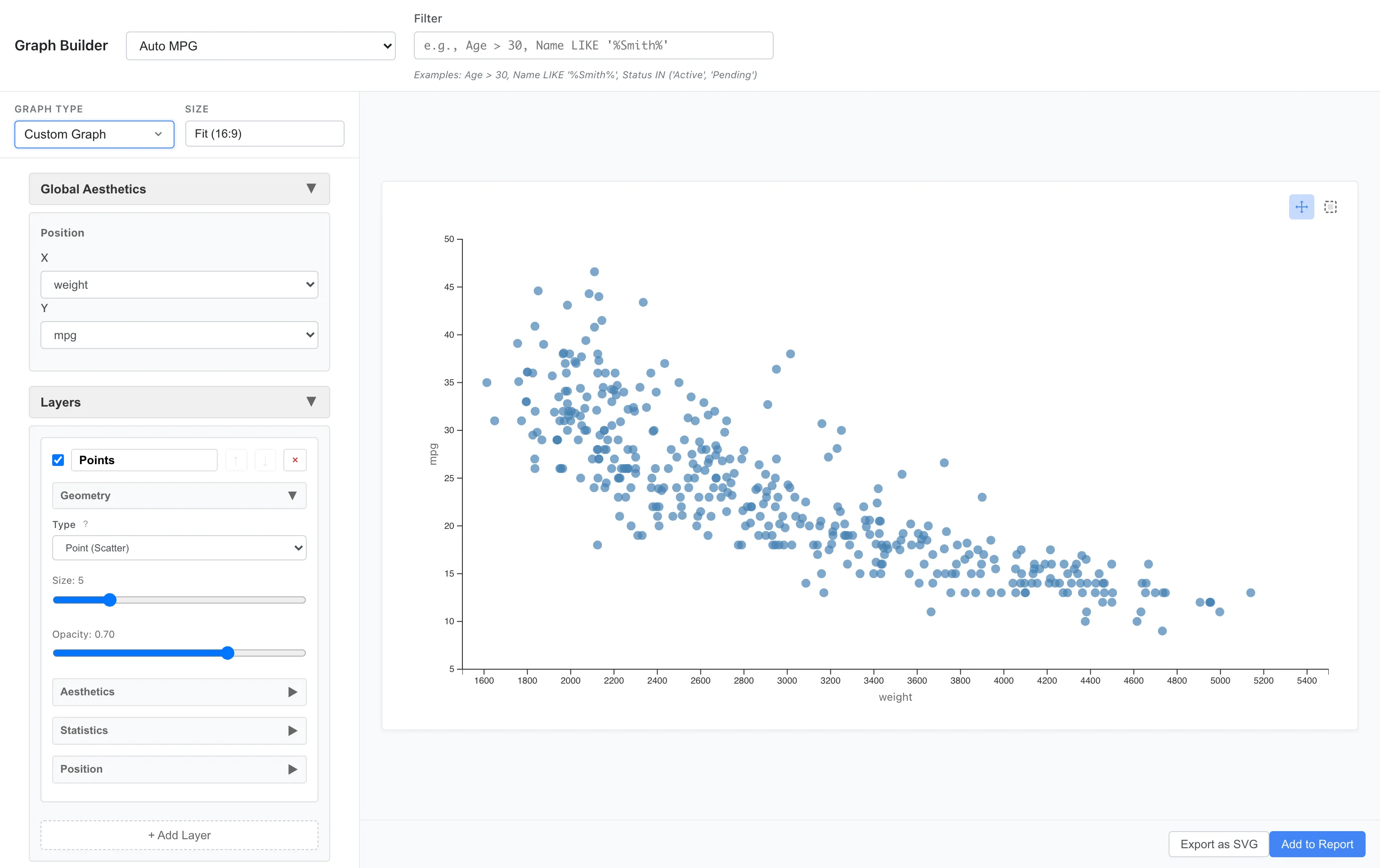
A negative association is visible: heavier cars have worse fuel efficiency. The Geometry in this example is Point, which draws each data row as one point. Changing the Geometry draws the same mapping in a different form, such as lines or bars.
Mapping to Color
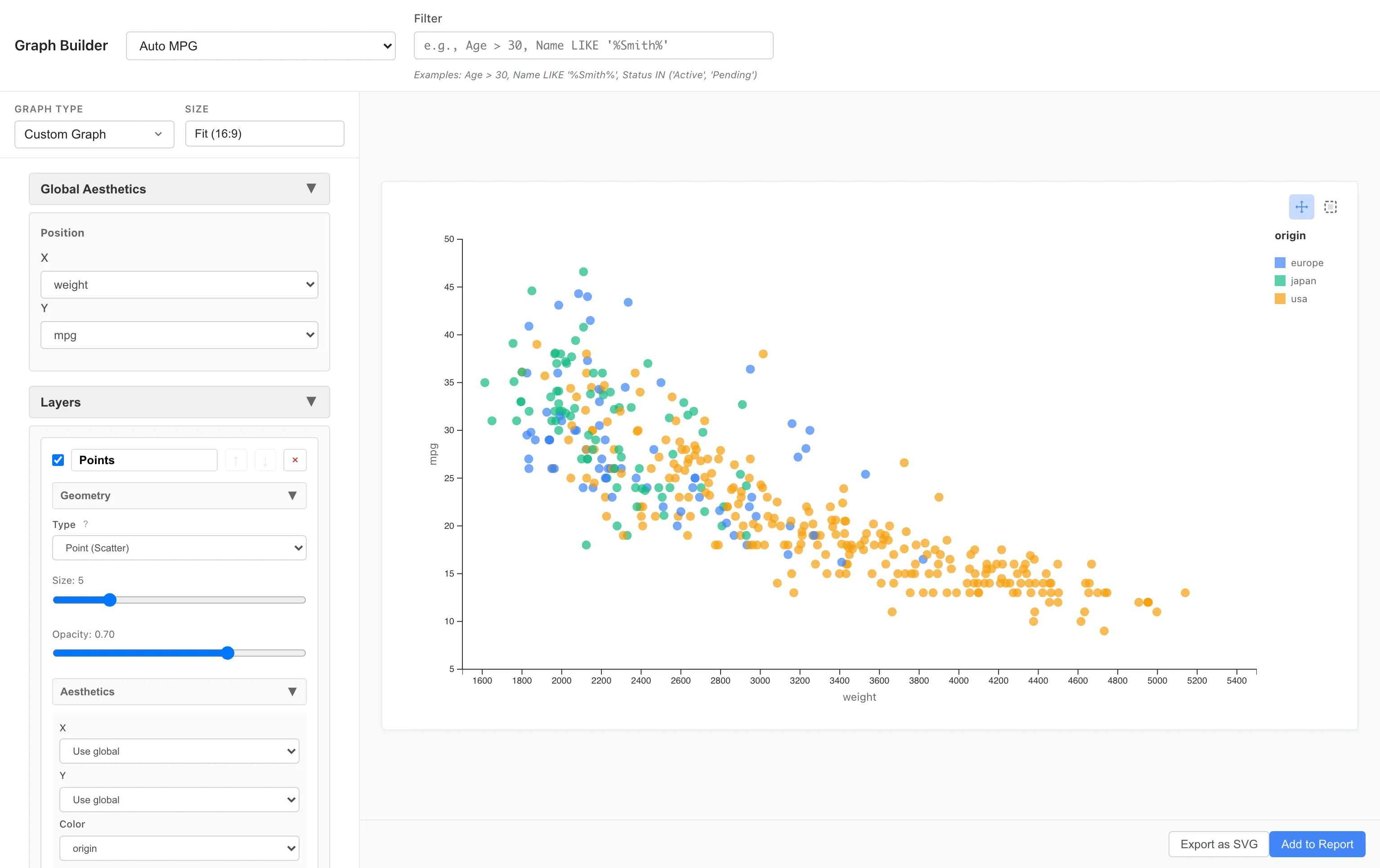
You can add more information by mapping a third variable to color.
For example, let's color-code by origin (usa, europe, japan).
Aesthetics: x = weight, y = mpg, color = origin
Mapping to Size
Map horsepower to point size.
Aesthetics: x = weight, y = mpg, color = origin, size = horsepower
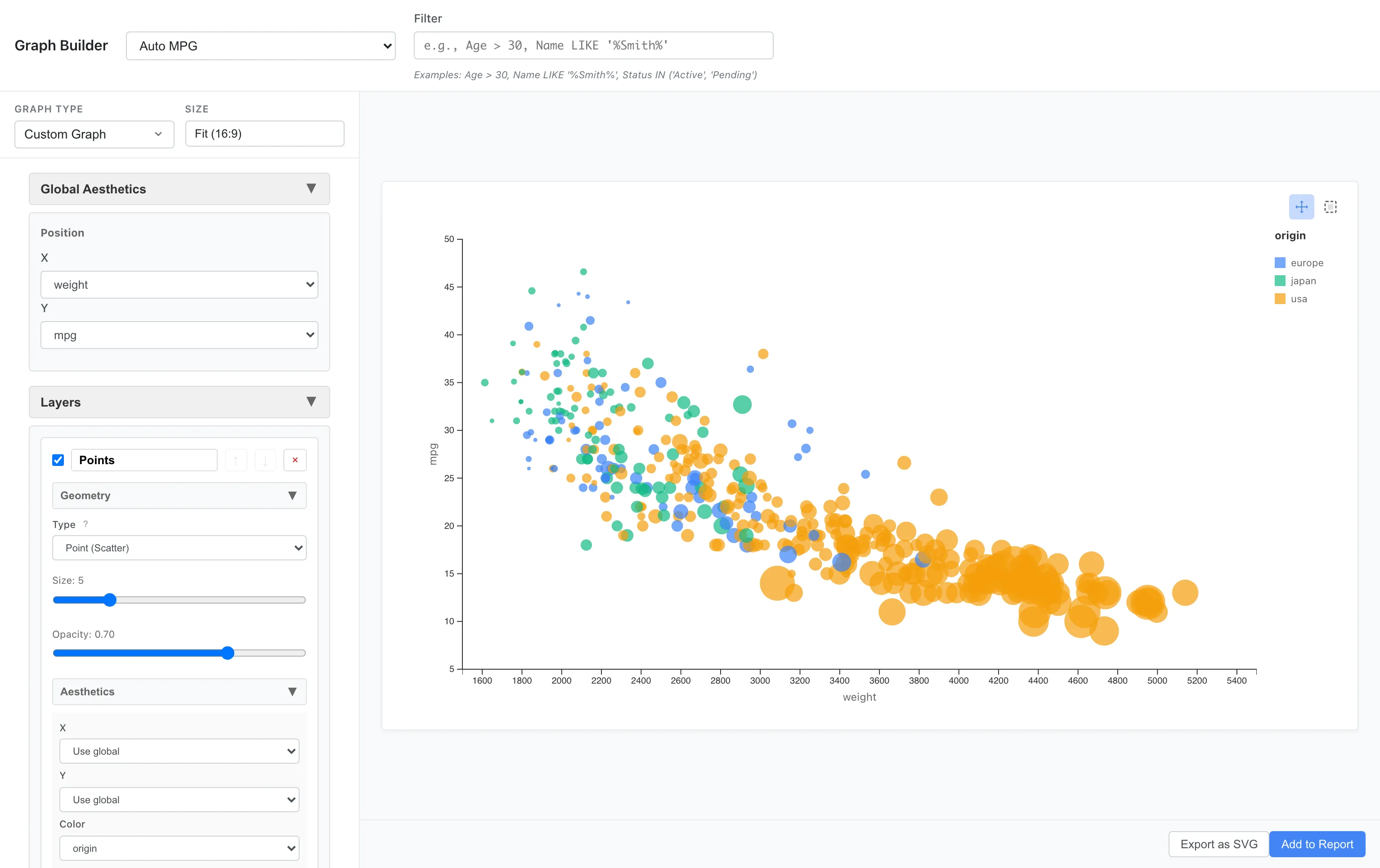
Larger points indicate higher horsepower. You can visually understand the relationship: heavy, high-horsepower cars have poor fuel efficiency.
fill and color
Aesthetics has two color specifications: fill and color. fill applies to the interior of geometries such as Bar and Area. color applies to outlines, strokes, and points such as Point markers and Line strokes. Point and Line do not support fill; their color is controlled entirely through color. Conversely, Bar does not support color; bar color is controlled through fill.
Layers - Overlaying Layers
Layers allow you to overlay multiple graphs. For example, let's add a LOESS (locally weighted regression) smoothing curve on top of a scatter plot.
Layer 1: Point (x = weight, y = mpg)
Layer 2: Line + Smooth statistic (method = loess)
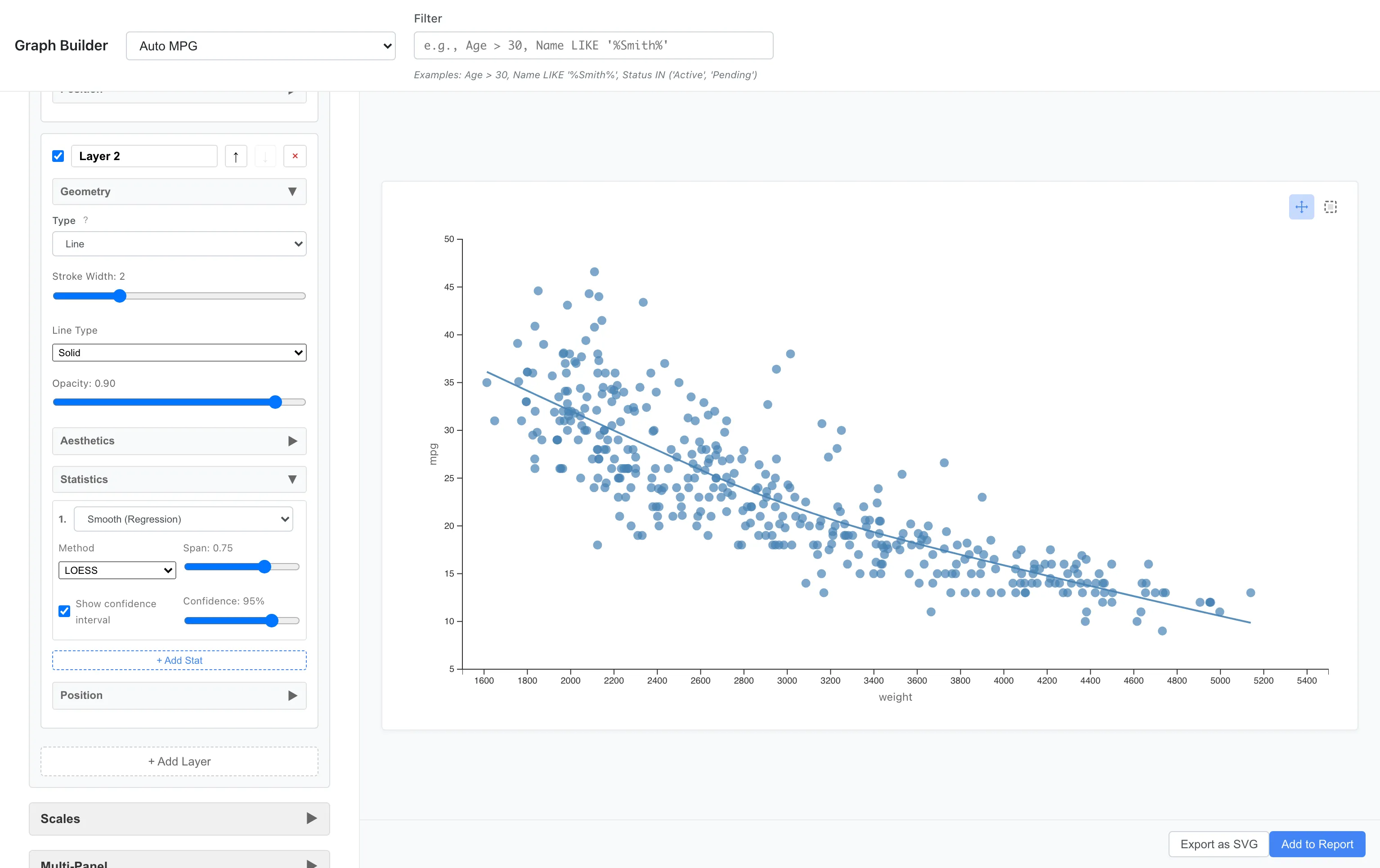
The blue line is the LOESS smoothing curve. It summarizes the local pattern of the data as a smooth curve. Change Method to Linear (LM) to draw a linear regression line instead. When LOESS is selected, Span adjusts the smoothness of the curve. When points are grouped by aesthetics such as color or fill, the Smooth statistic fits a separate regression for each group.
Turning on Compute interval band overlays a regression interval as a shaded band. Interval type selects between the prediction interval, which covers a newly observed single value, and the confidence interval, which estimates the mean response at each point; set the level with Interval level. See Prediction interval in the glossary for its definition and assumptions, and the Custom Graph Reference for the full list of Smooth parameters.
Statistics - Statistical Transformations
You can display data not just as-is, but after statistical transformation.
Histogram (Binning)
To see the distribution of fuel efficiency, we divide the data into bins (intervals) and count them.
Aesthetics: x = mpg
Geometry: Bar
Statistics: Bin (bins = 20)
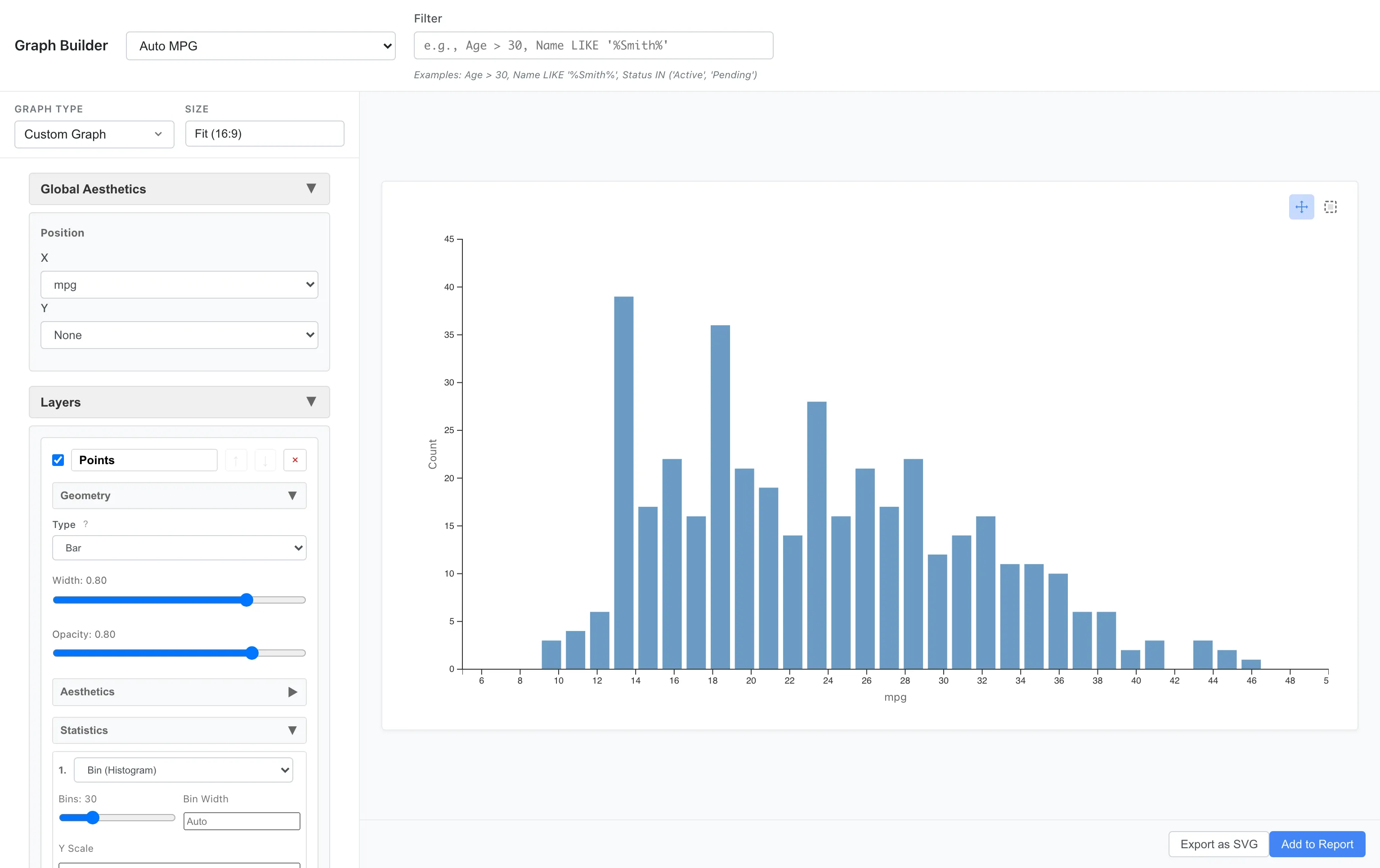
You can see that most cars are concentrated in the 15-30 mpg range. The distribution is right-skewed, with fuel-efficient cars being a minority.
Adjust the number of bins based on the shape of the distribution.
Density Estimation
Instead of bins, you can express the distribution as a smooth density curve.
Aesthetics: x = mpg
Geometry: Line
Statistics: Density
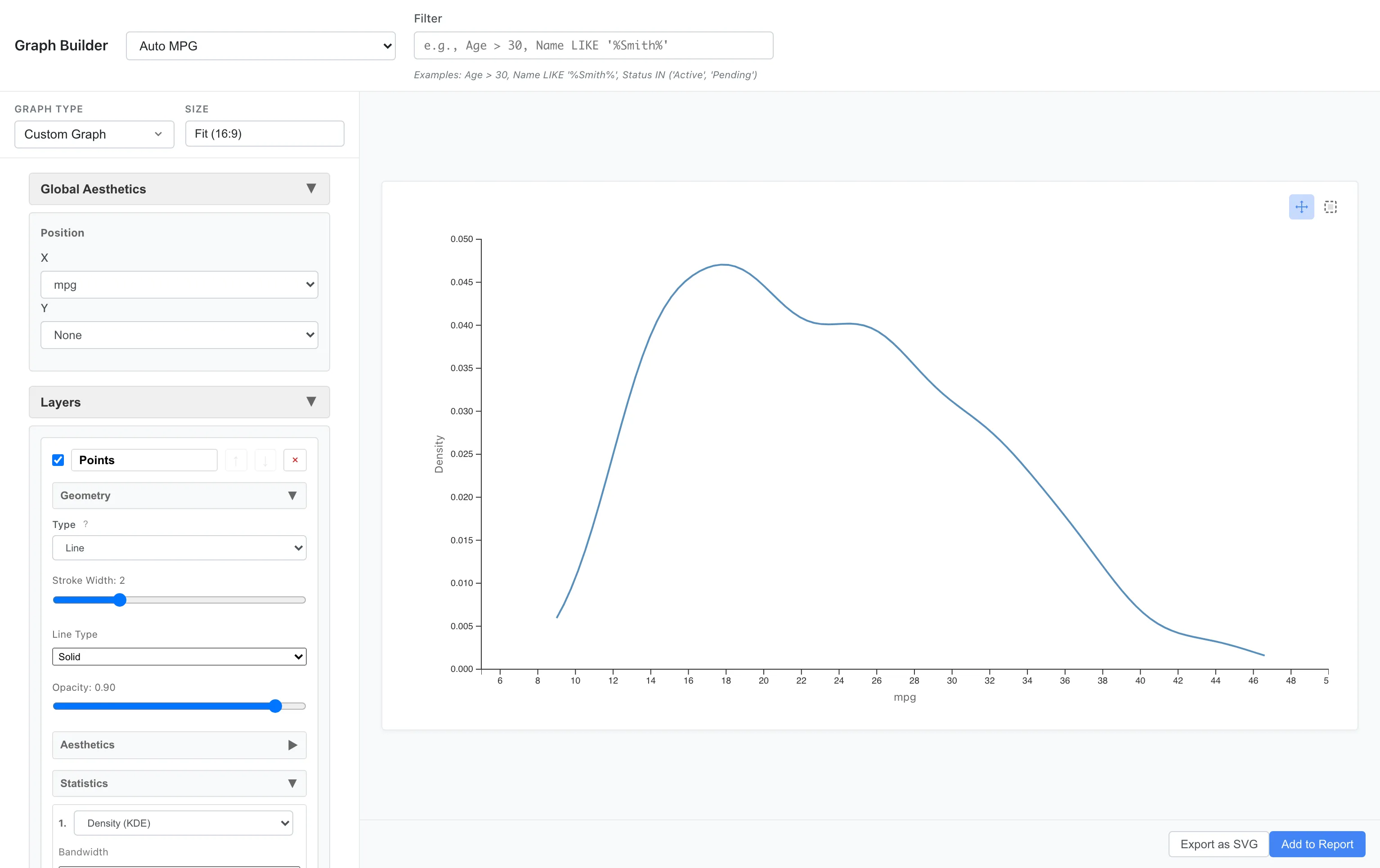
This expresses the same data distribution in a different way. The density is estimated with a Gaussian kernel, and the bandwidth is chosen automatically by Silverman's rule of thumb.
Comparing Densities Across Multiple Groups
By overlaying density curves for each category, you can compare distribution differences.
Let's draw density curves on top of histograms for each origin.
Layer 1 (Bar):
  Aesthetics: x = mpg, fill = origin
  Geometry: Bar
  Statistics: Bin (bins = 30)

Layer 2 (Line):
  Aesthetics: x = mpg, color = origin
  Geometry: Line
  Statistics: Density (Y Scale = Count)
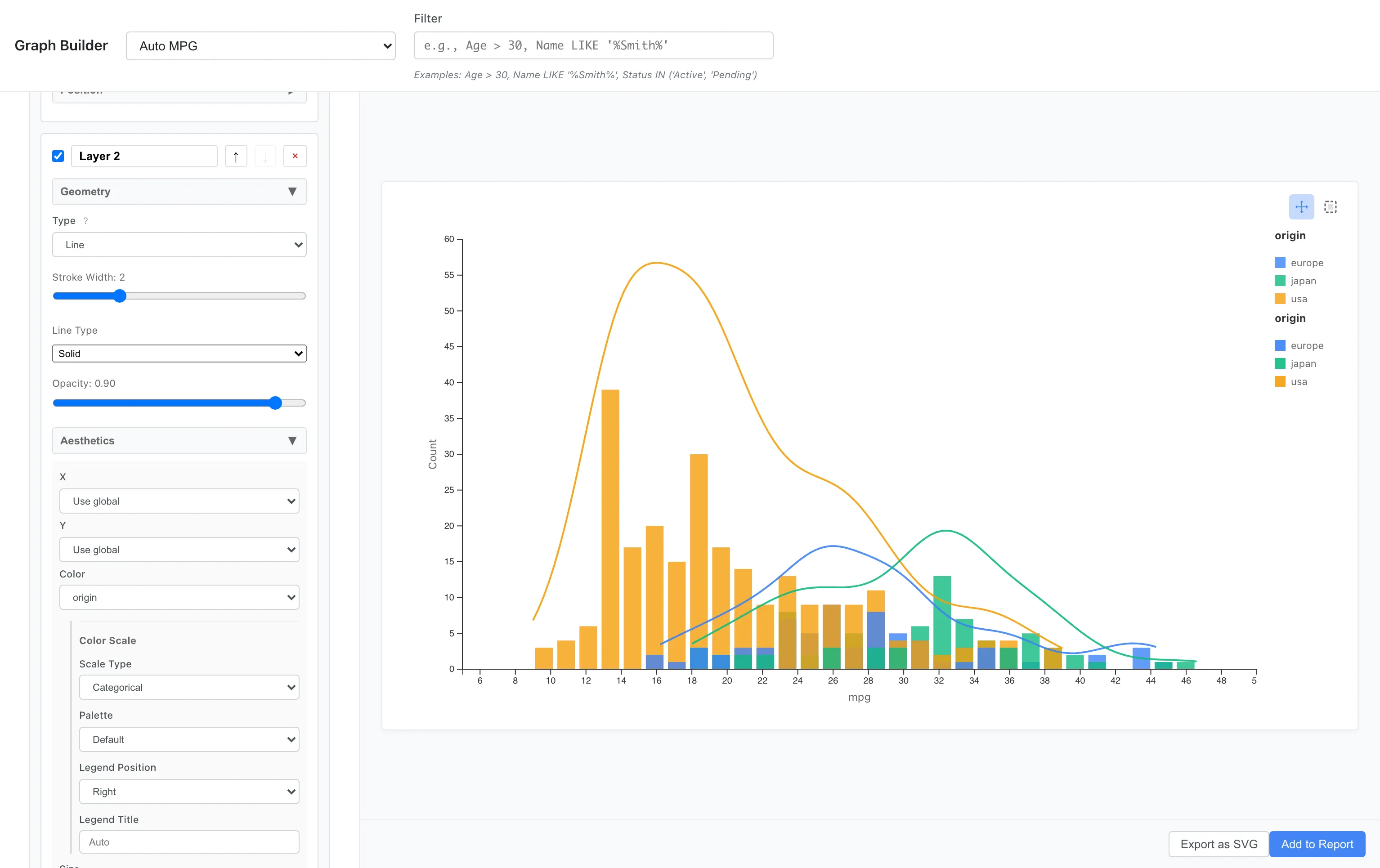
Layer 1 uses fill = origin to split the bar fill, and Layer 2 uses color = origin to split the density curve strokes. The same color scale is applied to both layers, so bars and curves for the same category share the same color.
Y Scale = Count in Layer 2 multiplies the density by the sample size and bin width to produce a count-scaled curve. This bin width is computed internally with Sturges' formula, independent of the bins = 30 in Layer 1, so the two y-axes are not guaranteed to match exactly.
It's clear that Japanese cars peak on the high fuel efficiency side, while US cars peak on the low fuel efficiency side.
Position - Position Adjustment
Position adjustment becomes important when comparing multiple categories in bar charts.
Stacked Bar Chart
Aesthetics: x = model_year, fill = cylinders
Geometry: Bar
Statistics: Count
Position: Stack
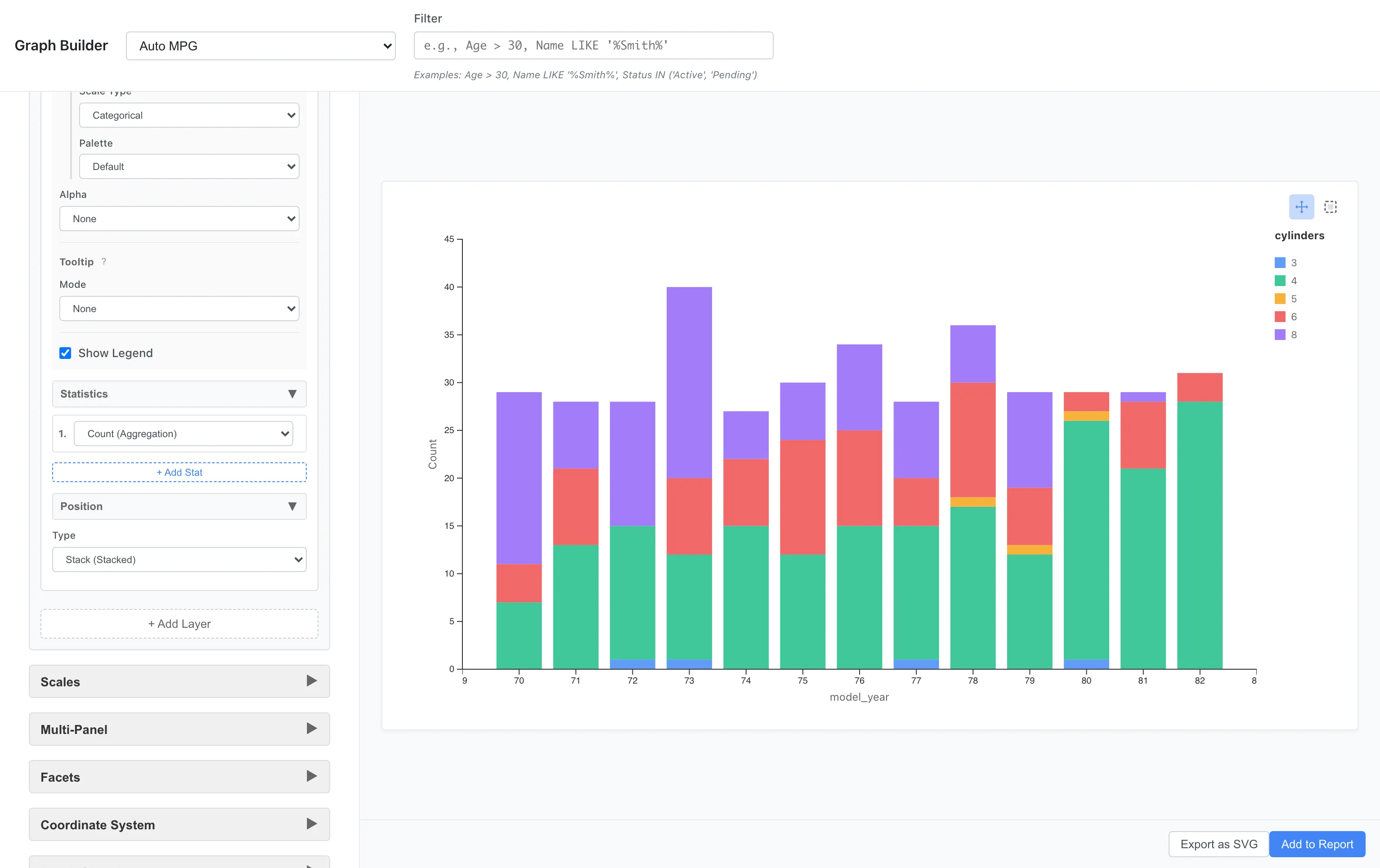
The breakdown of car types for each year is shown as stacked bars. 8-cylinder cars were common in the early 1970s, with 4-cylinder cars increasing toward the end.
Grouped Bar Chart
Changing Position to dodge displays them side by side.
Position: Dodge
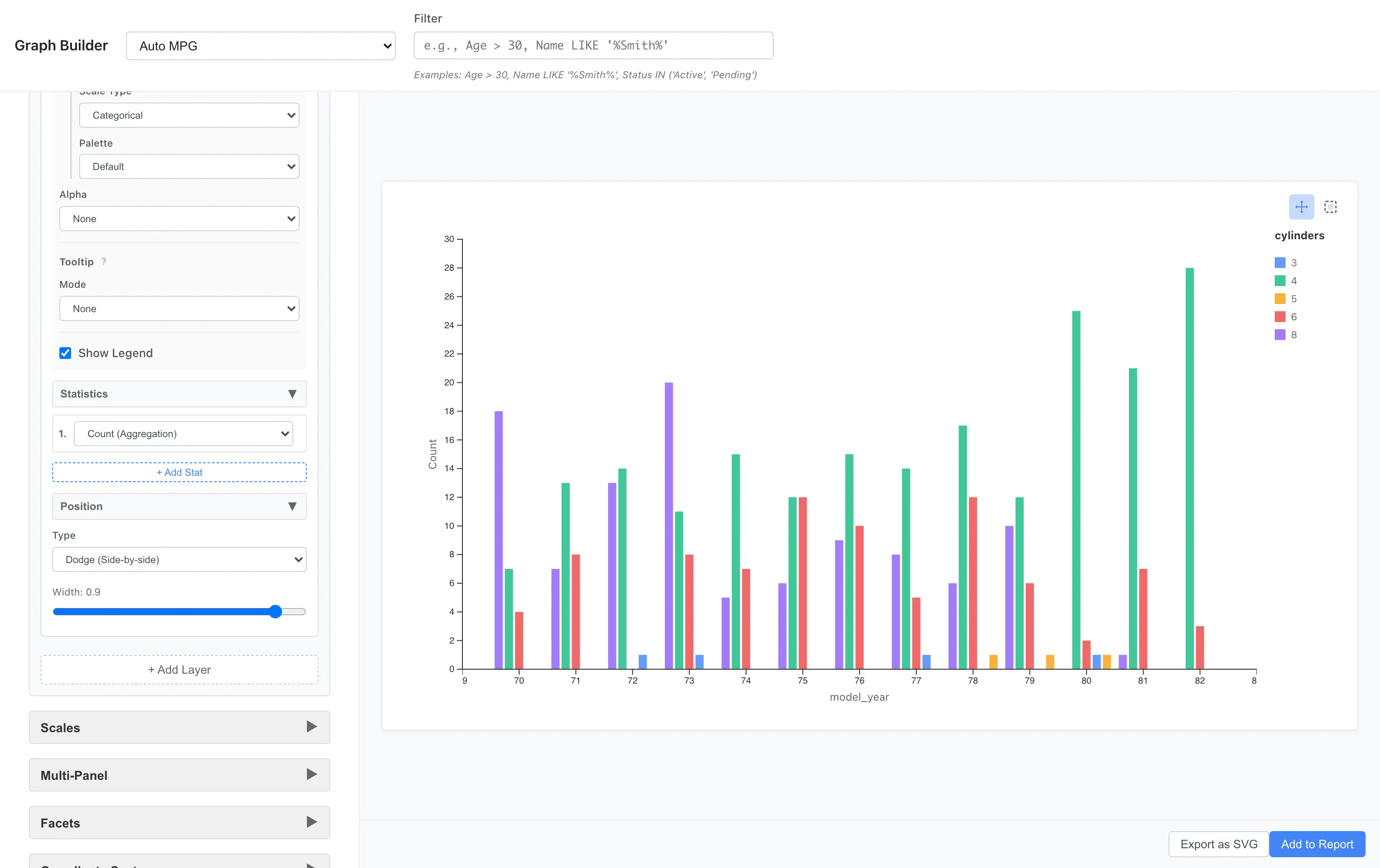
This makes it easier to compare trends for each cylinder count. Use Stack to see overall composition, and Dodge to directly compare values between groups.
Stack as 100% Proportions
Setting Position to Fill normalizes each stacked bar so its total length equals 100%. Each segment's length shows its share of the total at that x value. When the data contains negative values, the sum of absolute values counts as 100%, with positive segments stacked above the baseline and negative segments below it. Useful when you want to compare category proportions over time or across groups. To show that the values are proportions, the Y-axis ticks use percent format, and the auto-generated axis title and tooltip labels get a (% of total) suffix.
Position: Fill
Reduce Point Overlap
Setting Position to Jitter adds small random displacement to each point so overlapping points become distinguishable. When x is numeric, points are displaced in both the X and Y directions; when x is categorical, only in the Y direction. It helps reveal density in Point scatter plots where many observations share the same x value. Unlike Dodge, which shifts along category boundaries, Jitter uses random displacement, so individual point positions vary slightly each time the plot is redrawn.
Coordinates - Coordinate System
Flipping Axes
Flipping histograms and bar charts horizontally makes long labels easier to read.
Aesthetics: x = mpg
Geometry: Bar
Statistics: Bin
Coordinates: Flipped
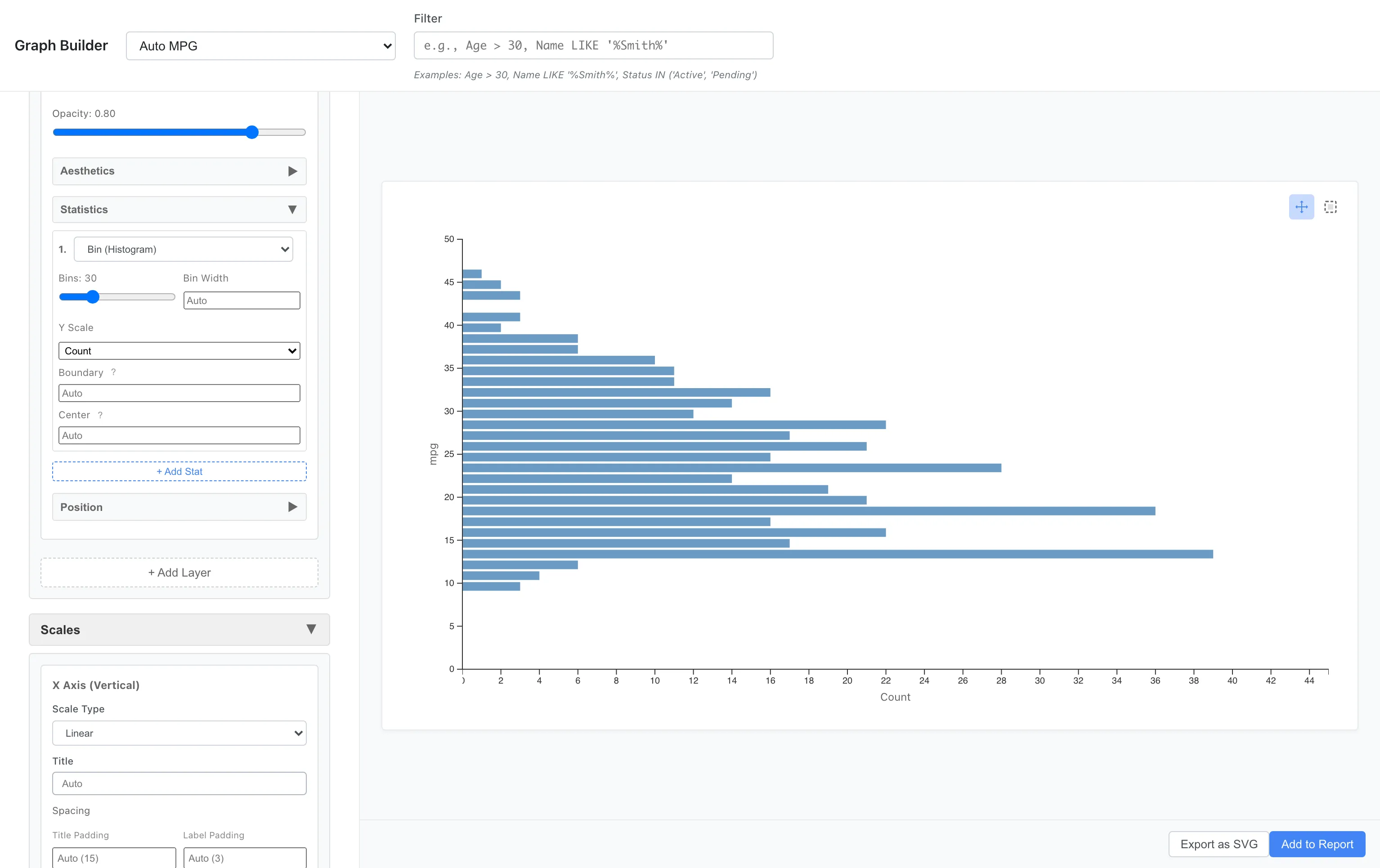
The vertical and horizontal axes are swapped, displaying the histogram horizontally. Useful when category names are long or when you want to effectively use vertical space.
Facets - Facet Division
Splitting and arranging graphs by category makes subgroup comparison easier. The Facets section has two types: Facet Wrap (division by single variable) and Facet Grid (matrix division by two variables).
Facet Wrap - Division by Single Variable
Facet Wrap divides data by one variable and arranges multiple panels in a grid. Any column in the dataset can be used for division. Columns whose number of unique values exceeds the limit cannot be selected. The limits default to 20 categories per variable and 50 panels in total, and both can be changed in Settings.
Aesthetics: x = weight, y = mpg
Geometry: Point
Facets: Type = Facet Wrap (Single Variable)
  Variable = cylinders
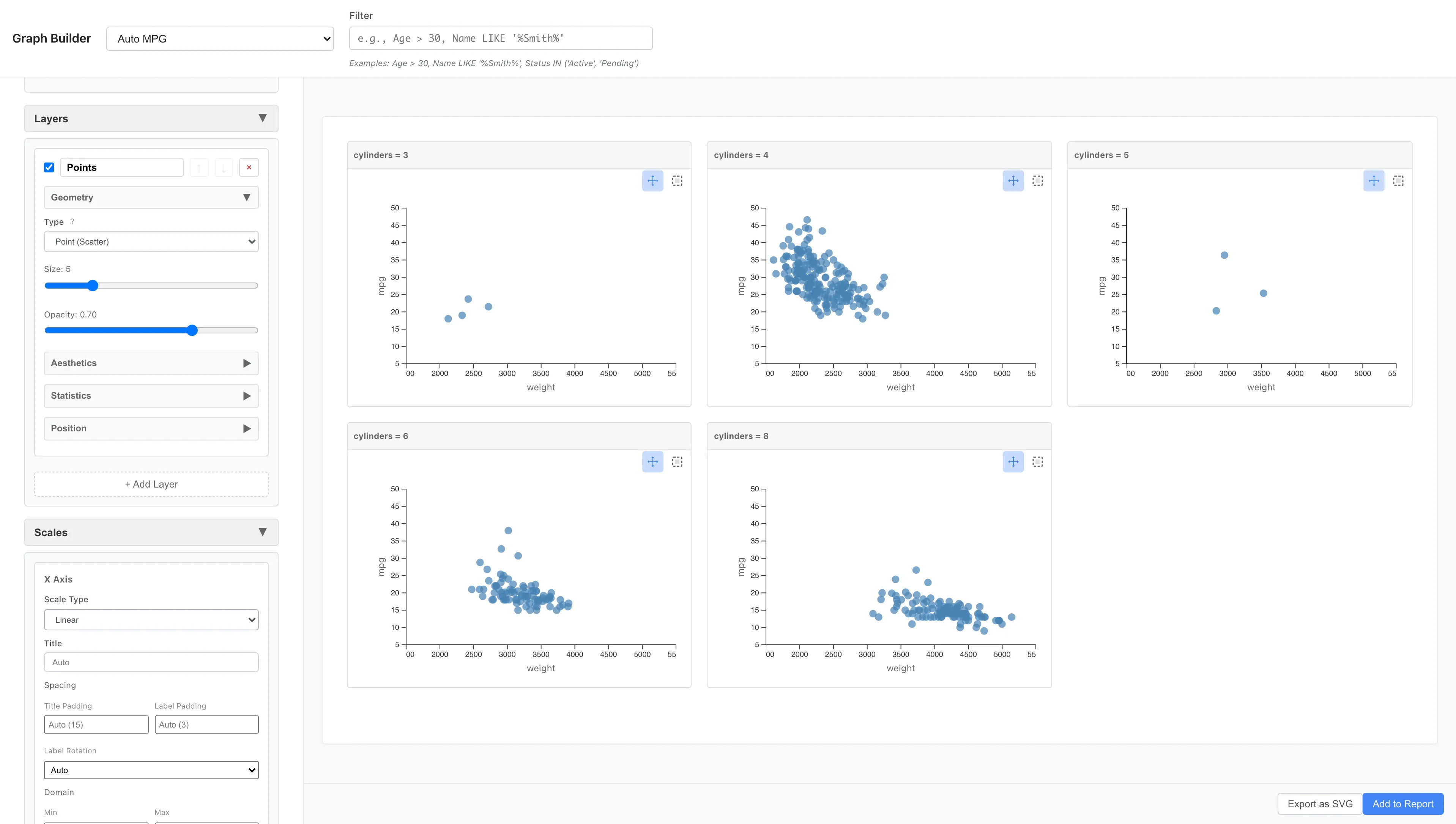
You can compare the weight-fuel efficiency relationship side by side for 4-cylinder, 6-cylinder, and 8-cylinder cars. 8-cylinder cars are generally heavier and concentrated in the poor fuel efficiency range.
As another example, you can also divide by origin:
Aesthetics: x = weight, y = mpg
Geometry: Point
Facets: Type = Facet Wrap (Single Variable)
  Variable = origin
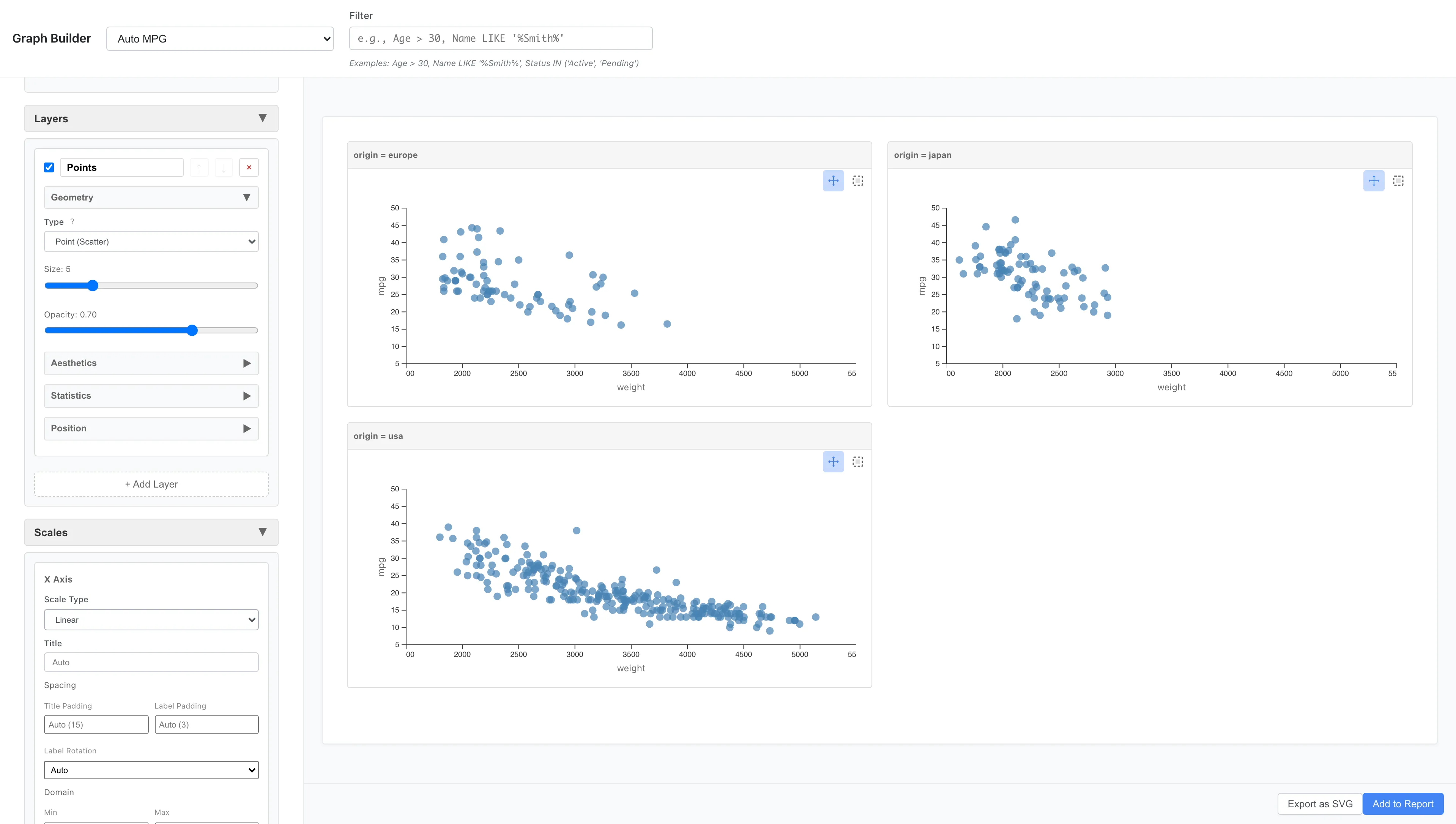
The data is split into one panel per origin (europe, japan, usa), and the panels are placed automatically in a grid as close to square as possible. Three panels become 2 columns × 2 rows. To arrange them in a single row, set Columns to 3.
Facet Wrap has options to control panel arrangement:
- Variable: Variable to use for division
- Columns: Number of panels per row
- Rows: Number of rows
- Scales: How axis scales are shared across panels
Fixed (the default) under Scales uses the same axis range for all panels; Free X / Free Y / Free give each panel its own axis range. If only Columns is specified, row count is calculated automatically. If only Rows is specified, column count is calculated automatically. If both are omitted, optimal arrangement is calculated based on panel count.
Facet Grid - Matrix Division
Facet Grid arranges panels along rows and columns using one or two variables.
Facets: Type = Facet Grid (Two Variables)
  Rows = origin
  Columns = cylinders
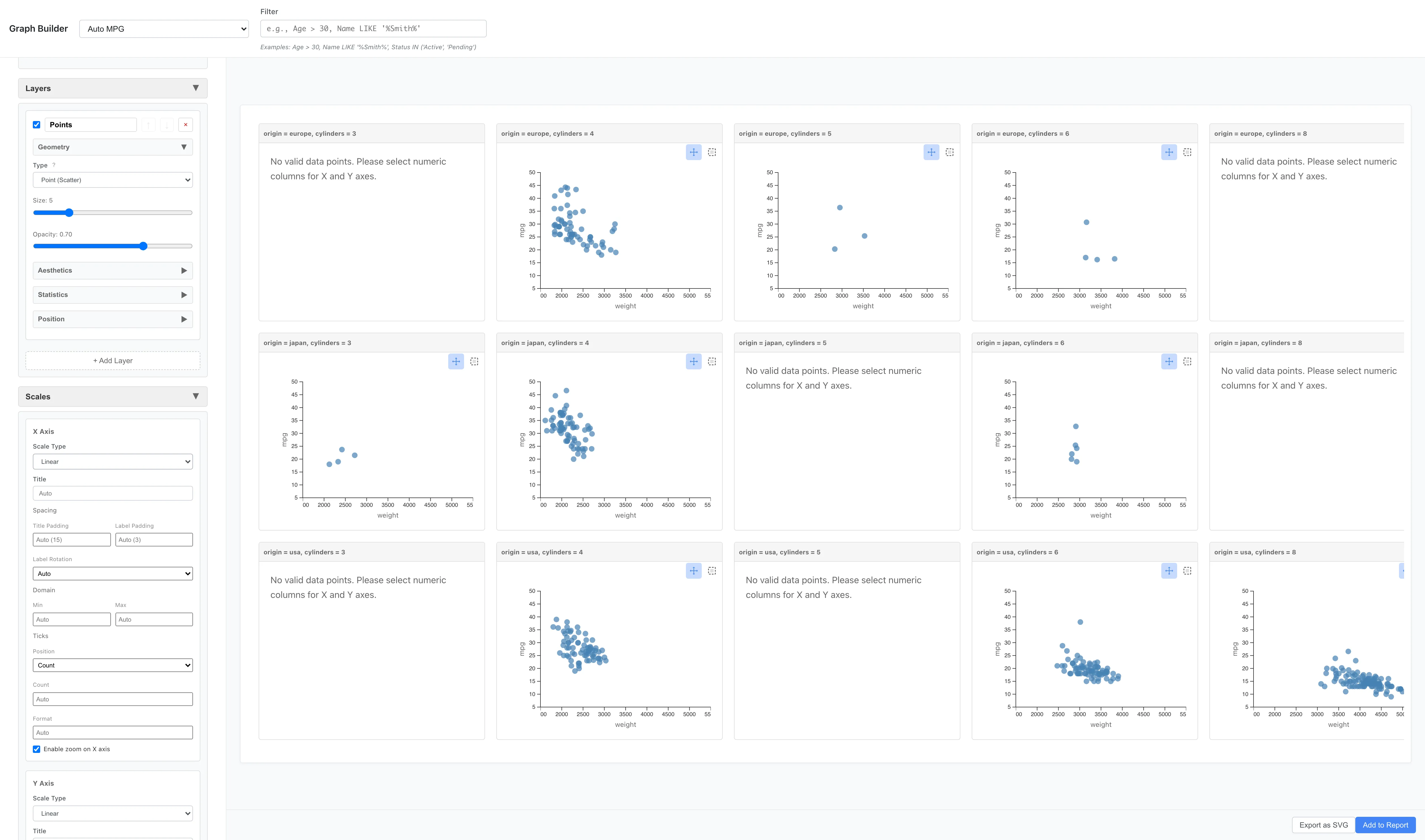
Graphs are arranged for each combination of cylinder count and origin.
Scales - Scale Control
Logarithmic Scale
Logarithmic scale is effective when comparing data by ratios or when distributions are heavy-tailed.
Scales: x = log
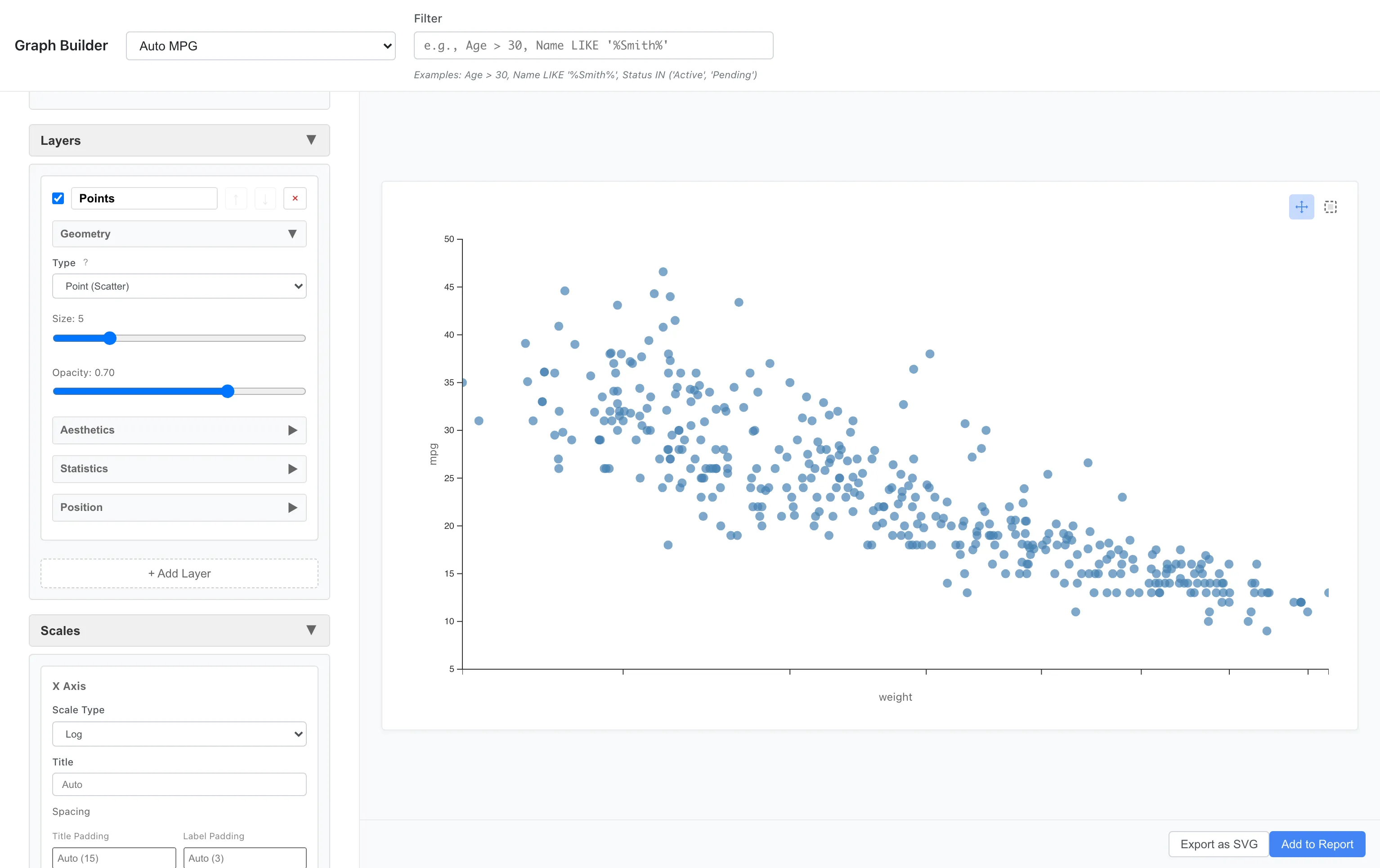
The logarithm is not defined for values of zero or below, so applying it to a column that contains such values suppresses the plot and shows an error identifying the affected axis, column name, and count.
Color Scale
You can specify which colors to use with color scales.
Different palettes are available for continuous and categorical variables. See Custom Graph Reference for the full list.
Sequential and Diverging scales work only with numeric columns. The scale type selector appears in the Color and Fill aesthetic settings. When one is selected for a non-numeric column, MIDAS gives priority to the column type, renders the aesthetic with a categorical scale, and shows a warning. When a Diverging palette is also selected, the palette is incompatible with the categorical scale, so an error is shown and the graph is not rendered.
For a Sequential or Diverging scale, the legend is a gradient bar with tick marks. The ticks map the colors on the bar to values, so the value behind a color in the graph can be read from the legend.
Assigning a continuous scale to Line, Area, Step, or Ribbon turns the color into a gradient along a single line or area. The line or area is not split by value. See the Custom Graph reference for details.
Here we change the measurement scale of cylinders to Ordinal before plotting. You can change the scale by right-clicking a column in Data Table and choosing Edit Scale of Measurement.
Aesthetics: x = weight, y = mpg, color = cylinders
Scales: Palette = Viridis
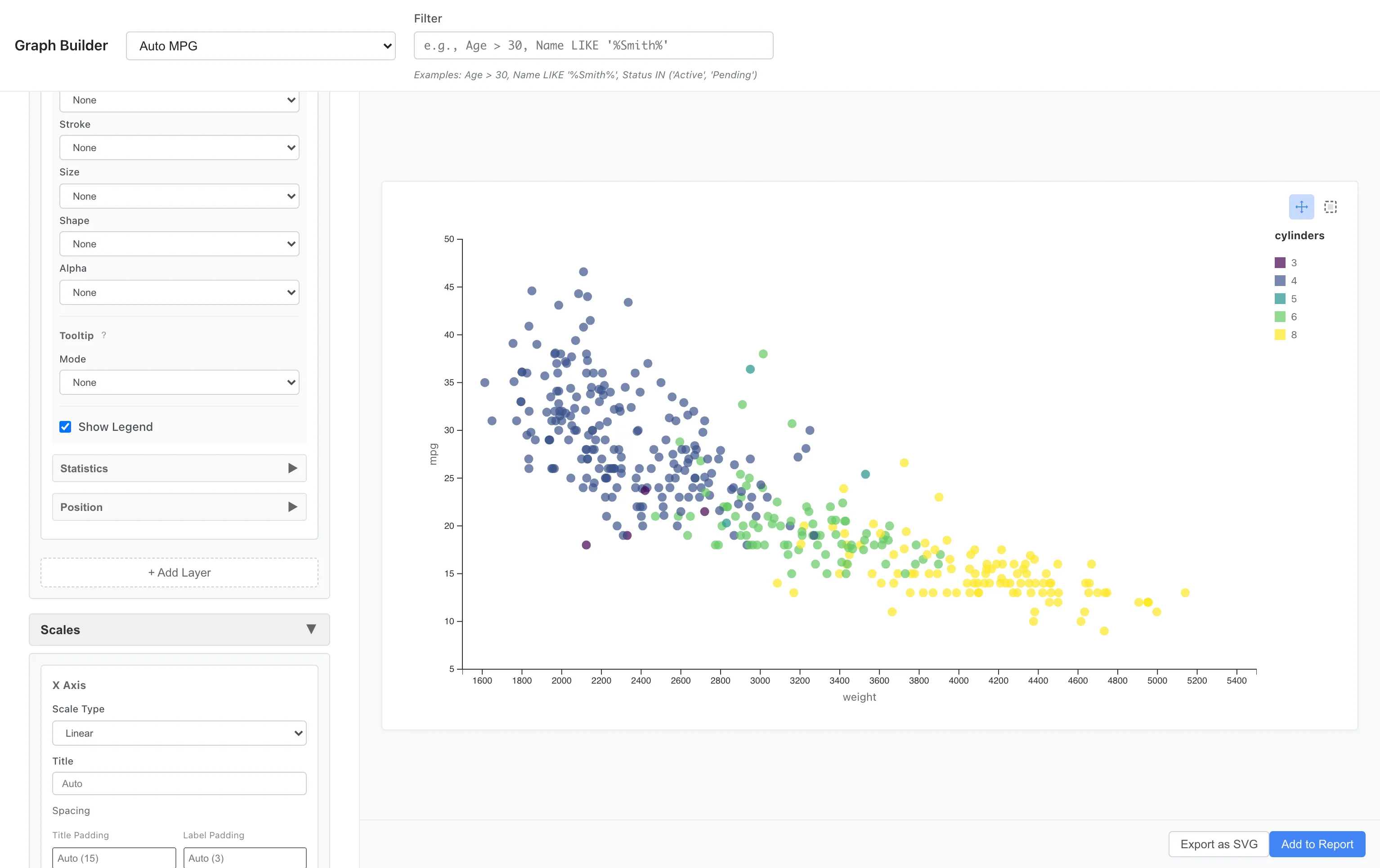
Viridis is a perceptually uniform palette that accommodates color vision diversity. When applied to an ordinal variable like cylinders, it samples the palette evenly across the full range for the number of categories, so lightness changes monotonically along the order. Plasma, Inferno, and Magma offer the same property.
Category order depends on the column type. Numeric columns are sorted in ascending numeric order, enum columns follow the enum definition order, and all other columns are sorted as strings in ascending order.
Shape and Linetype Scales
For shape and linetype you choose which markers and line styles are assigned to categories. The settings appear in the layer's Aesthetics section. The first entry in the list goes to the first category.
Aesthetics: x = weight, y = mpg, shape = origin
Scales: Shapes = Square, Triangle, Diamond
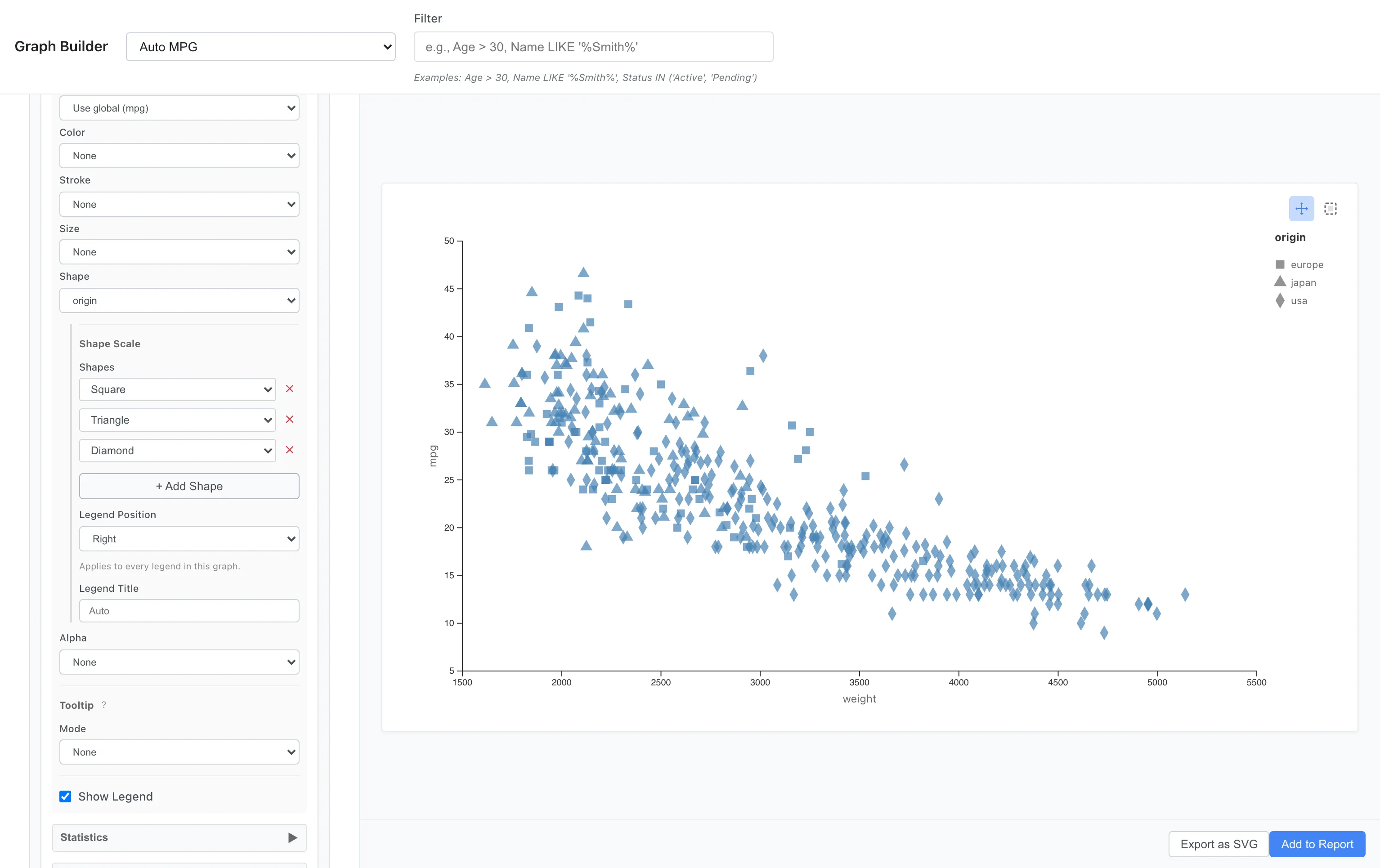
When there are more categories than assigned shapes, the shapes repeat from the start of the list. Different categories are then drawn with the same shape and cannot be told apart, so this situation is reported as a warning above the graph. The same warning appears when the list assigns one shape to more than one row, because the categories in those rows also share a shape. Linetype behaves the same way, and only Solid, Dashed, and Dotted exist, so four or more categories cannot be drawn apart by linetype.
The legend title can be set separately for shape and linetype. When it is unset, the column name is used.
Size and Alpha Scales
For size and alpha you specify the range of drawn values with a minimum and a maximum. The column minimum maps to the range minimum, and the column maximum to the range maximum. The defaults are 2px to 20px for size and 0.2 to 1 for alpha. On Text layers the range sets the font size in pixels; when it is unset, the font size runs from 8px to 24px.
Aesthetics: x = weight, y = mpg, size = horsepower
Scales: Size Range = 4, 30
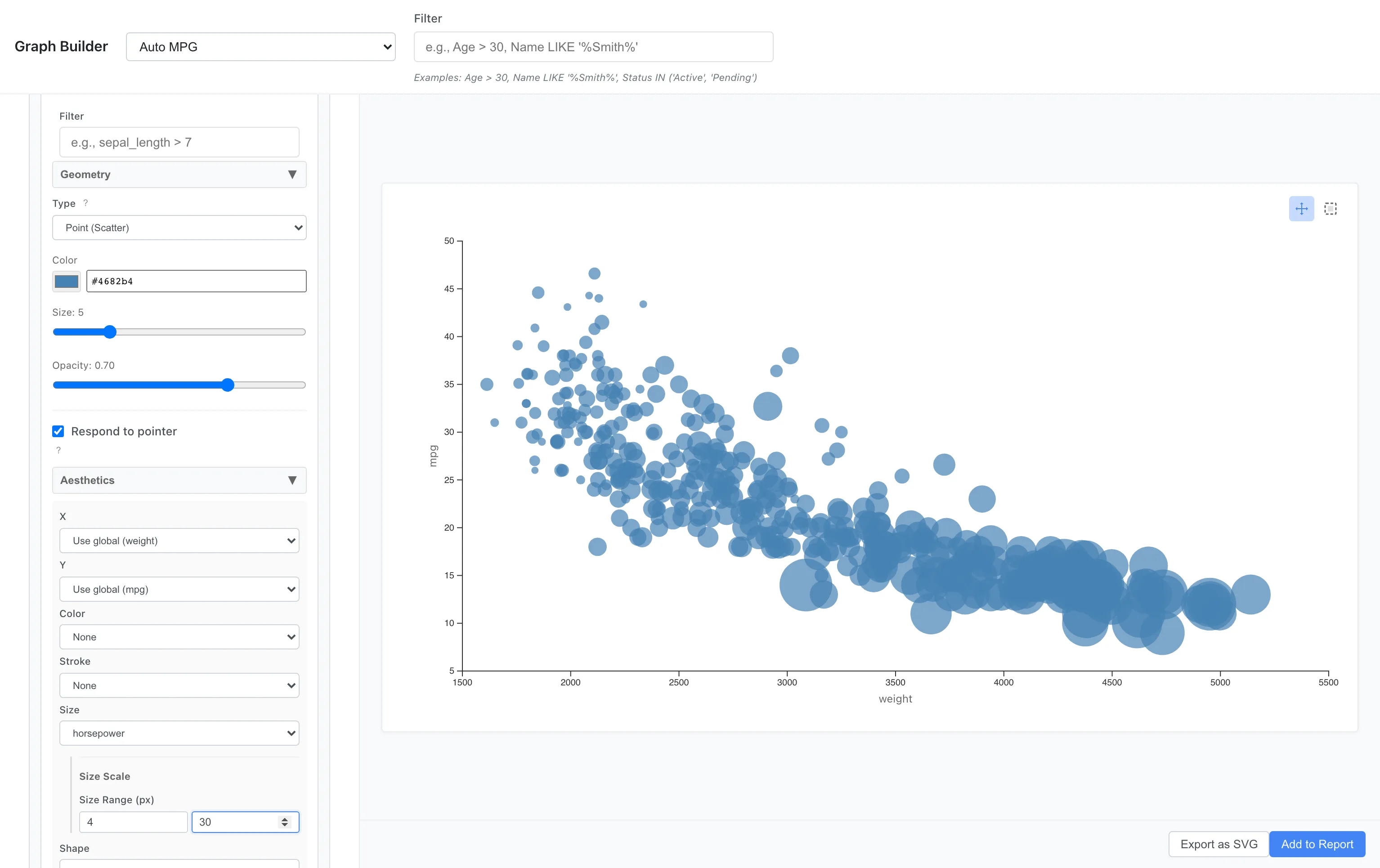
MIDAS draws no legend for size or alpha. To read the value behind an individual point, set the Tooltip Mode to Custom and add that column as a field.
Geometry/Statistics Reference
See Custom Graph Reference for a complete list of Geometries and Statistics.
See also
- Custom Graph Reference - Complete list of Geometries and Statistics
- The Graph Builder Tab - Basic graphs like Histogram, Scatter Plot, and Bar Chart
- Report - Combine graphs and tables into a report
Also available as a Markdown file.