The Reshape Tab
Convert data between Wide format and Long format. Use this to restructure data layouts to match the requirements of different analysis methods.
Basic Usage
Opening Reshape
Select Data > Reshape (Wide/Long)... from the menu bar to open a new Reshape tab.
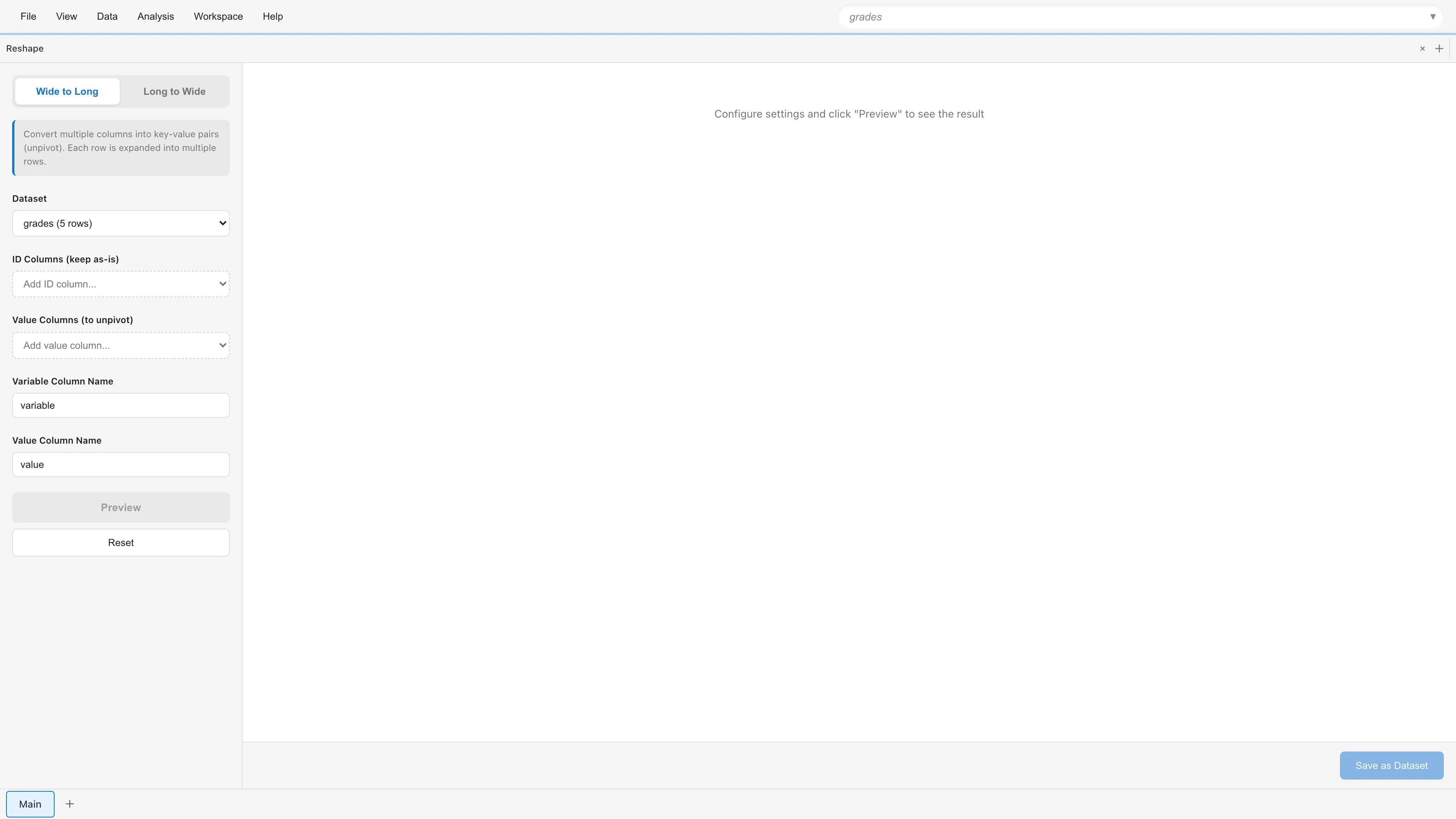
The screen consists of a settings panel on the left and a preview area on the right. Switch between Wide to Long and Long to Wide using the tabs at the top of the settings panel.
Sample Data Used in This Page
The examples on this page use a grades dataset (grades.csv) containing test scores for 5 students. Each subject has its own column in Wide format.
| name | math | science | english |
|---|---|---|---|
| Alice | 90 | 85 | 88 |
| Bob | 75 | 92 | 80 |
| Carol | 88 | 78 | 95 |
| Dave | 92 | 88 | 82 |
| Eve | 78 | 95 | 90 |
Wide to Long
Collapse multiple columns into a single column (unpivot). Each row expands into multiple rows.
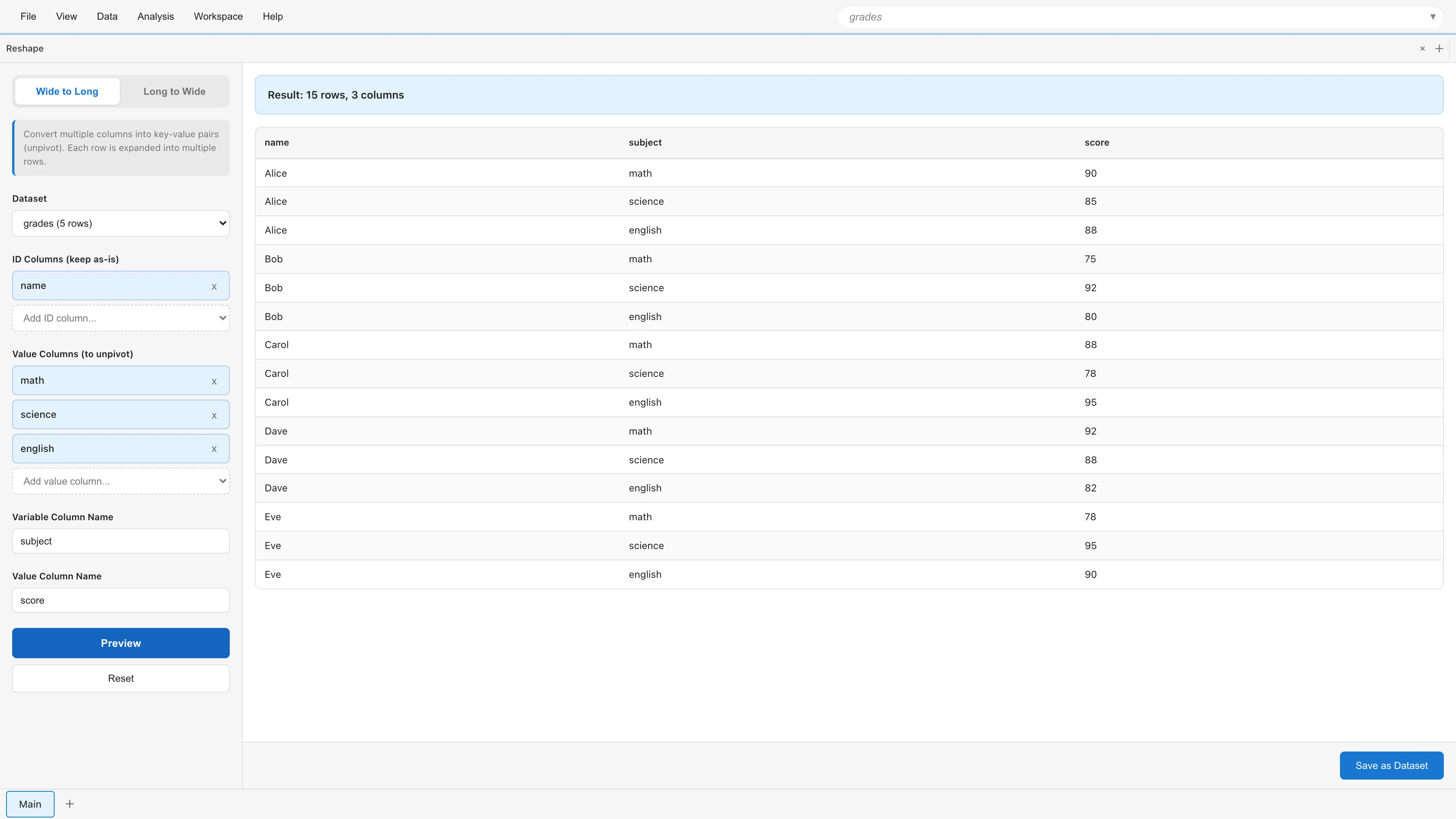
For example, convert the grades data above into a "one row per subject" format. The result looks like this:
| name | subject | score |
|---|---|---|
| Alice | math | 90 |
| Alice | science | 85 |
| Alice | english | 88 |
| Bob | math | 75 |
| ... | ... | ... |
This example sets Variable Column Name to subject and Value Column Name to score. Running with the defaults produces columns named variable and value.
Parameters
Dataset - Select the dataset to transform.
ID Columns (keep as-is) - Select columns to preserve through the transformation. These values are repeated in each expanded row. In the example above, name is the ID column. Optional. If omitted, the result contains only the Variable and Value columns.
Value Columns (to unpivot) - Select columns to unpivot. In the example above, math, science, and english. At least one column is required.
Variable Column Name - Name for the new column that holds the original column names. Defaults to variable.
Value Column Name - Name for the new column that holds the values. Defaults to value.
Click Preview to see the result.
Long to Wide
Convert Long format data to Wide format (pivot). Multiple rows are collapsed into a single row.
Use this for the reverse of Wide to Long, or to arrange aggregated results into a tabular layout.
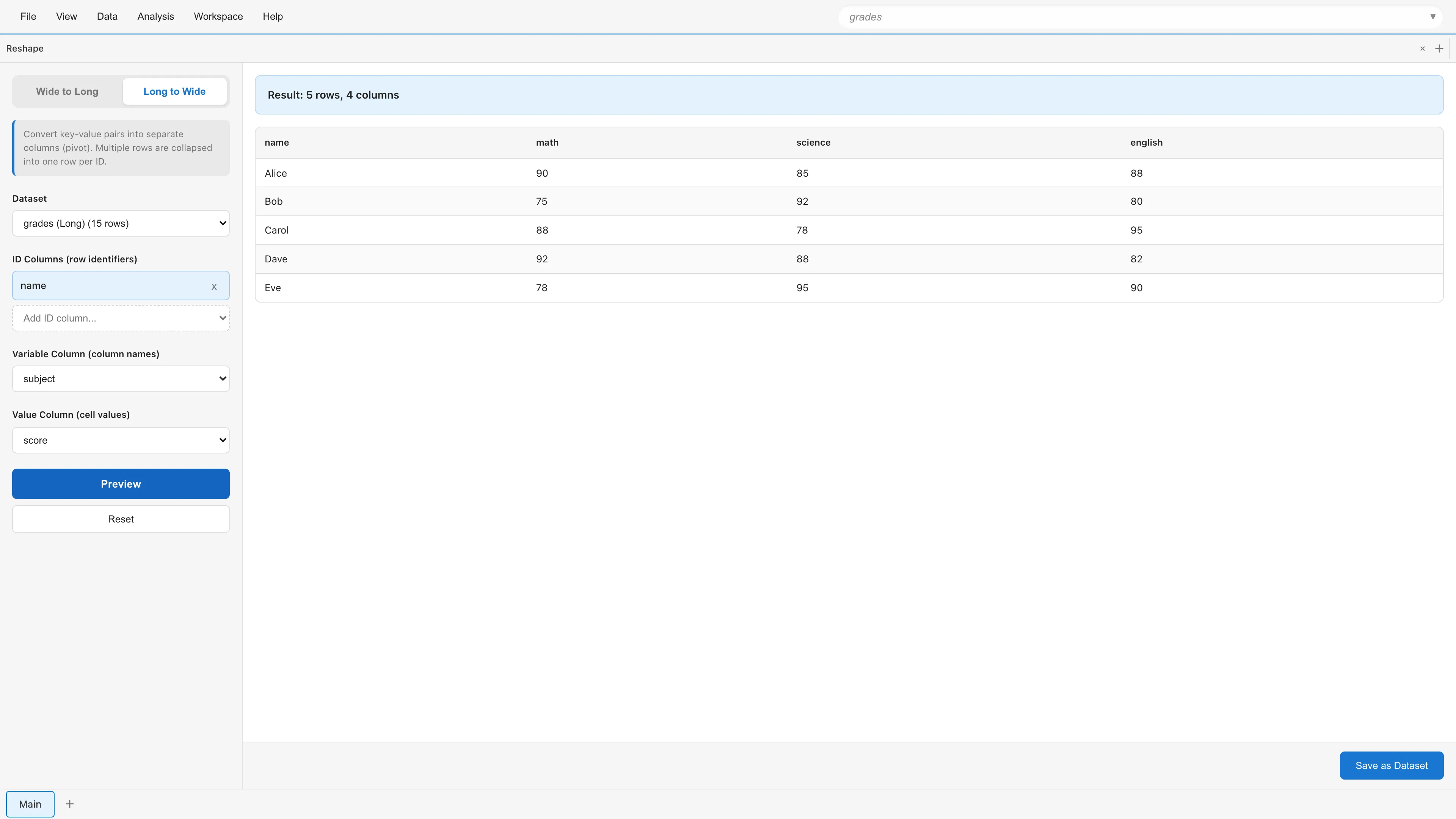
For example, convert the Wide to Long result above back to Wide format.
Input data in Long format:
| name | subject | score |
|---|---|---|
| Alice | math | 90 |
| Alice | science | 85 |
| Alice | english | 88 |
| Bob | math | 75 |
| ... | ... | ... |
Set Variable Column to subject and Value Column to score. The unique values in subject (math, science, english) each become a new column.
Result:
| name | math | science | english |
|---|---|---|---|
| Alice | 90 | 85 | 88 |
| Bob | 75 | 92 | 80 |
| ... | ... | ... | ... |
Parameters
Dataset - Select the dataset to transform.
ID Columns (row identifiers) - Select columns to preserve through the transformation. Rows with the same ID values are collapsed into a single row. In the example above, name is the ID column. Optional. If omitted, all rows are treated as a single group, producing one row when the variable values do not repeat.
Variable Column (column names) - Select one column whose unique values become new column names. In the example above, subject is the Variable Column.
Value Column (cell values) - Select one column whose values fill the new columns. In the example above, score is the Value Column.
Any column not assigned to ID Columns, Variable Column, or Value Column is not included in the result. To keep auxiliary columns such as grouping variables, add them to ID Columns.
Preview and Save
Click Preview to check the result. The preview shows up to 100 rows along with the total row and column counts.
When the result looks correct, click Save as Dataset. Enter a dataset name and save to create a new derived dataset.
Editing Saved Datasets
Existing Reshape datasets can be edited. Right-click a dataset in the Project Lineage tab, or open the dataset menu (⋮) in Project Overview, and select Edit Operation... to open Reshape in edit mode with the mode, source dataset, and column settings restored.
In edit mode, if other datasets, models, or reports depend on this dataset, a warning is displayed showing the type and count of affected items. Changing the source dataset carries over the settings of columns that exist in the new source under the same name. Settings for columns that are missing are removed and listed in a notice. Click Preview, then Update Dataset to apply the changes. Derived datasets that depend on this dataset are recalculated the next time their data is needed, and dependent models are automatically re-estimated.
If the transformation is changed from another path such as another edit tab or the Agent API between the time this tab opens and the time you click Update Dataset, MIDAS stops the save and shows a dialog. This keeps the earlier change from being lost without warning. The dialog shows the transformation as it was when the tab opened next to the version changed elsewhere since then. Choose Overwrite with This Tab's Edits to save the edits in this tab over the version changed elsewhere. Choose Keep Editing to return to the edit tab without saving; the edits stay in place, and saving again shows the same dialog.
Notes
- In Wide to Long, if Value Columns have different data types, the resulting value column type depends on the combination. A mix of int64 and float64 is promoted to float64, and a mix of date and datetime is promoted to datetime. Any other combination, such as numeric and string columns, is converted to string type. When all selected columns share the same type, that type is preserved
- In Long to Wide, duplicate combinations of ID columns and variable column cause an error. If the data has a column that distinguishes the duplicate rows, add it to ID Columns to expand them as separate rows. If no such column exists (for example, when no ID columns are specified and the variable column values repeat), aggregate the data in The SQL Query Editor Tab before converting
- In Long to Wide, missing combinations result in null values
- The row number column (
Row #) does not appear in any column list. A row number identifies a single row within a dataset and is not a data value. As an ID column in Wide to Long, it would give one number to several rows of the result. As an ID column in Long to Wide, it would collapse no rows, because every row has a different number. To use the original row numbers as an ID, copy them to a regular column in The SQL Query Editor Tab first, for example withSELECT "Row #" AS source_row, * FROM ..., and then convert - A Reshape dataset saved with the row number column in its column settings fails when it is evaluated. Open it in edit mode as described in Editing Saved Datasets, remove the row number column from the column settings, check the result with Preview, and click Update Dataset to resolve the error
See also
- Datasets - Differences between Primary and Derived Datasets
- The SQL Query Editor Tab - Advanced data transformation with SQL
- Data Table - Viewing and manipulating data
Also available as a Markdown file.