Storage Management
MIDAS saves projects to your browser's storage. The Storage Management screen lets you view and delete saved projects, and check how much storage is in use.
Open the Storage Management Screen
In the top-right of the launcher screen header, click the rightmost of the three icons—the storage icon, which looks like a panel with horizontal lines. The Storage Management screen opens. Click the Back button in the top-left corner to return to the launcher.
View Saved Projects
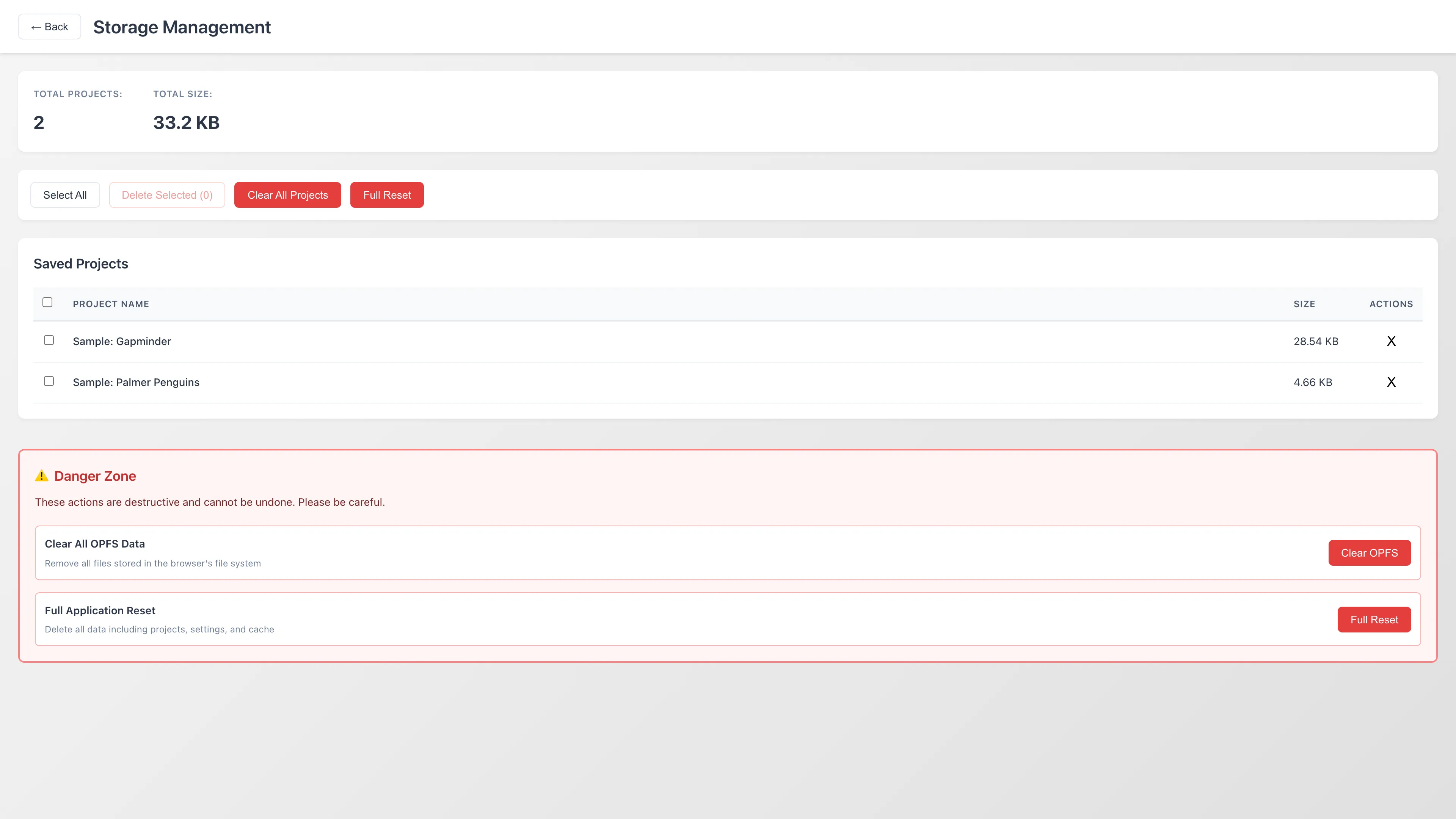
The summary at the top of the screen shows the total number of saved projects and their combined size.
The table below lists each project by name and file size.
The displayed size is the size of the project file saved in the browser, which is the actual storage consumption. When MIDAS saves a project, it writes the row data of datasets as Parquet files compressed with Zstandard (zstd) and packs them into a single zip together with the project definition. Because the zip does not compress the files inside it again, the displayed size is the total of the compressed Parquet files and the definition. For the file structure, see MDS Files.
Delete Projects
Deleted projects cannot be recovered. Export important projects as MDS files before deleting. To export, open the project and run File > Export Project... in the project screen.
All delete operations show a confirmation dialog. Full Application Reset requires an additional confirmation step.
Delete a Single Project
Click the X button on the project's row in the project list. A confirmation dialog appears. Click Delete to confirm.
Delete Multiple Projects
- Select projects using the checkboxes. Use Select All to select all projects
- Click Delete Selected
- Click Delete in the confirmation dialog to remove the selected projects
Danger Zone
The Danger Zone at the bottom of the screen contains bulk data deletion operations. MIDAS stores your project data, signing keys, and settings in browser storage. See Privacy and Security for details on storage locations.
Clear All Projects
Deletes all saved projects. Your signing keys and settings are not affected by this operation and are kept.
Full Application Reset
Deletes all MIDAS data: project data, signing keys, settings, and the files downloaded for offline use. Requires two-step confirmation.
Before running a reset, back up your signing keys using the steps in Managing Signing Keys. Signing keys are used to verify authorship and detect tampering in exported MDS files, so without a backup you will no longer be able to sign exports with your previous key.
After reset, MIDAS returns to its initial state as if opened for the first time. The files for offline use are also deleted, so MIDAS is unavailable offline until you next open it online and the download finishes.
Comparison of Delete Operations
| Operation | Projects | Signing keys | Settings | Offline files |
|---|---|---|---|---|
| Clear All Projects | Deleted | Kept | Kept | Kept |
| Full Application Reset | Deleted | Deleted | Deleted | Deleted |
Browser Storage Limitations
MIDAS data is stored in browser storage scoped to the app.midas-app.org origin.
- Capacity: The browser sets a storage quota per origin. The quota varies by browser and available disk space. Check current usage in the Storage Management summary. When the quota is exceeded, saving a project fails with an error. Delete unneeded projects to free up space
- Data isolation: Other sites and browser profiles cannot access your data
- Data persistence: When you save a project, MIDAS requests persistent storage from the browser. If granted, the browser will not automatically evict your data even when storage is under pressure. However, clearing site data for
app.midas-app.orgin your browser settings deletes all MIDAS data. Clearing only cookies or cache does not affect MIDAS data
See also
- Project Management - Manage resources within a project
- MDS Files - Export and file format for projects
- Managing Signing Keys - Back up signing keys before Full Application Reset
- Privacy and Security - Data storage and security details
Also available as a Markdown file.