The PCA Tab
The PCA tab performs principal component analysis. PCA summarizes many variables into fewer composite variables (principal components) ordered by how much variance they capture. Use it to explore correlation structures among variables or to reduce dimensionality. PCA is a different method from factor analysis: PCA constructs composite variables that preserve as much of the variance of the observed variables as possible, while factor analysis posits latent factors behind the observed variables and estimates them. MIDAS does not include factor analysis.
MIDAS computes principal components via eigenvalue decomposition of the covariance matrix.
Basic Usage
Opening PCA
Select Analysis > Principal Component Analysis... from the menu bar to open a new PCA tab.
Setting Up Variables
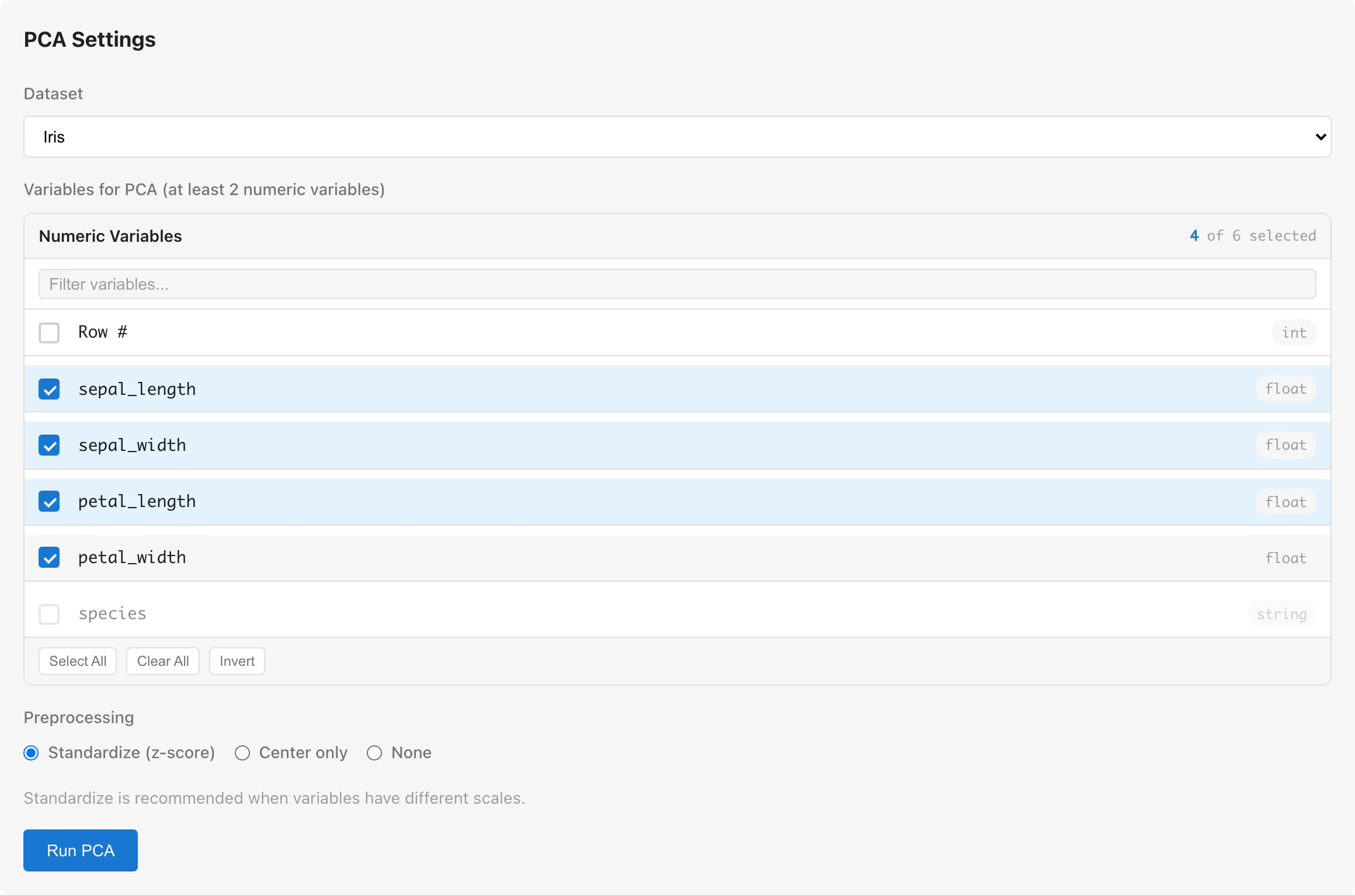
Dataset selects the dataset to analyze.
Variables for PCA selects the variables for the analysis. Numeric columns whose measurement scale is interval or ratio, and boolean columns, are selectable. Boolean values are treated as 0/1. All other columns are grayed out with a tooltip indicating that conversion is required. At least 2 variables are required.
Convert nominal categorical variables to dummy variables with Dummy Coding first. To treat an ordinal column such as a Likert scale as a continuous variable, regarding the intervals between categories as equal, change its measurement scale to interval. For numeric columns, right-click the column header in the Data Table and select Edit Scale of Measurement. Convert string and enum columns to a numeric type with The Convert Column Types Tab first. Whether the intervals can be regarded as equal is the analyst's judgment. See Data Types and Measurement Scales for details.
Preprocessing selects the preprocessing method.
| Option | Description |
|---|---|
| Standardize (z-score) | Subtract the mean and divide by the standard deviation for each variable (default) |
| Center only | Subtract the mean for each variable |
| None | No variable transformation |
Select Standardize when variables have different scales (different units or value ranges). Without standardization, variables with larger ranges dominate the principal components. Center only or None is appropriate when all variables share the same unit and similar scales.
Regardless of the preprocessing choice, the mean is subtracted internally when computing the covariance matrix and principal component scores. With None, variable scales are therefore unchanged, but the eigenvalues, loadings, and component scores are identical to Center only. With Standardize, the loadings and variance ratios match those of correlation-matrix-based PCA. Standardization divides by the standard deviation computed with in the denominator, while the covariance matrix uses the unbiased estimate dividing by , so the eigenvalues are times the eigenvalues of the correlation matrix. Center only and None use the covariance matrix on the original scale.
Number of Components sets the maximum number of principal components to keep. Leave it empty to keep as many components as there are variables. With a limit, only the components with the highest variance ratios, up to that number, remain in the results. A limit larger than the number of selected variables is treated as the number of variables, so all components are kept. The variance ratios and cumulative variance ratios are computed from the variance of all components regardless of the limit, so their values do not change. Use it when there are many variables and the score and loading tables become wide.
Click the Run PCA button to run the analysis.
Changing the variable selection, the preprocessing, or the component limit after a run makes the displayed results no longer belong to the current settings. MIDAS removes those results from the view and shows a message asking you to run the analysis again. Restoring the previous settings brings the results back. Changing Dataset also resets the variable selection, so the results are discarded instead. The axis selection of the score plot is a display setting, so changing it keeps the results.
The displayed results also stop belonging to the current data when the dataset used for the analysis changes after a run. Reloading the dataset, editing cells, and changing an upstream dataset all count as such changes. MIDAS removes the results from the view and shows a message saying the dataset was modified. In this case there is no setting to restore, so run the analysis again to get results for the current data.
Understanding Results
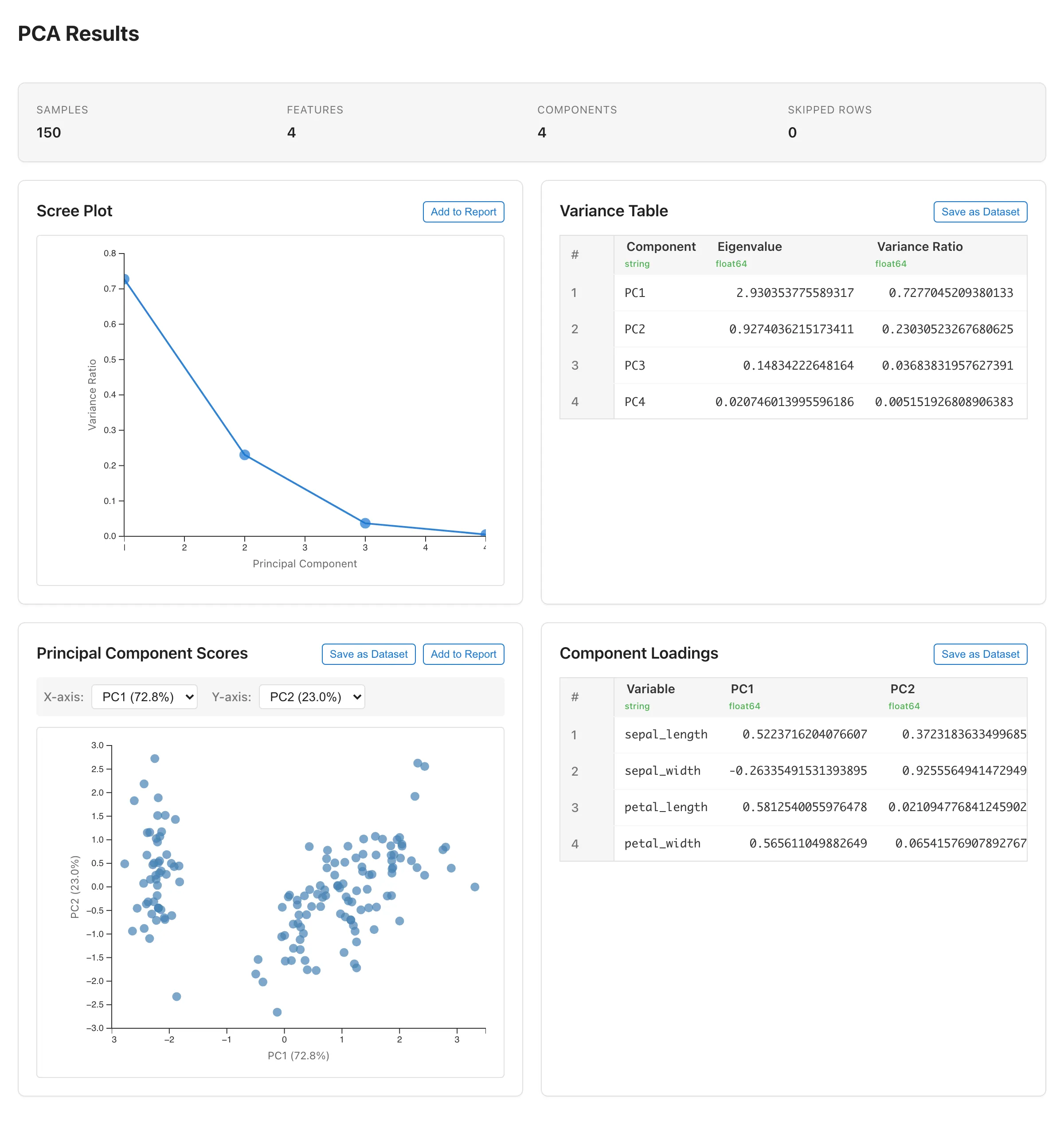
Summary
Displays an overview of the analysis.
| Field | Description |
|---|---|
| Samples | Number of rows used |
| Variables | Number of selected variables |
| Components | Number of retained principal components. When a limit is set with Number of Components, it is shown as "retained of total", where total is the number of variables |
| Skipped Rows | Rows excluded due to missing or invalid values |
Scree Plot
Shows the variance ratio (%) of each principal component as a line chart. The x-axis is the component number and the y-axis is the variance ratio.
The "elbow" — the point where the decline in variance ratio levels off — is one guide for choosing how many components to retain. A common reading is to retain the components before the elbow, where the variance ratio is still dropping steeply. Use it together with the cumulative variance ratio in the Variance Table. The elbow is a visual judgment and may not always be clear-cut.
Click Add to Report to add the chart to a report.
Variance Table
Displays the eigenvalue and variance ratio for each principal component.
| Column | Description |
|---|---|
| Component | Component number (PC1, PC2, ...) |
| Eigenvalue | Eigenvalue (amount of variance explained by the component) |
| Variance Ratio | Proportion of total variance explained (eigenvalue divided by the sum of all eigenvalues) |
| Cumulative | Cumulative variance ratio |
Click Save as Dataset to save as a dataset. The saved dataset opens in a Data Table tab.
Principal Component Scores
Displayed when there are 2 or more components. Plots each observation's principal component scores as a 2D scatter plot.
The X-axis and Y-axis dropdowns switch which components to display. Each option shows the variance ratio (e.g., "PC1 (45.2%)"). The default is X = PC1, Y = PC2.
Click Save as Dataset to save the scores of all retained components as a dataset. The saved scores can be used as input data in other analysis tabs (scatter plots, regression, etc.). Click Add to Report to add the chart to a report.
Component Loadings
Displayed when there are 2 or more components. Shows how each variable contributes to each principal component.
| Column | Description |
|---|---|
| Variable | Original variable name |
| PC1, PC2, ... | Loading on each component |
The loadings displayed by MIDAS are eigenvector elements (the weight of each variable in composing the component), not correlations between variables and components. Each eigenvector is normalized to unit length, so individual elements fall between -1 and 1. Variables with larger absolute loadings characterize the component more strongly. As a guide, if all variables contributed equally, each loading would have an absolute value of , where is the number of variables. Variables clearly above this level characterize the component. The sign indicates a positive or negative relationship with the component. To interpret what a component represents, look at the variables with large absolute loadings on it and read its meaning from what those variables have in common.
Click Save as Dataset to save as a dataset.
Notes
Automatic Exclusion of Missing and Invalid Values
Rows containing missing values (null), non-numeric values, or infinities are excluded automatically. The number of excluded rows is shown in the Summary. This exclusion is listwise deletion. With many variables, even a single missing value in any variable causes the entire row to be excluded, potentially reducing the usable sample size substantially. If the remaining rows are not representative of the original data, the covariance matrix estimate is biased, which in turn affects the directions and variance ratios of the principal components. See Missing Data Mechanisms for when listwise deletion is appropriate.
Sample Size and Estimation Stability
With samples and variables, the covariance matrix computed from centered data has rank at most . When , the eigenvalues of the extra components are 0. The fewer samples there are relative to the number of variables, the larger the sampling variability of the eigenvalues and loadings. Because excluding rows with missing values can reduce the number of rows used, check Samples in the Summary.
Eigenvector Sign Convention
Eigenvectors have inherent sign ambiguity (if is an eigenvector, so is ). MIDAS resolves this by making the element with the largest absolute value positive for each component. Component scores are computed from the sign-adjusted eigenvectors, so the signs of the scores flip together with the loadings.
Number of Components
MIDAS does not automatically select the number of components. By default it keeps as many components as there are variables, and when a limit is set with Number of Components it keeps up to that number. Use the Scree Plot and Variance Table to decide how many components are meaningful for your analysis.
See also
- The Statistics Tab - Examine distributions of individual variables
- Linear Regression - Analyze the effect of predictor variables on a specific response
- Dummy Coding - Convert categorical variables to numeric
- Missing Data Mechanisms - When listwise deletion is appropriate
- Reports - Collect graphs and statistical results
Also available as a Markdown file.