The SQL Query Editor Tab
Use SQL to filter, aggregate, and join data.
Overview
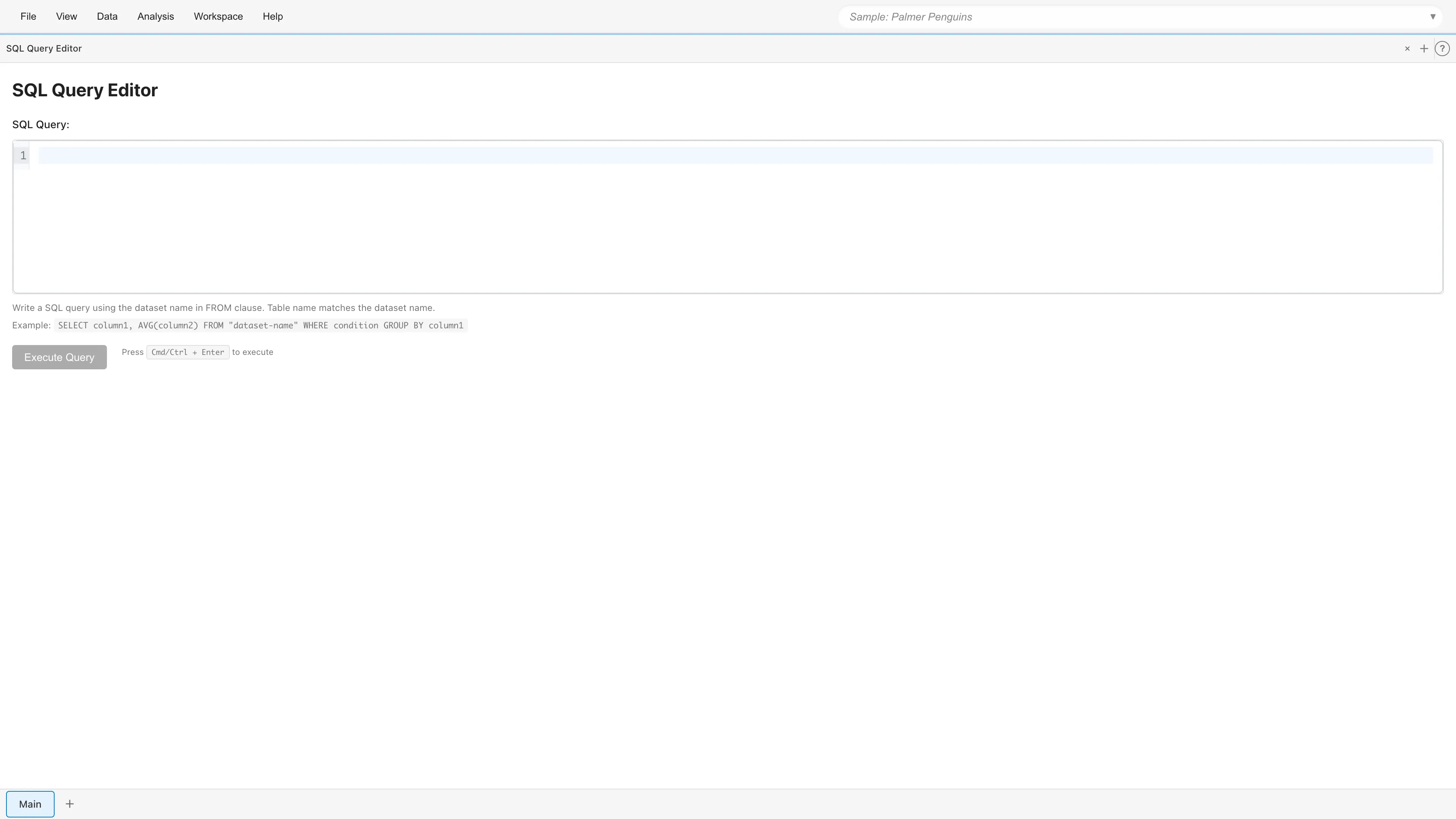
SQL Query Editor allows you to execute SQL queries against datasets in MIDAS and save the results as new datasets (derived datasets). It is useful for joining multiple datasets or filtering with complex conditions.
Basic Usage
Opening SQL Query Editor
Select Data > SQL Query Editor from the menu bar to open a new SQL Query Editor tab.
Running Queries
Enter a SQL query in the editor and click the Execute Query button, or press Cmd/Ctrl+Enter to execute.
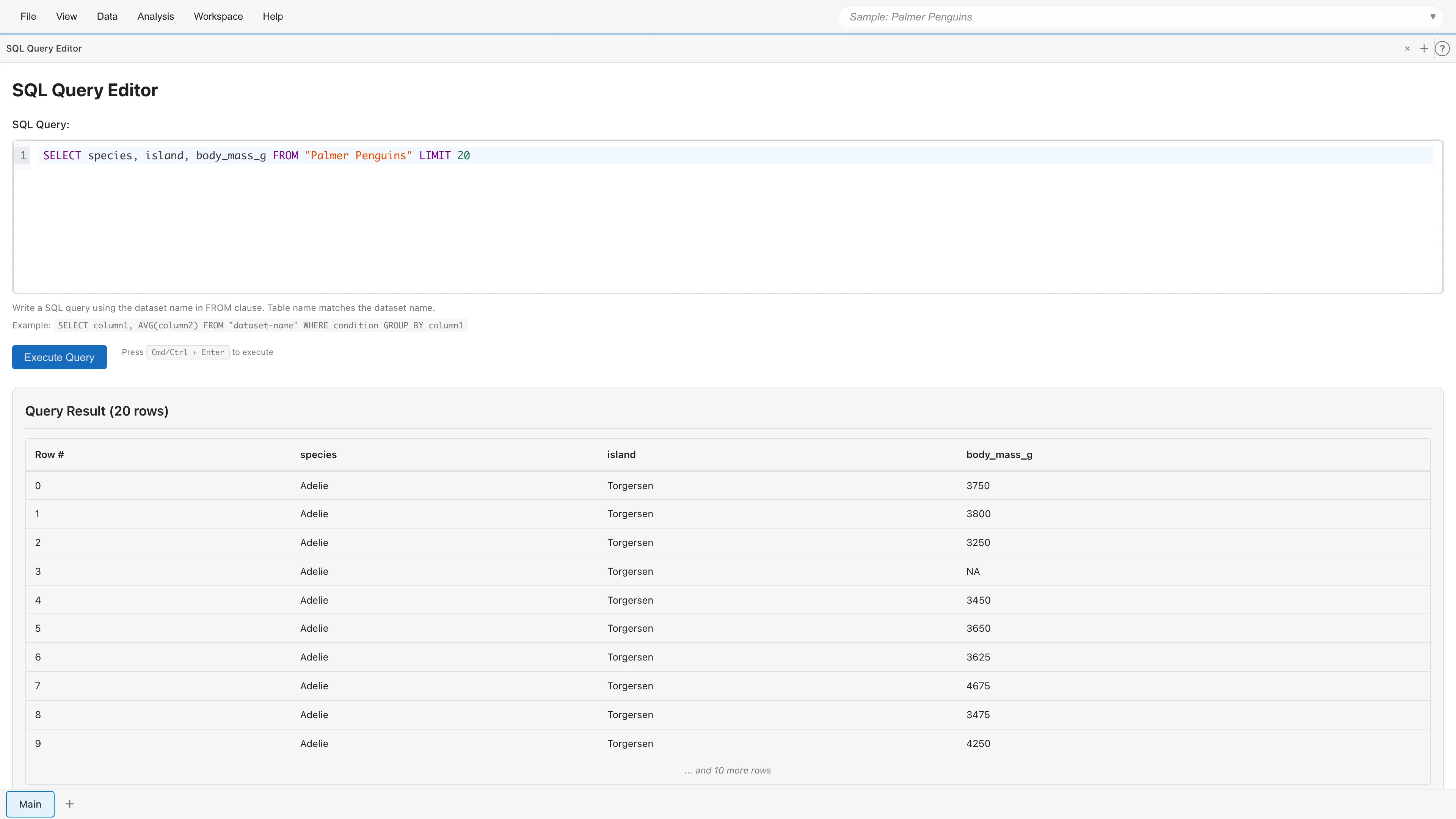
Results are displayed in the "Query Result" section. The header shows the total row count, and the first 10 rows are shown as a preview. The saved dataset contains all rows from the query result.
If the query contains an error, such as a syntax error or a nonexistent table or column name, an error message appears below the Execute Query button. Fix the query and run it again.
A query can succeed and still contain values that cannot be kept in the result. There are four kinds: non-finite values, such as those produced by division by zero; dates or timestamps outside the years 1-9999; integers outside the 64-bit integer range; and empty strings. They become null and appear as empty cells in the preview. When such values occur, a warning appears directly below the "Query Result" header showing the affected column names and value counts.
Cancelling a Query
While a query is executing, the Cancel Query button is displayed. Clicking this button cancels the query in this tab, along with SQL queries running in other tabs and derived dataset evaluations in progress. After cancellation, you can execute a new query.
A query that Cancel Query cannot stop is stopped with the Force Stop button. DuckDB accepts a cancellation only between units of work, so a query that spends a long time in a single unit of work does not receive it. If the query is still running 3 seconds after you click Cancel Query, the button changes to Force Stop. Force Stop restarts DuckDB to end the query. The next query you execute waits for DuckDB to start before it runs. A query that is waiting for its turn behind another DuckDB operation also does not stop with Cancel Query until that operation finishes, so Force Stop appears for it as well.
Restarting DuckDB cancels other running queries and makes operations in progress that use DuckDB fail. The operations that fail include saving or exporting the project, opening a project, and importing a data file. If any of these three kinds of operations is in progress when you click Force Stop, MIDAS shows the operations that will fail in a confirmation dialog instead of restarting DuckDB right away. Click Force Stop in the dialog to restart DuckDB, or click Cancel to close the dialog without restarting it. Run a failed operation again after the query has stopped.
Saving Results
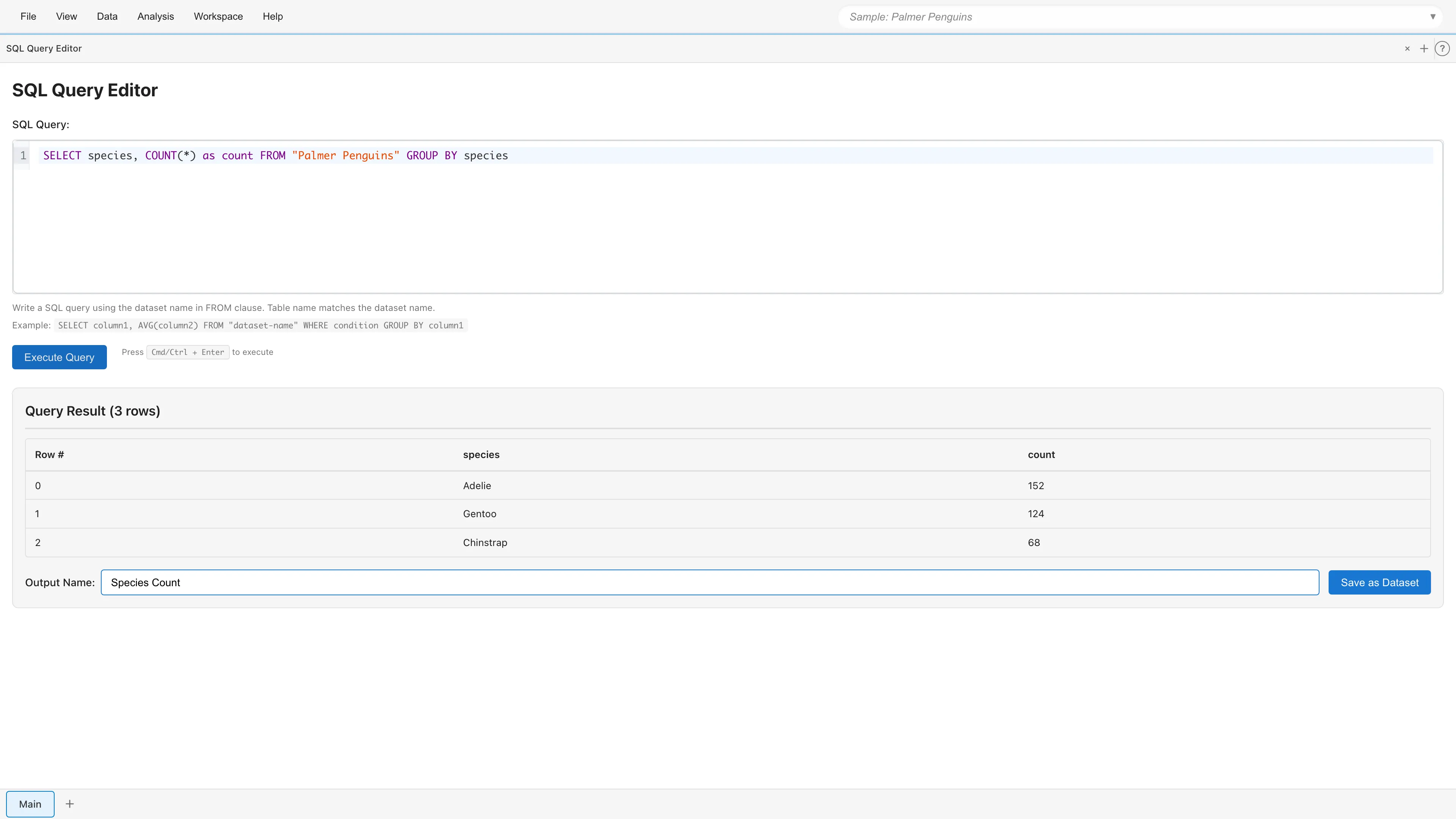
Save query results as a new dataset. Enter a name in the Output Name field and click Save as Dataset to add the derived dataset to your project.
If you enter the name of an existing dataset, a dialog appears and lets you choose to save under a suggested name with a number appended, enter a different name, or replace the existing dataset.
Writing Queries
Basic Query Examples
To retrieve specific columns, specify column names in the SELECT clause.
SELECT species, island, body_mass_g
FROM penguins
Use the WHERE clause to extract only rows matching conditions.
SELECT *
FROM penguins
WHERE body_mass_g > 4000
Combine GROUP BY with aggregate functions for group-level calculations.
SELECT species, COUNT(*) as count, AVG(body_mass_g) as avg_mass
FROM penguins
GROUP BY species
Use ORDER BY to sort results and LIMIT to restrict row count.
SELECT *
FROM penguins
ORDER BY body_mass_g DESC
LIMIT 10
Joining Multiple Tables
Use JOIN to combine multiple datasets.
SELECT a.*, b.category
FROM sales a
JOIN products b ON a.product_id = b.id
To concatenate datasets with the same column structure vertically, use UNION ALL. The number and types of the columns must match.
SELECT * FROM sales_2024
UNION ALL
SELECT * FROM sales_2025
Table Names
Datasets in your project can be referenced as SQL tables. Table names match dataset names, so write the dataset name directly in the FROM clause. You can check dataset names in Project Overview. If your project has no datasets yet, import your data first by following Data Preparation and Import.
SELECT * FROM penguins
Dataset names are case-insensitive. FROM penguins and FROM Penguins resolve to the same dataset. Names containing special characters like hyphens or spaces must be enclosed in double quotes.
SELECT * FROM "bike-sharing"
Supported SQL Features
MIDAS SQL Query Editor is based on DuckDB, a SQL database engine for analytical workloads, and supports standard SQL features.
- SELECT, FROM, WHERE, GROUP BY, HAVING, ORDER BY, LIMIT
- INNER/LEFT/RIGHT/FULL/CROSS JOIN
- Subqueries
- UNION, INTERSECT, EXCEPT
- Window functions (ROW_NUMBER, RANK, LAG, LEAD, etc.)
- WITH clause for CTEs (Common Table Expressions)
- CASE expressions
- Aggregate functions (COUNT, SUM, AVG, MIN, MAX, STDDEV, etc.)
See the DuckDB SQL syntax documentation for details.
Autocomplete
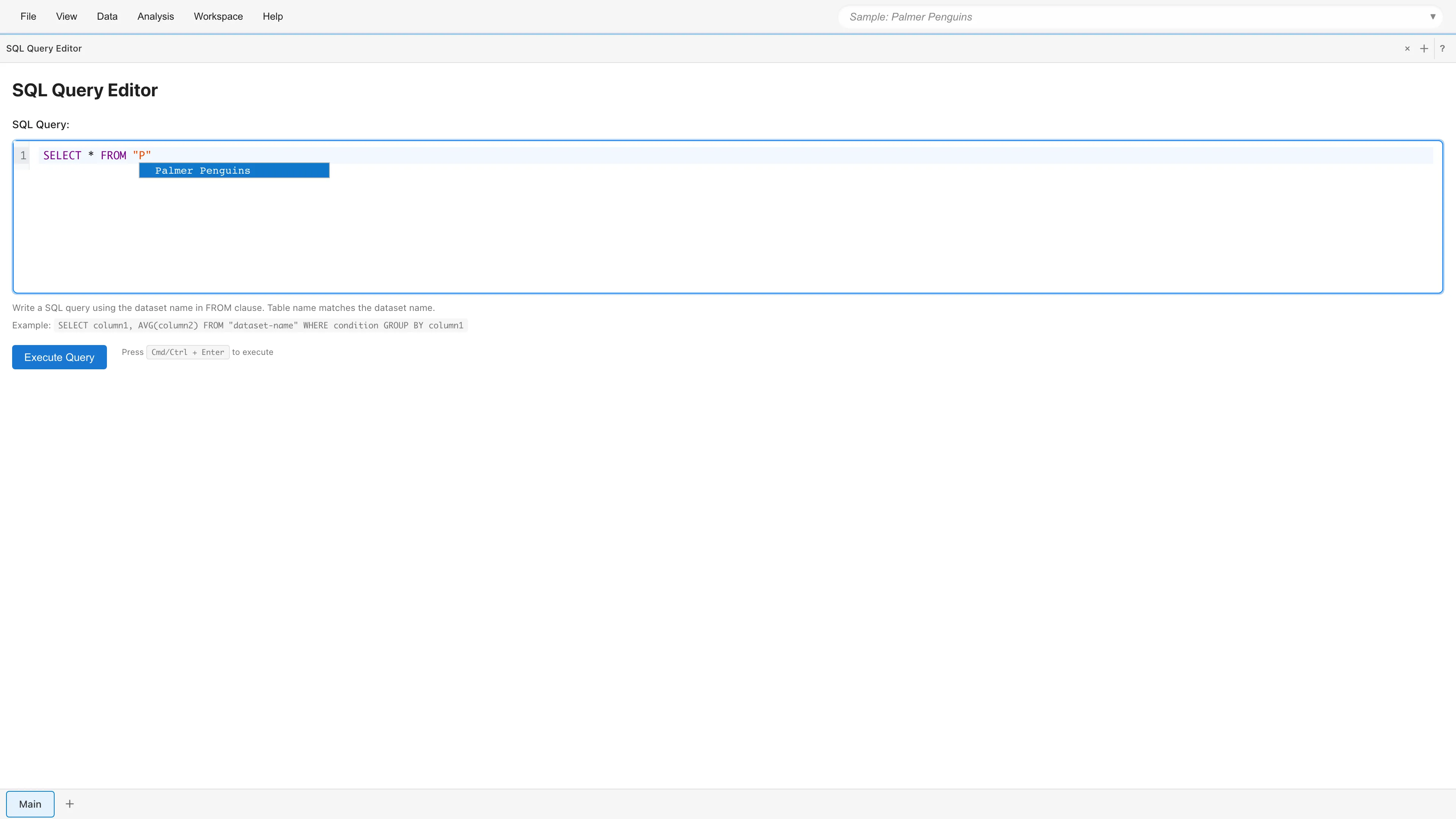
SQL Query Editor displays autocomplete suggestions as you type. The suggestions change depending on the cursor position.
- Dataset names appear immediately after FROM or JOIN.
- Column names appear elsewhere, based on the datasets referenced in FROM/JOIN. Column suggestions are shown together with SQL keywords (SELECT, FROM, WHERE, GROUP BY, and so on) and aggregate functions (COUNT, SUM, AVG, MIN, MAX).
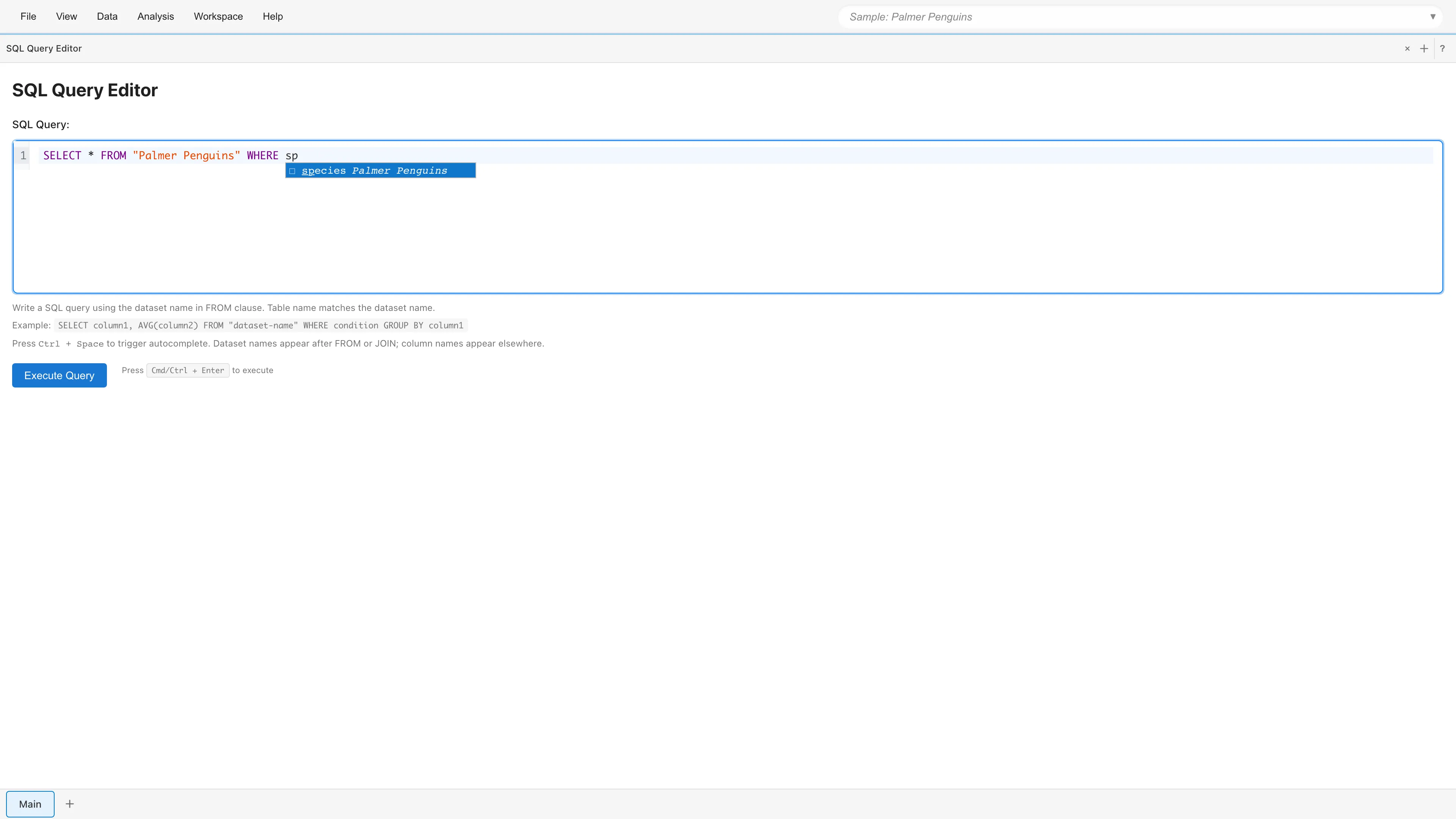
Table aliases and qualified names
Declare a table alias with FROM "dataset" AS t or the shorter form FROM "dataset" t. Typing the alias followed by a dot, such as t., shows only the columns of that dataset. SQL keywords are excluded from this list.
If you omit the alias, you can use the dataset name as a qualifier. Both the quoted form "dataset-name". and the unquoted form dataset. trigger column completion.
Triggering completion explicitly
If suggestions do not appear automatically, press Ctrl + Space to trigger completion on demand. macOS also uses Control + Space because Cmd + Space is reserved by Spotlight.
Keyboard Shortcuts
| Shortcut | Action |
|---|---|
| Cmd/Ctrl + Enter | Run query |
| Ctrl + Space | Trigger autocomplete explicitly |
| Cmd/Ctrl + F | Search |
| Tab | Insert indentation |
Ctrl + Space uses the same key combination on macOS. Cmd + Space is not bound because it conflicts with Spotlight.
Derived Datasets
Datasets created in SQL Query Editor are saved as "Derived Datasets". Derived datasets record dependencies on the source datasets they reference, which you can view in the Project Lineage tab. A query that references no dataset (such as generate_series) has no dependencies. When source data is updated, the derived dataset cache is invalidated and automatically recalculated the next time the data is needed (Lazy Evaluation and Caching). When the query references a parent, the measurement scales and data types of the result columns are inherited from it. See Datasets for details.
Editing Derived Datasets
Existing derived datasets created with SQL can be edited. Right-click a dataset in the Project Lineage tab, or open the dataset menu (⋮) in Project Overview, and select Edit Operation... to open SQL Query Editor in edit mode.
In edit mode, if other datasets, models, or reports depend on this derived dataset, a warning is displayed showing the type and count of affected items. Modify the query and run it with Execute Query; the Update Query button then appears in the result preview. Click it to apply the changes. Derived datasets that depend on this dataset are recalculated the next time their data is needed, and dependent models are automatically re-estimated.
If the transformation is changed from another edit tab or the Agent API between the time this tab opens and the time you click Update Query, MIDAS stops the save and shows a dialog. This keeps the earlier change from being lost without warning. The dialog shows the transformation as it was when the tab opened next to the version changed elsewhere since then. Choose Overwrite with This Tab's Edits to save the edits in this tab over the version changed elsewhere. Choose Keep Editing to return to the edit tab without saving; the edits stay in place, and saving again shows the same dialog.
If a dataset the query reads from is renamed while the edit tab is open, MIDAS rewrites only the saved query. The editor content is text you are editing, so MIDAS leaves it alone. Running Execute Query with the previous name reports that the table does not exist. Update the FROM clause to the current name and run the query again.
A query that references a dataset that does not exist cannot be saved. If the referenced dataset is renamed between the time you run Execute Query and the time you click Update Query, MIDAS stops the save and reports the dataset name that did not match. Fix the FROM clause and run the query again to save it.
Limitations
MIDAS SQL Query Editor only supports SELECT statements (data retrieval). Data modification commands like INSERT, UPDATE, DELETE, and DDL commands like CREATE TABLE are not available. Only one statement can be executed at a time. Multiple queries separated by semicolons are not supported.
MIDAS loads three extensions at startup: ICU (timestamp-with-time-zone handling), JSON, and Parquet (reading and writing the row data inside MDS files). MIDAS serves all three from its own origin, so loading them involves no external connection. Other DuckDB extensions are not loaded, so functions that depend on the httpfs extension, such as read_csv('https://...'), cannot fetch data from external URLs in SQL queries. Outbound connections are also blocked by the browser's security mechanisms; see Privacy and Security for details. To load data from a file or URL, use the Data > Import Data... menu instead.
Additionally, since it runs in the browser, there are memory limitations that may restrict processing of very large datasets.
See also
- Datasets - Differences between Primary and Derived Datasets
- Data Preparation and Import - Importing CSV/TSV files
- The Reshape Tab - GUI-based data reshaping
- The Convert Column Types Tab - Manual data type changes
- Project Lineage - Dependency visualization
Also available as a Markdown file.