The Selected Rows Tab
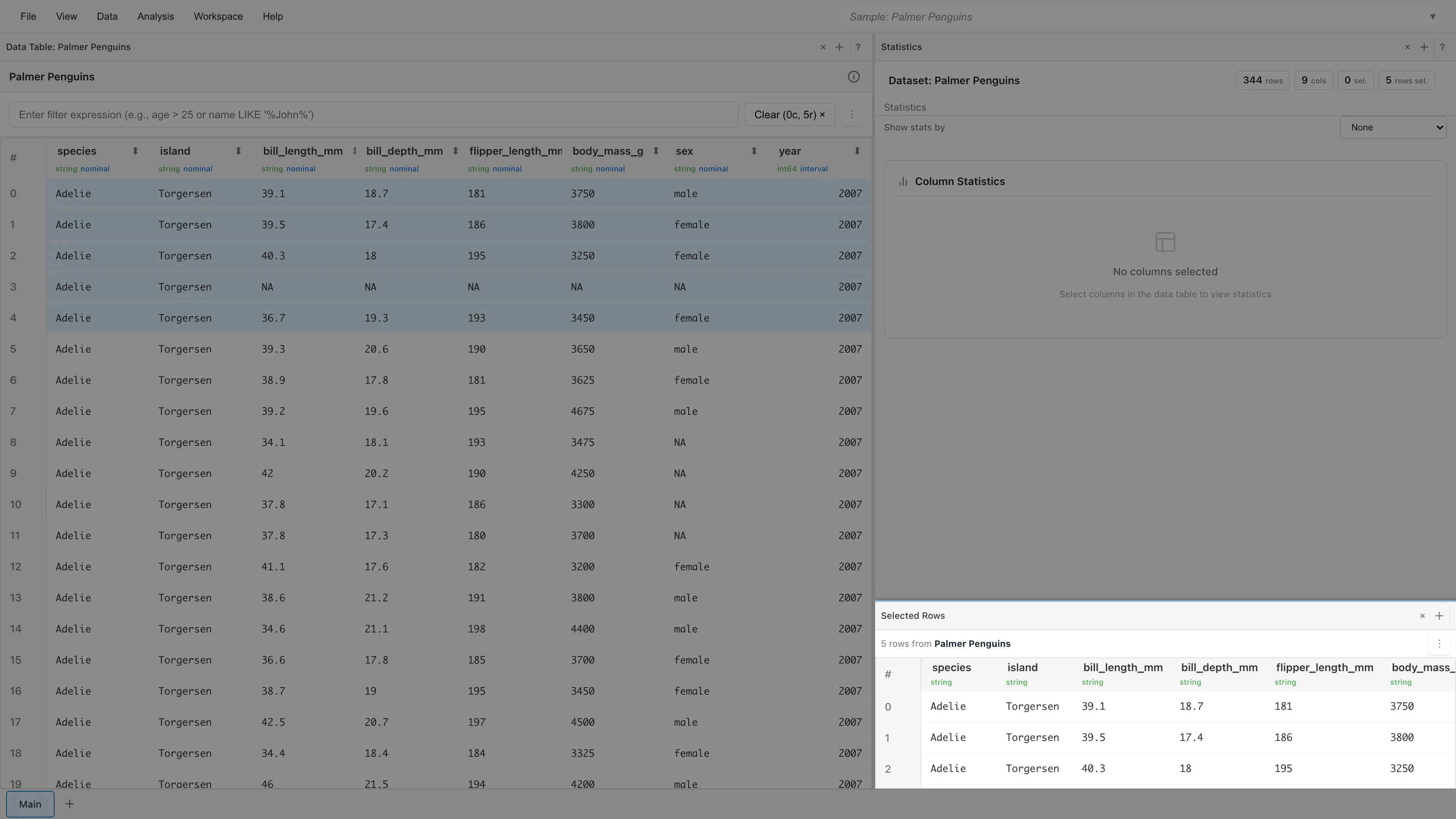
The Selected Rows tab displays rows you have selected via row selection. Use it to review selected rows or save them as a derived dataset.
Where It Appears
When you open a project with the Three Pane Analysis layout, a Selected Rows tab is automatically created in the bottom-right pane. If you use a different layout or close the tab, you can reopen it from View > Selected Rows in the menu bar, the + button in a pane, or the Command Palette (Ctrl/Cmd+P).
When no rows are selected, the tab shows "No Rows Selected". Select rows in Data Table, Graph Builder, Statistics, or other tabs to see them here.
What It Shows
The header displays the number of selected rows and the dataset name. The Clear rows button at the right side of the header clears the current row selection (column selection is preserved); it is disabled when no rows are selected. A menu button (⋮) is always shown immediately right of the Clear rows button. Each menu item is enabled or disabled depending on the selection state; see Actions.
Below the header is a table containing only the selected rows.
When you select rows by clicking a graph bar or histogram bin, or by rectangle selection in Select mode, a selection expression is shown below the table. For example, clicking a histogram bin might show 35 <= bill_length_mm AND bill_length_mm < 40. Manually clicking rows in the Data Table does not produce an expression.
Actions
Open the menu button (⋮) to see the actions. Open as Filtered Data and Save as Dataset are enabled only when a selection expression exists. Rows selected by manual clicks in Data Table do not produce an expression, so both are disabled. Hover over a disabled item to see what it needs to become available.
Open as Filtered Data -- Opens the currently selected rows in a new Filtered Data tab, using the selection expression as the filter condition.
Contributing rows -- Opens the rows in the parent dataset (the source data) that contributed to the selected rows in a Contributing rows tab. It is enabled for derived datasets built by aggregation or filtering whose contributing rows can be traced, and disabled for primary data or derivations whose rows cannot be traced.
Save as Dataset -- Saves the selected rows as a derived dataset. Enter a dataset name in the dialog to save. The derived dataset references the source data by filter expression, so it returns matching rows even after the source data is updated.
Workflow Example: Examine Outliers in a Scatter Plot
- Create a scatter plot in Graph Builder
- Click data points that appear to be outliers to select them (a selection expression is generated)
- Check the values of those rows in the Selected Rows tab
- From the menu button (⋮), choose Save as Dataset to save as a derived dataset
Differences from Filtered Data
The Selected Rows tab reflects the current selection state in real time; clearing the selection returns it to "No Rows Selected". A Filtered Data tab, opened by double-clicking, is an independent tab whose data remains even after clearing the selection. For a comparison of the two tabs, see How Row Selection Works.
See also
- Filtered Data -- Tab showing rows matching a filter condition
- How Row Selection Works -- How to select rows in each tab and how selection state is shared
- Datasets -- Details on derived datasets
- Workspace and Layout Management -- Three Pane Analysis layout
Also available as a Markdown file.