The Project Lineage Tab
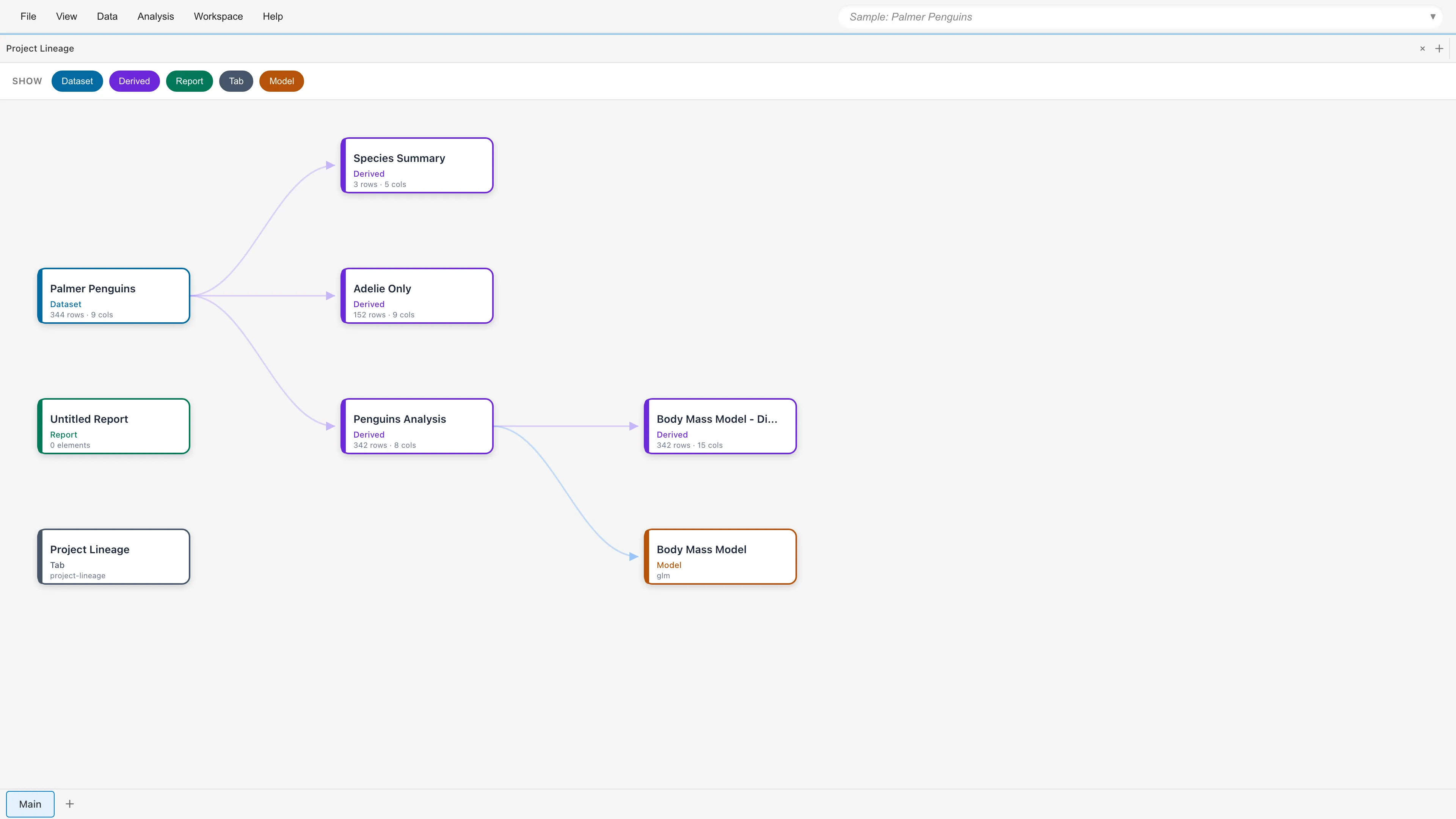
Visualize how the resources in your project — datasets, reports, models, and more — relate to each other as a directed graph. For example, you can see which dataset a derived dataset was created from, and which dataset a model uses.
Opening
- File > Project Lineage
- Search "Project Lineage" in the command palette
Graph View
Resources are displayed as nodes and dependencies as edges (arrows). An arrow A → B means B depends on A, and there are two kinds of dependencies.
- derives-from - A derived dataset was created from a source dataset. Drawn as a solid line with the transformation label (SQL Query, Crosstab, and so on) at the middle of the arrow. Click the label to open the transformation details
- references - A model was trained on a dataset (labeled "Trained on"), or a report references a dataset or model. Drawn as a dashed line
The graph is laid out left to right, with source data on the left and derived resources on the right. The view automatically adjusts to fit the whole graph right after the tab opens, and right after nodes are added, removed, or filtered.
Each node shows a colored type dot and type name, the resource name, and additional information: row and column counts for datasets, the element count for reports, and the model type for models.

- Dataset - An imported original dataset
- Derived - A dataset generated by a transformation such as SQL Query or Crosstab
- Report - A report
- Model - A fitted model
Open tabs do not become nodes. When one or more tabs display or reference a node, a usage badge such as "1 tab" appears at the top right of that node. To see which tabs use the node, select it and check the Open in list in the detail panel. Statistics and Selected Columns tabs hold no dataset and show the dataset of the active Data Table tab, so they are not counted in the badge or listed in the Open in list.
Toolbar
Use the Show chips at the top to filter which node types are displayed. For example, hide Report and Model to focus on dependencies between datasets. Hidden nodes and the arrows connected to them are removed from the graph. Dependencies that pass through a hidden node are not replaced by a bridging arrow, so hiding an intermediate node leaves that path disconnected in the view.
Type in the search box on the right side of the toolbar to highlight nodes whose names partially match, with a match count displayed. Each press of Enter selects the next matching node and centers it in the view.
Interactions
| Action | Result |
|---|---|
| Drag | Pan the graph |
| Scroll | Zoom in/out |
| Click | Select a node and show the detail panel. All upstream (source side) and downstream (derived side) dependencies are highlighted |
| Click an edge label | Select the transformation and show its details in the detail panel |
| Double-click | Open the corresponding tab (activates the existing tab if one is already open) |
| Right-click | Show the context menu |
The controls at the bottom left also operate the zoom: + / − zoom in and out, and Fit shows the whole graph.
Detail Panel
Click a node to display the detail panel on the right side. The top of the panel shows action buttons for the selected node. Open opens the corresponding tab and Delete deletes the node. Datasets also show Reload..., and derived datasets show Edit.... Each button behaves the same as the item of the same name in the context menu.
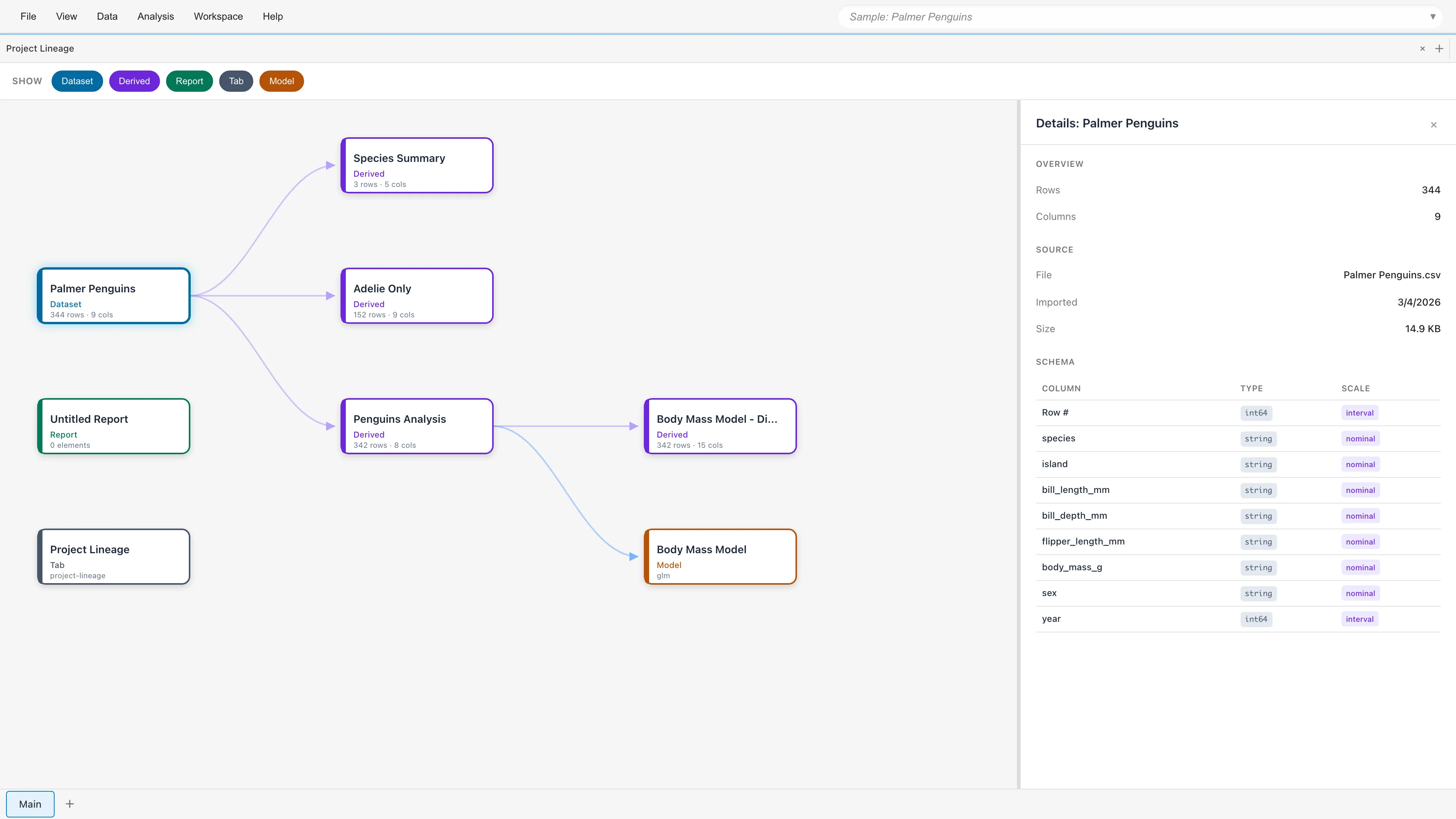
The information shown depends on the node type:
| Node Type | Information |
|---|---|
| Dataset | Overview, source, description, schema |
| Derived | Overview, description, schema, transformation (operation type and its main parameters; SQL Query shows the query text, Crosstab the row/column/value fields, Filter the filter condition, and other operations their main parameters such as input columns, model, and levels) |
| Report | Element count |
| Model | Type, fitting data |
When you click an edge label, the panel shows the source and target of the connection. For derives-from edges, it also shows the transformation details and an Edit Operation... button. For operation types that cannot be edited, the button is disabled and the tooltip explains why.
Open in List
When one or more tabs display or reference the selected node, an Open in section appears at the end of the detail panel. Each row shows the tab title and its workspace name. Clicking a row activates the tab when it is in the current workspace. Tabs in other workspaces are listed for reference only and do not respond to clicks.
Context Menu
Right-click a node for the following actions:
- Open - Opens the tab corresponding to the node
- Delete - Deletes the node. If there are dependent resources, a confirmation dialog shows the affected scope. See Cascade Deletion for dataset deletion. Deleting a report closes its dependent tabs. Deleting a model deletes its derived datasets (such as diagnostic datasets and coefficient tables) and any datasets and models derived from them, removes report elements referencing them, and closes their tabs
- Reload Dataset... - Reloads the data for a Dataset
- Edit Operation... - Edits the transformation of a Derived Dataset. Editable operation types are SQL Query, Synthetic Data Generator, Crosstab, Add Columns, Dummy Coding, Reshape, Convert Column Types, and Filtered Data. For other operation types, this item is disabled and the tooltip explains why
See also
- Project Management - Overview of project management features
- Project Overview - View and manage resources
- Compare Project - Compare the current project against an MDS file
Also available as a Markdown file.