The Linear Regression Tab
The Linear Regression tab performs ordinary least squares (OLS) linear regression analysis. OLS finds the coefficient vector that minimizes the residual sum of squares. See OLS Fundamentals for the mathematical background.
For count data, binary outcomes, or other non-normal response variables, use The GLM Tab instead.
Basic Usage
Opening Linear Regression
Select Analysis > Linear Regression (OLS)... from the menu bar to open a new Linear Regression tab.
Setting Up Variables
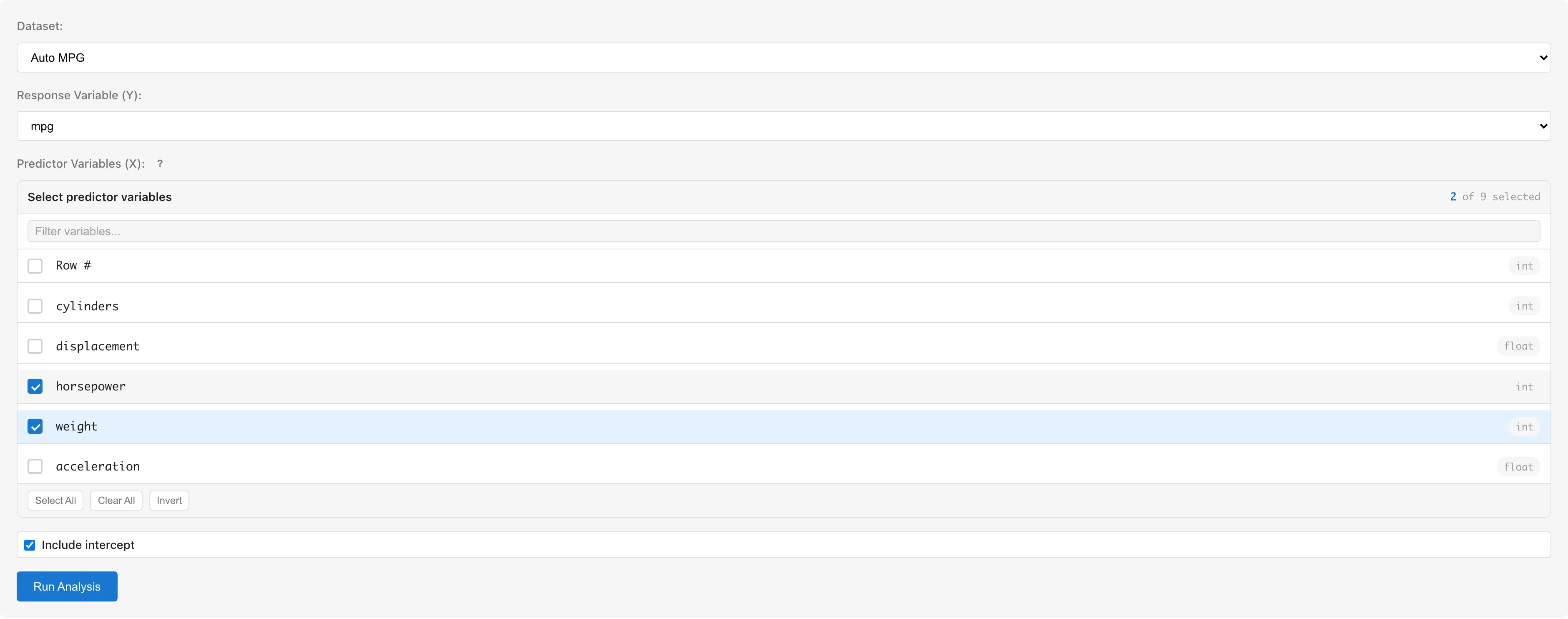
Dataset selects the dataset to analyze.
Response Variable (Y) selects the response variable. Numeric (int64, float64) and boolean columns are available. Boolean values are treated as 0/1. Date and datetime columns, and columns whose scale is set to nominal or ordinal, cannot be selected.
Predictor Variables (X) selects predictor variables using checkboxes. The same columns as for the response variable are selectable; columns with nominal or ordinal scale and date/datetime columns are grayed out. To use string or other categorical variables, convert them to numeric dummy variables using the Dummy Coding tab first (see Notes).
Include intercept toggles the intercept term. Enabled by default.
Confidence Level sets the confidence level used for the interval estimates in the coefficients table and the Prediction & Confidence Intervals table. The default is 95; values from 50 to 99.99 are accepted.
Click the Run Analysis button to run the analysis.
Changing the variable selection or Include intercept after a run makes the displayed results no longer belong to the current settings. MIDAS removes those results from the view and shows a message asking you to run the analysis again. Restoring the previous settings brings the results back. Changing Dataset also resets the variable selection, so the results are discarded instead. Changing Confidence Level keeps the results, because that setting only recomputes the intervals from the estimated coefficients.
The displayed results also stop belonging to the current data when the dataset used for the fit changes after a run. Reloading the dataset, editing cells, and changing an upstream dataset all count as such changes. MIDAS removes the results from the view and shows a message saying the dataset was modified. In this case there is no setting to restore, so run the analysis again to get results for the current data.
Understanding Results
Model Summary
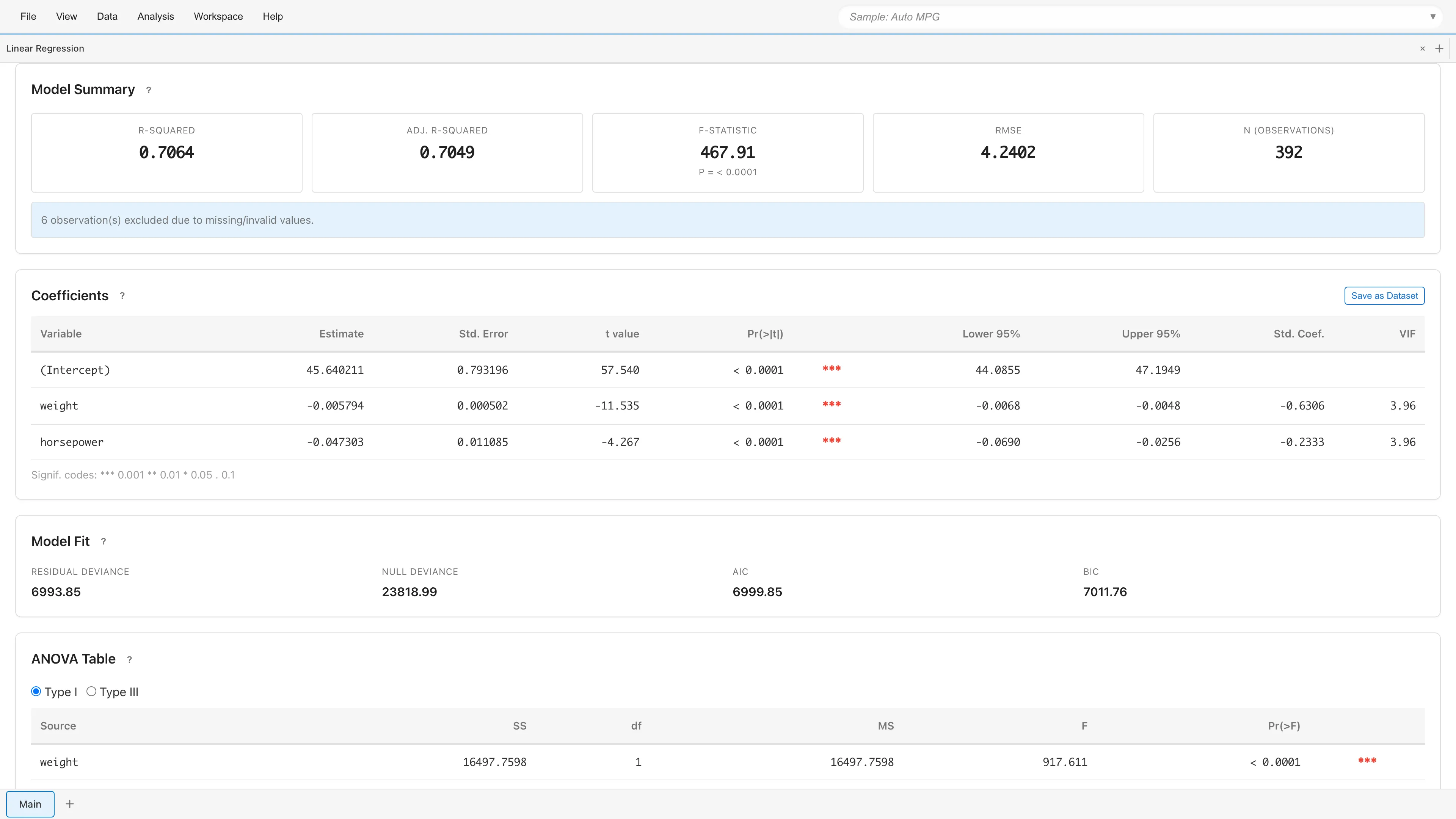
Displays overall model fit statistics.
| Metric | Description |
|---|---|
| R² | Proportion of the response's variation explained by the model. For a model with an intercept, the proportion of variance around the mean (0 to 1) |
| Adjusted R² | R² adjusted for the degrees of freedom the predictors use: , where is the number of columns of the design matrix including the intercept. The formula assumes a model with an intercept. Adding a predictor never lowers , but Adjusted R² can fall when the added predictor does not help |
| Residual Std. Error | Residual standard error . The estimated standard deviation of the errors, which represents the typical size of a residual |
| MAE | Mean of the absolute residuals . Unlike the residual standard error, it is not dominated by a few large errors |
| Observations | Number of observations used in the analysis |
The residual standard error is a different quantity from the RMSE, which is built from the same residual sum of squares. The RMSE shown among the prediction accuracy metrics divides the residual sum of squares by the number of observations , whereas the residual standard error divides it by the residual degrees of freedom . Unless the residual sum of squares is 0, the residual standard error is the larger of the two for the same model.
When the response's variation is below floating-point precision relative to its magnitude, R², Adjusted R², Residual Std. Error, and MAE are undefined and shown as "-", with a warning explaining why. For a model without an intercept, the total variation is measured around the origin as (uncentered) rather than around the mean as . This uncentered R² also lies in 0 to 1, but it uses a different baseline from the centered R² and is not directly comparable to it. For the no-intercept case, Adjusted R² uses in place of for the total degrees of freedom.
If rows containing missing or invalid values were excluded, the number of excluded rows is displayed.
Coefficients
Displays regression coefficients for each variable.
| Column | Description |
|---|---|
| Variable | Variable name (intercept shown as "(Intercept)") |
| Estimate | Estimated coefficient |
| Std. Error | Standard error |
| Lower N% / Upper N% | Confidence interval , where N is the selected confidence level (any value from 50 to 99.99) |
| Std. Coef. | Standardized coefficient , the coefficient in units of each variable's standard deviation (shown as "-" for the intercept) |
| VIF | Variance Inflation Factor (see Multicollinearity). Shown as "-" for the intercept row |
If the errors are normally distributed, the -distribution-based confidence intervals have exact coverage regardless of sample size. When the response is degenerate, the standard errors and confidence intervals cannot be computed and are shown as "-". A saturated model (as many predictors as observations) cannot estimate the dispersion parameter and fails with an error instead of returning a result.
When the standardized coefficients cannot be computed, MIDAS shows "-" for the whole column and states the reason below the coefficient table. Both and measure deviations around the mean. A model without an intercept is not fitted around the mean, so MIDAS does not compute standardized coefficients for it, on the same footing as measuring R² around the origin and showing "-" for the VIF. They also cannot be computed when the response is degenerate, or when a range is wide enough that its standard deviation exceeds what double precision can represent.
When the VIF cannot be computed, MIDAS shows "-" for the whole column and states the reason below the coefficient table. A model without an intercept and a singular coefficient correlation matrix get separate wording: the first says that the definition of the VIF does not apply, the second that the predictors are perfectly or almost perfectly linearly dependent.
The display format of each numeric column in the coefficient table can be changed per column. The default is fixed decimal notation. Right-clicking a column header opens presets such as fixed decimals and significant digits. The chosen format is stored in the tab and persists when the model is rerun.
The coefficients table can be saved as a dataset using the Save as Dataset button for export to CSV. Saving a coefficient dataset requires a saved model. If the model is not yet saved, the dialog also asks for a model name and saves the model together with the dataset. Linking the coefficient dataset to a specific model means that deleting the model also deletes the derived coefficient dataset and any report element that references it, and refitting the model updates the dataset contents to reflect the new fit.
The saved dataset contains Variable, Estimate, Std. Error, Lower N%, Upper N%, Std. Coef., and VIF.
Interpreting Coefficients
Coefficients are directly interpretable on the response scale.
- Continuous predictor: Holding other variables constant, a one-unit increase in changes by
- Dummy variable: Represents the difference in relative to the reference category
- Intercept: when all predictors are zero
- Standardized coefficient (Std. Coef.): The change in , in units of the standard deviation of , for a change of one standard deviation in the predictor. It puts variables measured on different scales on a common footing, but one standard deviation means something different for each variable, so a larger coefficient does not by itself make a variable more important. The standard deviation of a dummy variable depends on the category proportions, so comparing it directly with a continuous variable is not recommended
Model Fit
| Metric | Description |
|---|---|
| Residual Deviance | Residual sum of squares |
| Null Deviance | Total sum of squares |
| AIC | Akaike Information Criterion , where is the total number of estimated parameters ( regression coefficients plus , i.e. ). It adds a penalty on the number of parameters to , which measures lack of fit; when comparing models, the smaller value is preferred |
| BIC | Bayesian Information Criterion . Penalizes complexity more strongly than AIC. AIC estimates how well the model fits new data (its expected log-likelihood), which makes it the criterion to use when the goal is prediction. BIC is consistent for model selection: when the true model is among the candidates, the probability of selecting it converges to 1 as the sample size increases. When the two point to different models, decide according to the purpose of the analysis |
AIC and BIC can only be compared across models fitted to the same data. The linear regression tab uses only the rows that have no missing value in the selected response and predictors, so adding a predictor with missing values changes the number of observations and therefore the data the log-likelihood is computed on. Check that Observations is the same before comparing the values.
ANOVA Table
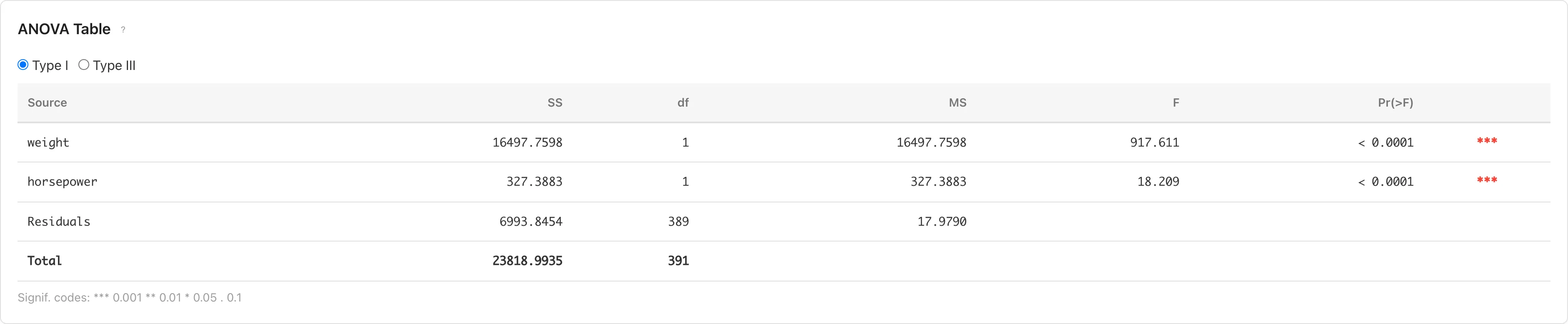
Evaluates each predictor's contribution through analysis of variance. Switch between Type I and Type III using radio buttons.
- Type I (Sequential): Computes sum of squares in the order variables were entered. Results depend on variable entry order.
- Type III (Partial): Computes sum of squares as if each variable were entered last. Results are independent of variable entry order.
| Column | Description |
|---|---|
| Source | Source of variation |
| Sum Sq | Sum of squares |
| DF | Degrees of freedom |
| Mean Sq | Mean square (Sum Sq / DF) |
| partial η² | Partial eta-squared (SS_effect / (SS_effect + SS_residual)). Shown for Type III only |
| partial ω² | Partial omega-squared, a bias-adjusted effect size estimator. Displayed as 0 when the estimate is negative. Shown for Type III only |
When the residual sum of squares is below floating-point precision relative to the response variation (the model explains the response completely), the error cannot be estimated and partial η² and partial ω² are shown as "-". When the response is degenerate, the sum of squares cannot be decomposed, and Sum Sq, Mean Sq, partial η², and partial ω² are all shown as "-".
If a Type I sum of squares comes out negative from numerical error, MIDAS replaces it with 0. A warning appears only when the negative value exceeds the range of rounding error, and it names the predictor. This happens when the predictors are nearly collinear or the data contain extreme values, and the sum of squares and mean square for that predictor are not numerically reliable. A negative value within the range of rounding error arises when the predictor's sum of squares is exactly 0. In that case MIDAS replaces it with 0 and shows no warning.
Prediction & Confidence Intervals
Displays predicted values and interval estimates for each observation.
| Column | Description |
|---|---|
| Fitted | Predicted value |
| CI Lower N% / CI Upper N% | Confidence interval for the mean response |
| PI Lower N% / PI Upper N% | Prediction interval for individual observations |
The confidence interval (CI) represents the precision of the estimated mean, while the prediction interval (PI) represents the range for a new individual observation. PI is always wider than CI. N is the selected confidence level (any value from 50 to 99.99). When the response is degenerate, the residual standard error cannot be estimated, and every CI and PI column is shown as "-".
When exceeding 100 rows, only the first 50 rows are displayed. Click Show all N rows to display all rows.
The prediction intervals table can also be saved as a dataset using the Save as Dataset button. As with the coefficients table, saving requires a saved model; if the model is not yet saved, the dialog also asks for a model name and saves the model together with the dataset.
Saving and Diagnostics

Save analysis results to the project and view diagnostic plots.
Saving the Model
Enter a model name in the Model Name field and click Save Model. The model name defaults to the format "Linear Regression: Y ~ X1 + X2".
If an existing model with the same configuration (dataset, response variable, predictor variables, and intercept setting) exists, a confirmation dialog for overwriting is displayed.
Data Generated for Diagnostics
After saving the model, opening the Residual Diagnostics tab for the first time via View Diagnostics creates a derived dataset that adds diagnostic columns to the original data.
| Column | Symbol | Description |
|---|---|---|
fitted_values | Predicted values | |
deviance_residuals | Residuals | |
standardized_residuals | Standardized residuals | |
sqrt_abs_std_residuals | Square root of the absolute standardized residuals (used in the Scale-Location plot) | |
leverage | Leverage (diagonal of the hat matrix) | |
cooks_distance | Cook's Distance |
Diagnostics and Details
After saving the model, two buttons appear:
- View Model Details - Opens the Model Detail tab showing detailed model information. Changing the Confidence Level input recomputes the Wald confidence intervals and column headers in place from the saved coefficients and standard errors (the saved value is not modified). Use the Add to Report button to add the coefficients table to a report.
- View Diagnostics - Opens the Residual Diagnostics tab showing residual diagnostic plots
Residual Diagnostics
View Diagnostics opens four diagnostic plots for assessing the OLS assumptions:
OLS assumptions:
- Linearity - A linear relationship exists between the response and predictor variables
- Normality - Residuals follow a normal distribution
- Homoscedasticity - The variance of residuals is constant and does not depend on fitted values
- Independence - Residuals are independent of each other (not directly verifiable through diagnostic plots). For hierarchical or clustered data, consider using GLMM with random effects. For time series data with autocorrelation, consider using ARIMA (available in the Analysis menu)
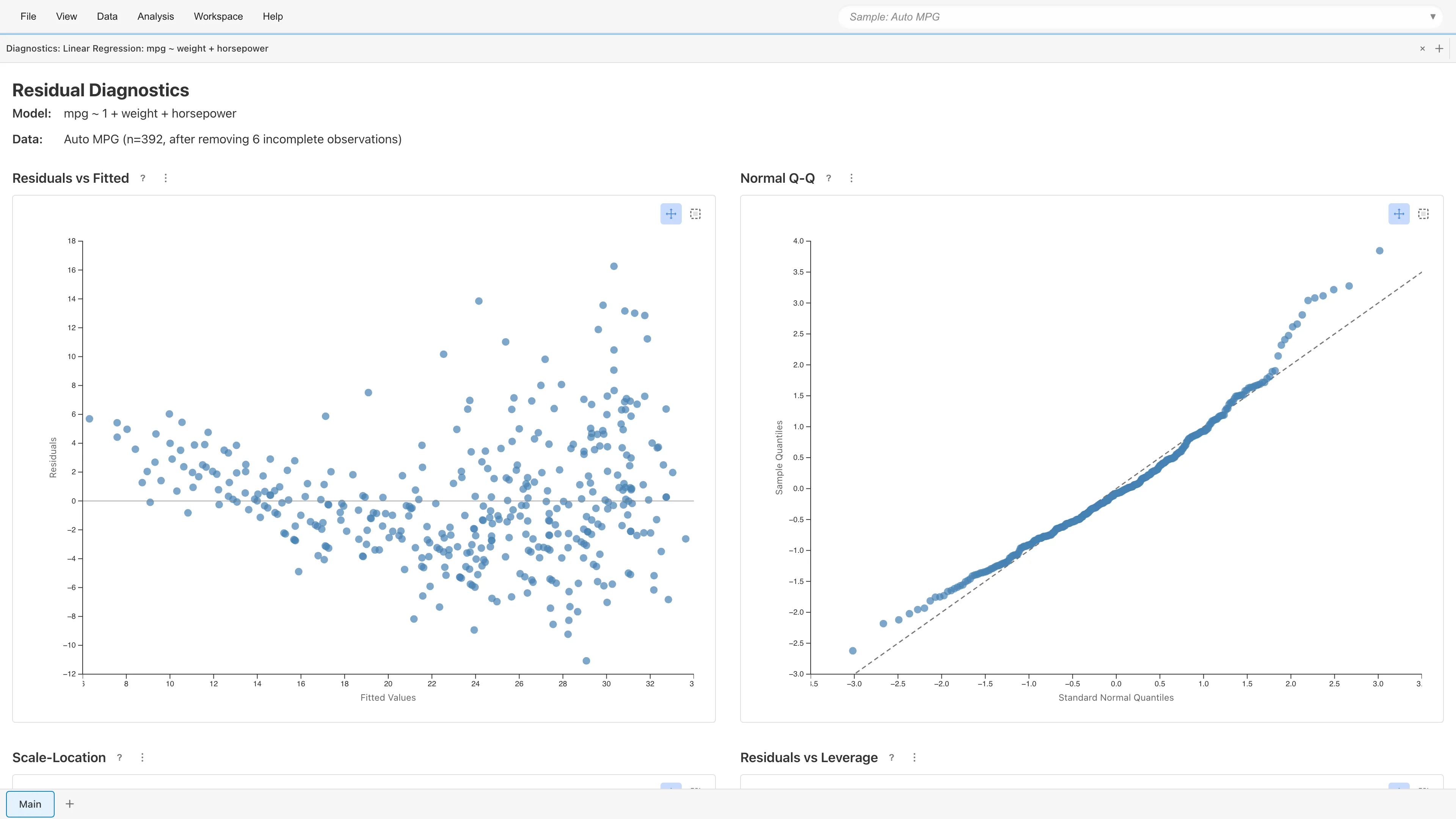
Normal Q-Q, Scale-Location, and Residuals vs Leverage use standardized residuals (internally studentized residuals) . Residuals vs Fitted uses the raw residuals . See OLS Fundamentals for the formulas.
Residuals vs Fitted
Plots residuals against fitted values . With a well-specified model, residuals scatter randomly around zero.
- Curved pattern: Nonlinear effects of predictors may be missing
- Funnel-shaped pattern: Possible heteroscedasticity (check Scale-Location plot for details)
Normal Q-Q Plot
Plots standardized residual quantiles against theoretical normal quantiles. Points fall along the diagonal when residuals are normally distributed. An S shape whose two ends depart from the diagonal in opposite directions indicates heavy tails; a bow curving away in one direction indicates skewness.
Scale-Location
Plots against fitted values. Constant variance produces an even horizontal spread. A funnel-shaped or upward-trending pattern indicates heteroscedasticity. When heteroscedasticity is present, coefficient estimates remain unbiased but standard errors become inaccurate, so the actual coverage of confidence intervals can deviate from the nominal level. MIDAS does not implement robust standard errors. When heteroscedasticity is suspected, consider a log transformation of the response or a GLM, which can model the variance structure.
Residuals vs Leverage
Plots standardized residuals against leverage . Cook's (1977) distance contours (: orange dashed, : red dashed) are overlaid. Cook suggested comparing to the 50th percentile of . That value depends on the number of parameters and approaches 1 as grows: with large, it is about 0.455 for , 0.693 for , and 0.967 for . The and contours drawn on the plot are fixed values, not that percentile. Neither is a formal rejection threshold; both are guides for comparing relative influence among observations.
- Leverage: Measures how far an observation's predictor values are from others. , averaging to
- Cook's Distance: Combines leverage and residual size into a single influence measure
Observations outside the contour lines may substantially change the model estimates if removed.
For an observation with leverage 1, neither the standardized residual nor Cook's Distance can be computed. With , the denominator of the standardized residual and the factor of Cook's Distance are both undefined. MIDAS shows these two values as "-" and omits the observation from the three plots that use standardized residuals: Normal Q-Q, Scale-Location, and Residuals vs Leverage. Being uncomputable does not mean the observation has little influence; it indicates that the leverage is extreme. Check the leverage column of the diagnostic dataset to find such observations.
Point Selection
Click or rectangle-select data points on any plot to display details (fitted values, residuals, leverage, Cook's Distance, etc.) in a table below the plots. Selection state is synchronized across all four plots.
Notes
Using Categorical Variables
To use string or other categorical variables as predictors, convert them to numeric dummy variables using the Dummy Coding tab before running the analysis. Boolean columns need no conversion and are treated as 0/1.
Automatic Exclusion of Missing and Invalid Values
Rows containing missing values (null), non-numeric values, or infinity are automatically excluded from the analysis. The number of excluded rows is displayed in the Model Summary. This is listwise deletion. See Missing Data Mechanisms for conditions under which it yields valid estimates.
Multicollinearity
When predictors are highly correlated, coefficient estimates become unstable. If VIF (Variance Inflation Factor) is large for any variable in the coefficients table, consider removing redundant variables or combining correlated predictors. See OLS Fundamentals for details on VIF.
When the condition number of the design matrix exceeds , a warning that the matrix is ill-conditioned appears in the results. Strong correlation between predictors and large scale differences between predictors are the main causes. See Condition Number for the meaning and remedies.
When predictors are perfectly linearly dependent (for example, when dummy variables for every category of a categorical variable are included), the coefficients are not uniquely determined, and MIDAS stops the estimation with a "Design matrix is rank deficient" error. Remove the redundant predictors and run the analysis again.
Sample Size and Normality
Whether the coverage probability of the confidence intervals matches the nominal level in finite samples depends on the normality of errors. With large samples, the central limit theorem keeps the coverage approximately correct, but for small samples, verify residual normality using the Q-Q plot. The required sample size depends on the true error distribution, so no universal threshold applies.
References
- Cook, R. D. (1977). Detection of influential observation in linear regression. Technometrics, 19(1), 15-18. https://www.jstor.org/stable/1268249
Next steps
- Residual Diagnostics - Verify model assumptions
- The GLM Tab - Modeling count data and binary outcomes
See also
- OLS Fundamentals - Mathematical background of OLS and diagnostic statistics
- Dummy Coding - Converting categorical variables to numeric
Also available as a Markdown file.