The Manage Enums Tab
The Enum type is a data type for categorical data with a predefined set of valid values. Each Enum definition specifies the allowed values.
Enum types are not auto-inferred when loading CSV files. You create an Enum definition first, then convert string or int64 columns to that Enum type. Enum definitions are shared across datasets within the same project (they are not carried over to other projects). Each Enum definition can contain up to 50 values. For categories exceeding this limit, use string type instead.
Opening the Manage Enums Tab
Select Data > Manage Enums... from the menu bar to open the Manage Enums tab. Use this tab to create, edit, and delete Enum definitions.
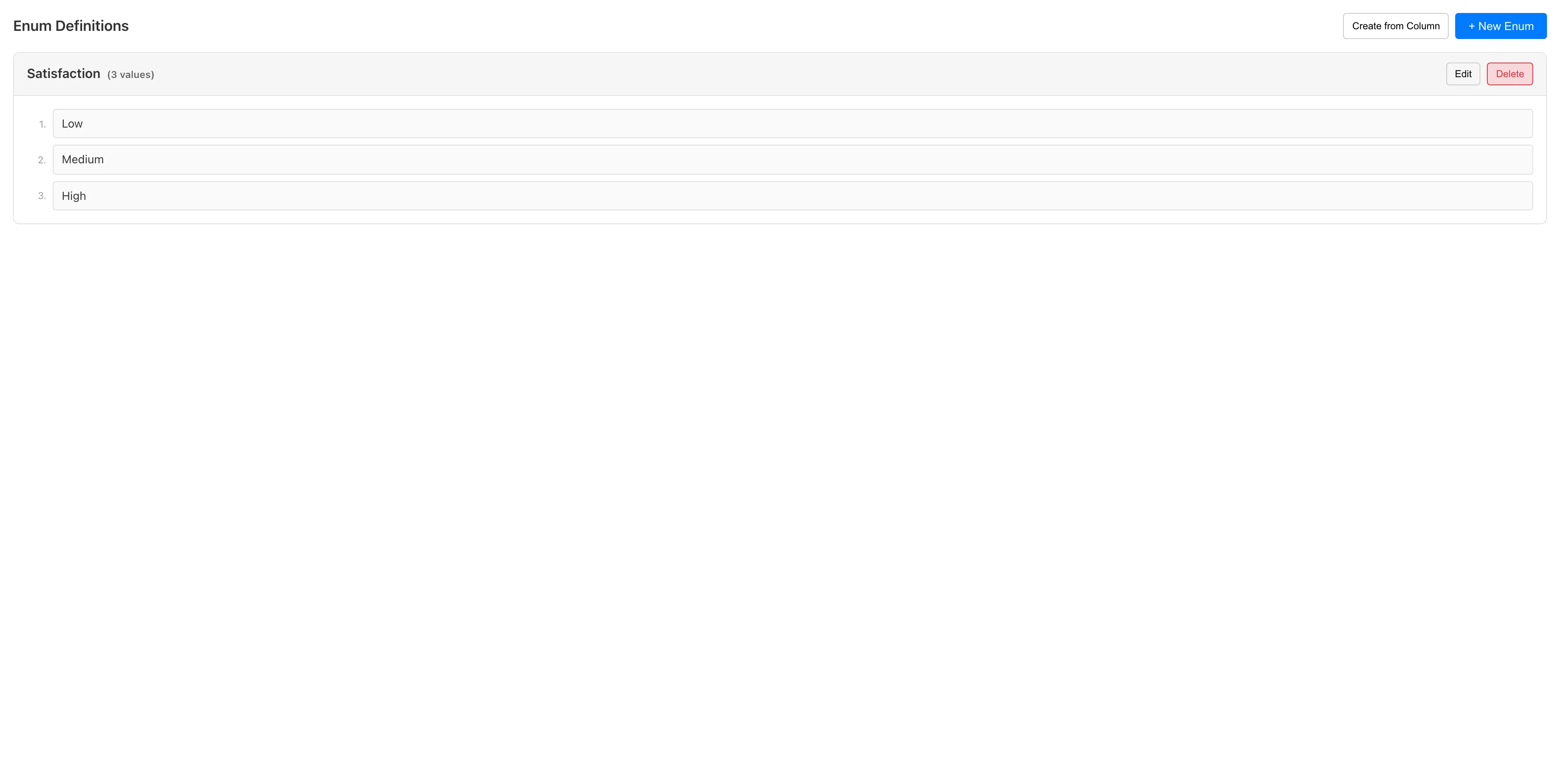
Creating an Enum Manually
New Enum
- Click + New Enum
- Enter the Enum name
- Enter the values. The order you enter them is recorded as the Enum's value order. Categories of Enum columns follow this order on graph axes and in sorting, regardless of the measurement scale
- Click + Add Value to add more values
- Click Save
Validation Rules
- Enum name is required and must be unique among existing Enum names
- At least one value is required
- Duplicate values are not allowed
- Leading and trailing whitespace is automatically trimmed. Values are case-sensitive, so
Highandhighare treated as distinct values
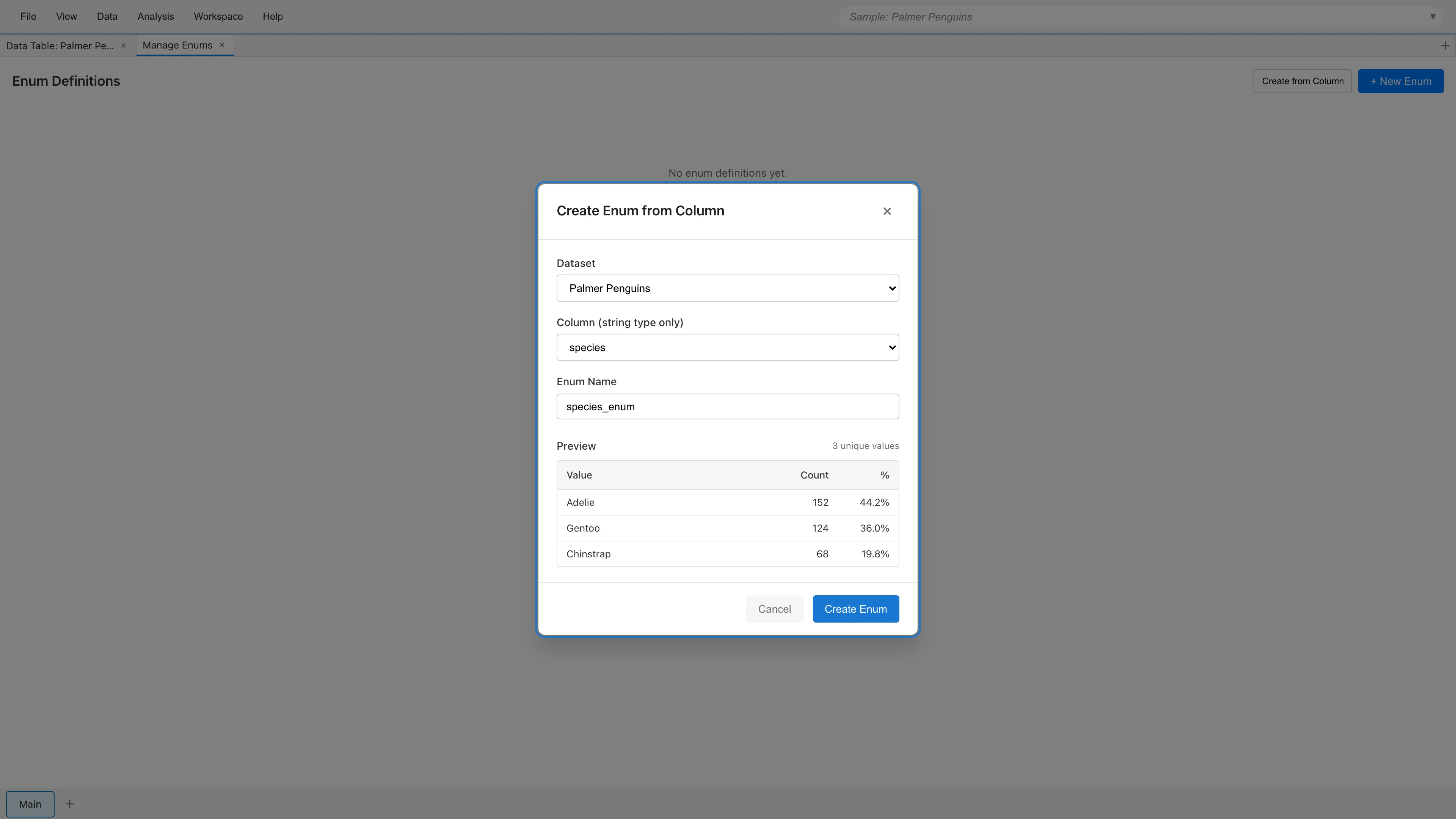
Creating an Enum from a Column
You can auto-generate an Enum definition from the unique values of an existing string column.
- Click Create from Column
- Select a dataset
- Select a column. Only string-type columns are available
- Enter the Enum name. The default is
{column_name}_enum - Review the preview showing unique values with their counts and percentages
- Click Create Enum
Values are sorted by frequency in descending order. If the column has more than 50 unique values, only the top 50 most frequent values are used. A warning is displayed in the preview so you can verify which values are included.
After creation, check the value order by editing the Enum. Categories of Enum columns follow this order regardless of the measurement scale, so if you keep the descending frequency order, graph axes and sorting also follow descending frequency. To reflect the order in statistics, convert the column to the Enum type and then change it to the ordinal scale.
Editing and Deleting Enums
Editing
Click Edit on an Enum card to enter edit mode. You can change the name, add or remove values, and change the value order. To reorder values, use the up and down arrow buttons next to each value.
When columns have already been converted to this Enum type, the following restrictions apply:
- The name cannot be changed. To rename, first convert the dependent columns back to string, then change the Enum name, and convert the columns to Enum again
- Values still present in the column data cannot be removed. The same applies to values that remain only in excluded rows. First use The Convert Column Types Tab to convert the dependent columns back to string, exclude or replace the unwanted values, and then convert them back to Enum. A value that remains only in a column of an Ephemeral Dataset, such as one held by a Filtered Data tab, is not protected: removing it is not rejected, and it becomes null in that column
- When you change the order, a confirmation dialog is shown if any dependent column is set to the ordinal scale
- Values can be added without restrictions. However, the limit of 50 values per Enum definition still applies
When you save a new value order, it is immediately reflected in The Statistics Tab, Data Table sorting, and graph legend ordering for the converted columns. On graph axes, nominal columns follow the new order, but ordinal columns in existing graphs are not reordered automatically. When an ordinal column is assigned to an axis, the graph keeps the value order at that time as its Category Order. To apply the new order to the axis, change the Category Order in the graph settings panel.
Deleting
Click Delete on an Enum card to delete the Enum definition. Deletion is not allowed when dependent columns exist. Use The Convert Column Types Tab to change the data type of dependent columns first. When only columns of an Ephemeral Dataset depend on the Enum, deletion is not rejected, and both deleting and renaming the Enum change those columns to string.
Converting Columns to Enum Type
After creating an Enum definition, use The Convert Column Types Tab to convert columns to the Enum type.
- Right-click a column header in Data Table and select Convert Column Types...
- In the To dropdown for the column you want to convert, select the Enum name you created
- Click Preview to review the conversion result
- Click Apply to execute the conversion
The conversion result is created as a new dataset. The original dataset is not modified.
Only string, int64, and Enum columns can be converted to an Enum type. An int64 column is matched against the Enum definition by the decimal notation of each value, so the value 308 corresponds to the Enum value 308. For float64, boolean, date, and datetime columns, the To dropdown does not list Enum names. MIDAS converts values of these types to text in its own format; for example, the float64 value 2 becomes 2.0. A direct conversion to an Enum type would match that text against the Enum values without showing it. To make such a column an Enum, first convert it to string, check the resulting values in the preview, and then convert the result to the Enum type.
If the column contains values not included in the Enum definition, they are handled according to the error handling option in column type conversion. NULL replaces such cells with NULL, Exclude row removes the affected rows from the resulting dataset, and Fail aborts the conversion. Values are matched case-sensitively, so values whose case does not match the Enum definition are treated as "not included in the Enum definition".
For categories with a meaningful order, you also need to change the column to ordinal scale after conversion.
Ordinal Scale and Graph Ordering
Changing to Ordinal Scale
Enum columns default to the nominal scale. If the value order is meaningful, right-click the column header in Data Table and select Edit Scale of Measurement to change it to the ordinal scale. The measurement scale determines which statistics are shown in The Statistics Tab. For more on measurement scales in general, see Data Types and Measurement Scales.
Graph Axis Ordering
Categories of Enum columns follow the Enum definition order on graph axes, in legends for aesthetics (color, fill, shape, etc.), and across facet panels, regardless of the measurement scale. The same order is used for Data Table sorting, Crosstab headers, and the order in which the Dummy Coding tab generates dummy variables. When an ordinal column is assigned to an axis, the Enum definition order is set as the initial Category Order. For an ordinal column, the legend lists all values in the Enum definition, including values that do not occur in the data. For a nominal column, the legend lists only the values that occur in the data. You can manually change the axis display order from the Category Order section in the graph settings panel.
The basic statistics table of statistics by measurement scale assumes numeric columns (int64, float64). For Enum columns on the nominal scale, only frequency counts are shown, the same as string columns (but unlike string columns, Enum columns reject values outside the definition). On the ordinal scale, min / max / median / quartiles are also computed from the position order of the Enum definition, in addition to the frequency counts. mean / std / skewness / ex. kurt are not computed because ordinal categories do not have a defined distance. IQR (= Q3 − Q1) is also not meaningful on an ordinal scale because distances between values are not defined, and is therefore not computed. See Basic Statistics - String Type and Enum Type for how these are computed.
See also
- The Convert Column Types Tab - Converting column data types
- Data Types and Measurement Scales - Statistical meaning of measurement scales
- Data Table - Changing measurement scales
Also available as a Markdown file.