Workspace and Layout Management
Use workspaces to manage multiple analysis tasks in parallel. Each workspace has its own layout (pane configuration and tab arrangement). Because the layout is part of the project, reopening the project restores your previous layout.
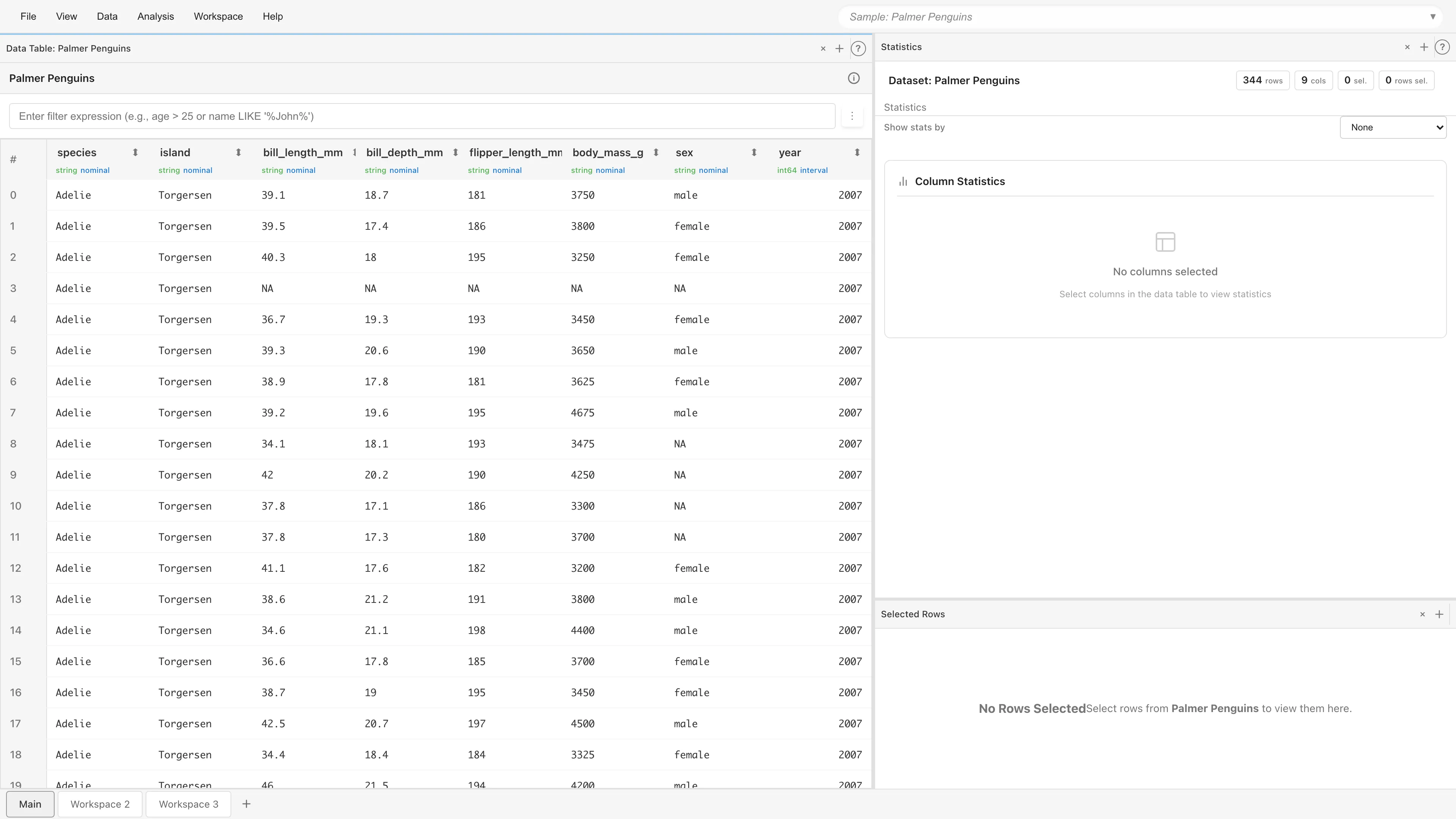
Workspace Operations
Creating a Workspace
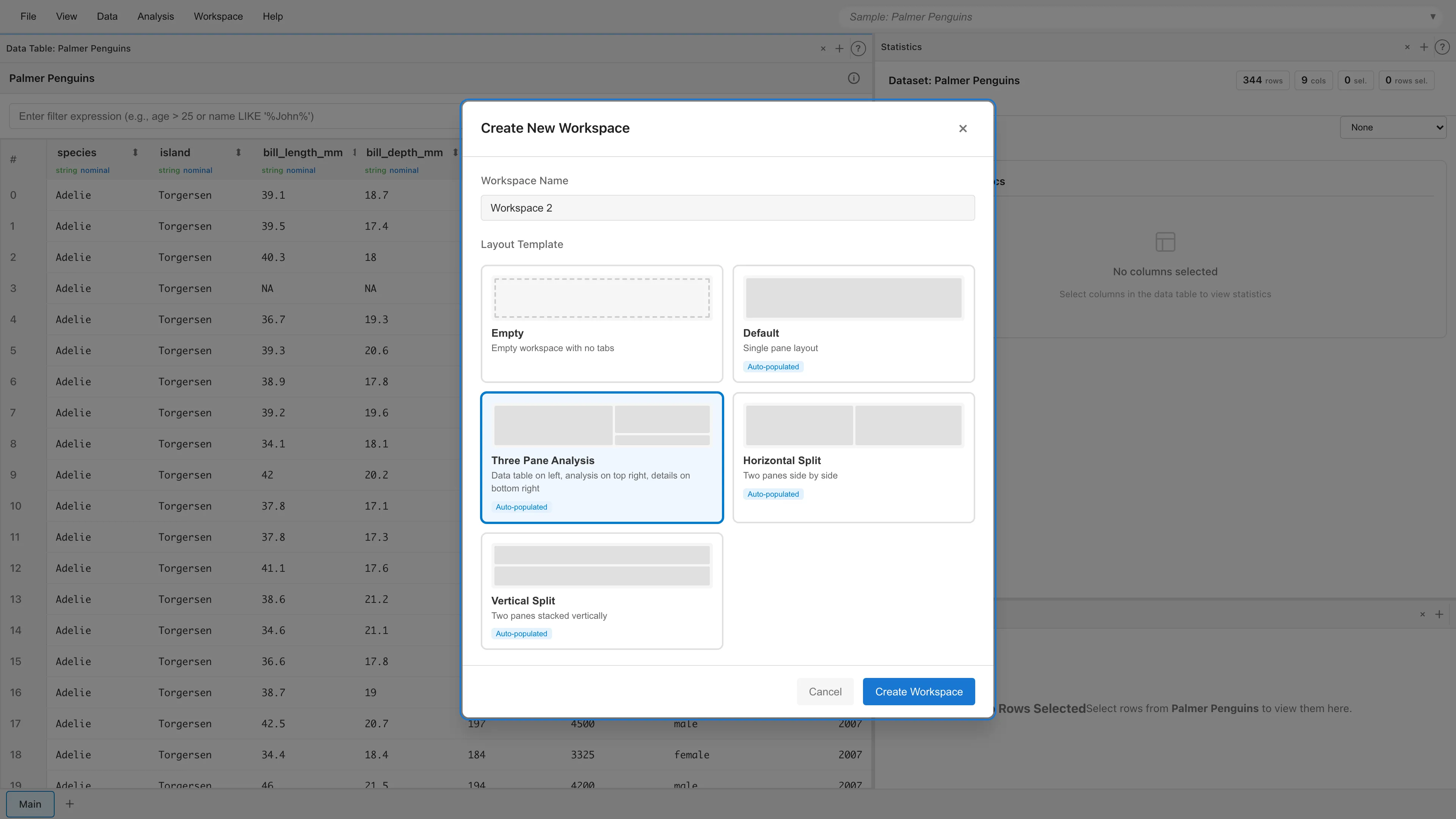
Click the + button in the workspace tab bar at the bottom of the screen to open the Create New Workspace dialog. Select a template to create the workspace.
Switching Workspaces
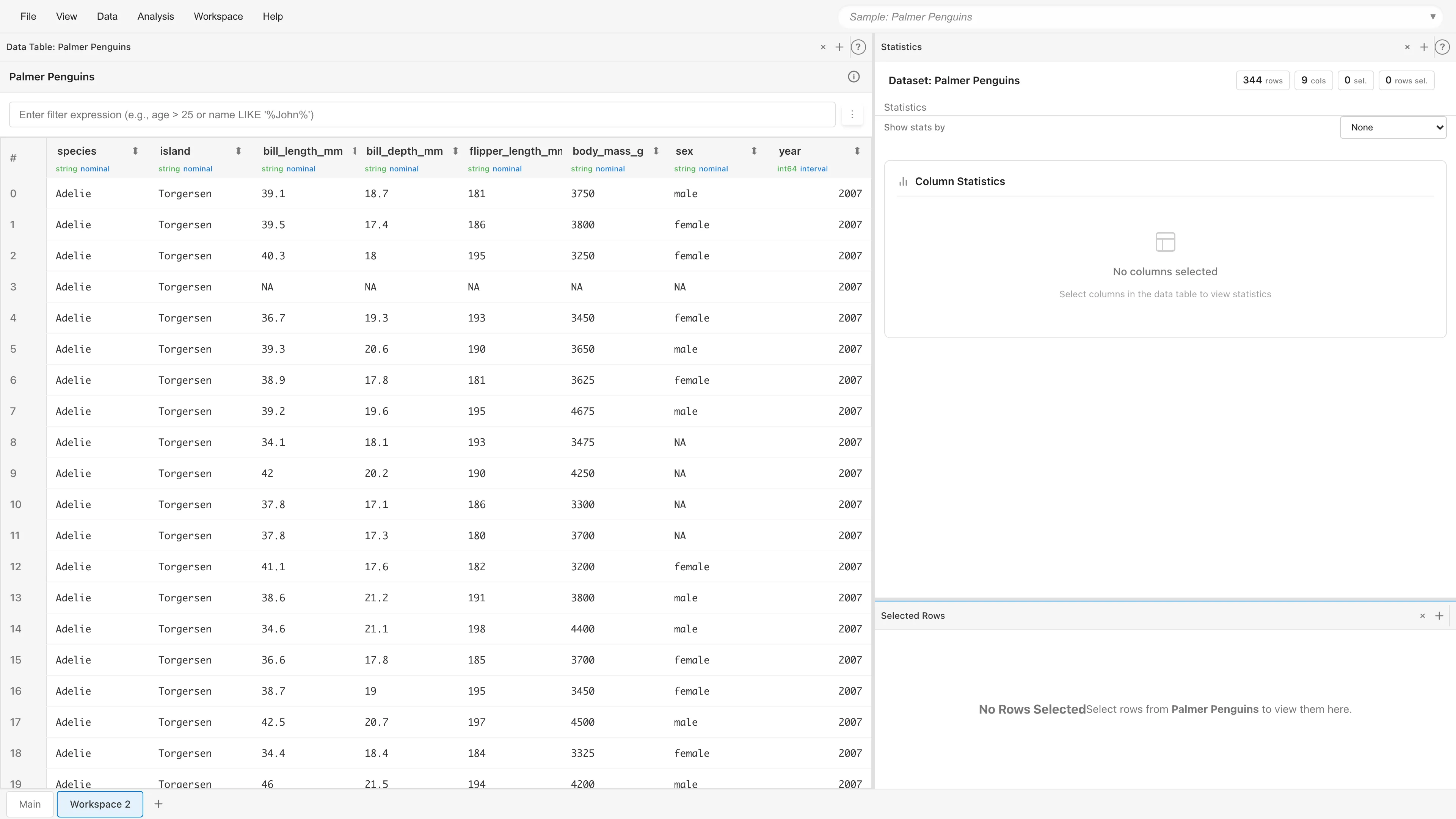
Click a workspace tab to switch to that workspace.
Reordering Workspaces
Drag and drop workspace tabs to change their order.
Context Menu
Right-click a workspace tab to access the following options:
- Rename - Change the workspace name
- Move Left / Move Right - Move the workspace left or right
- Delete - Delete the workspace (cannot delete the last one). Only the layout is deleted; datasets and models remain in the project
Layout Templates
The following templates are available when creating a workspace:
| Template | Description | Auto-created Tabs |
|---|---|---|
| Empty | Empty workspace | None |
| Default | Single pane | Data Table |
| Horizontal Split | Left-right split | Data Table + Statistics + Selected Columns |
| Vertical Split | Top-bottom split | Data Table + Statistics + Selected Columns |
| Three Pane Analysis | Left 60% + right top-bottom split | Data Table + Statistics + Selected Columns |
Auto-created tabs require a dataset. If the project has no dataset, the workspace is created without tabs.
Pane Operations
Splitting Panes
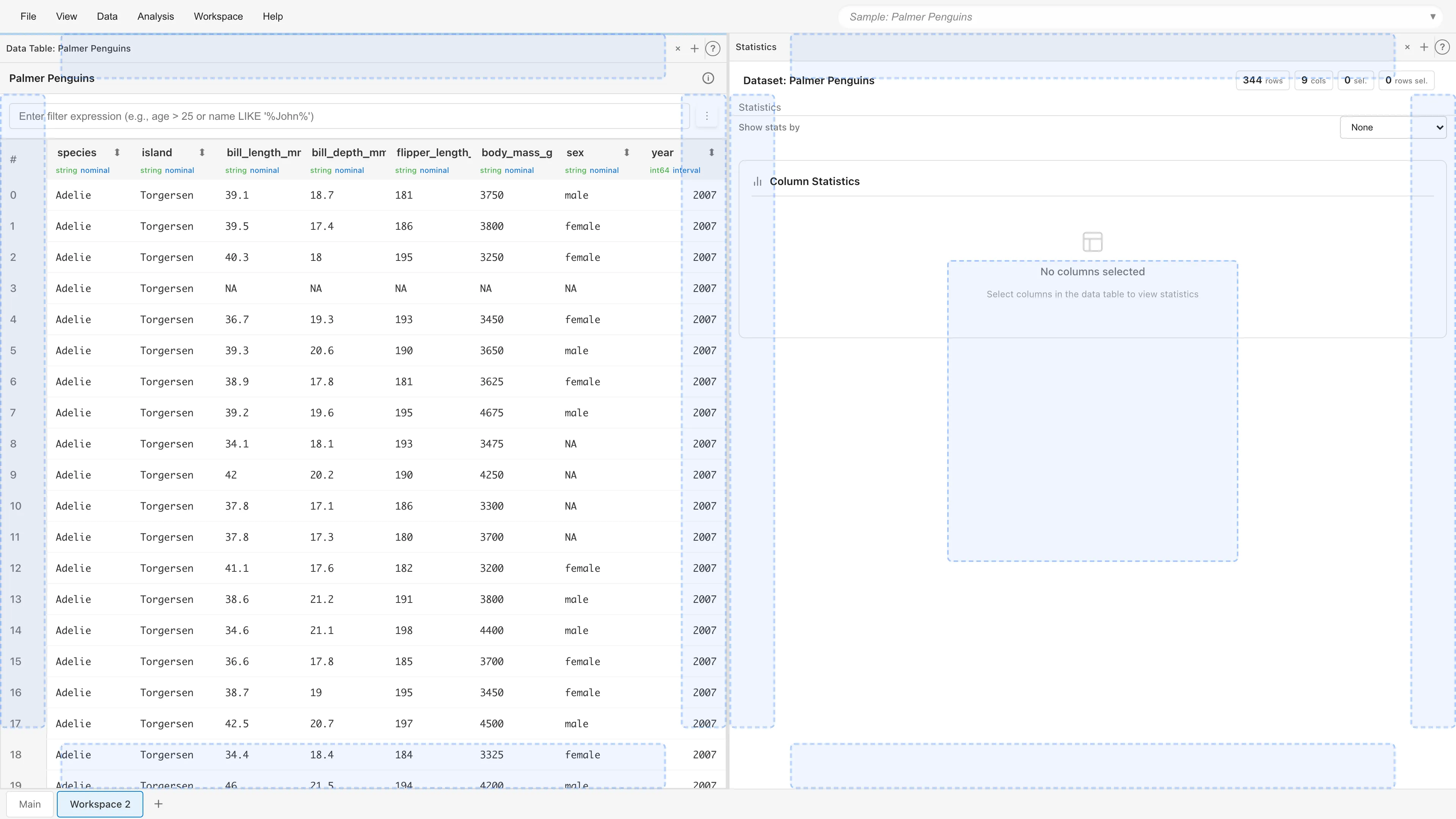
Drag a tab to the edge of a pane (top, bottom, left, or right) to display drop zones. Drop the tab to split the pane.
Adjusting Split Ratio
Drag the border between panes to adjust the split ratio.
Keyboard operations (when the border is focused):
| Key | Action |
|---|---|
| Arrow Left / Arrow Up | Shrink left/top pane (5% increments) |
| Arrow Right / Arrow Down | Shrink right/bottom pane (5% increments) |
| Home | Shrink left/top pane to its minimum size |
| End | Shrink right/bottom pane to its minimum size |
| Enter / Space | Reset to equal split (50%) |
Minimum size constraints: 250px horizontally, 200px vertically
Merging Panes
Close all tabs in a pane or move them to another pane to automatically remove that pane.
Active Pane
The most recently used pane shows a light blue line along its top edge. New tabs open in the active pane.
Tab Operations
Opening Tabs
Open tabs from the menu bar, the + button in a pane, or the command palette (Ctrl/Cmd+P).
Tabs that show the same content every time you open them never appear twice within one workspace. Reports, Model Detail, GLM Diagnostics, and the tab opened by View SQL Query work this way, because picking what they display fixes their content. The tabs that build a new dataset out of one existing dataset — Add Columns, column type conversion, and orthogonal polynomials — are likewise kept to one per source dataset, as are the SQL Editor and Synthetic Data Generator tabs opened through Edit Operation. The tabs that show the project as a whole — Project Overview, Project Lineage, Compare with File, Manage Enums, and Help — are kept to one as well. When such a tab is already open, MIDAS brings it to the front. When it sits in another pane, MIDAS switches to that pane.
Statistics and Selected Columns are kept to one per pane. They are meant to sit next to a data table, so splitting the layout lets you open one in each pane.
Data Table, the analysis tabs, and the SQL Editor opened from a menu give you a new tab every time. They keep filters, settings, and the query you are typing per tab, so you can place several of them on the same dataset with different conditions. You can also place a tab for the same target in another workspace, because each workspace is an independent screen layout over the project.
Closing Tabs
Click the × button on the tab.
Duplicating Tabs
Right-click an analysis tab and choose Duplicate Tab to open an independent copy next to it. The copy keeps the current settings but not the run results or the saved-model state. Change a parameter in the copy and re-run it, then split the pane to compare the two fits side by side. Duplication is available for the analysis tabs GLM, GLMM, ANOVA, Linear Regression, Cox Regression, Kaplan-Meier, PCA, Random Forest, and ARIMA. Other tab types, such as Data Table and reports, do not offer it.
Moving Tabs
Drag and drop tabs to move them:
- Drop within the same pane: Reorder tabs
- Drop in a different pane: Move the tab
- Drop at the edge of a pane: Create a new pane and move the tab
Keyboard Shortcuts
| Shortcut | Action |
|---|---|
| Ctrl/Cmd+P | Open command palette |
| Ctrl/Cmd+S | Save to browser |
| Ctrl/Cmd+Shift+S | Save as MDS file |
Saving and Restoring
- File > Save to Browser (Ctrl/Cmd+S) — Save to browser local storage. Not available for sandbox projects, such as one opened from a URL, where saving is disabled; export as an MDS file to save instead
- File > Export Project... (Ctrl/Cmd+Shift+S) — Export as an MDS file
Opening an MDS file restores all workspaces and layouts. See MDS Files for details on saving.
See also
- Data Table - View, filter, and sort data
- The Statistics Tab - View basic statistics
- The Selected Columns Tab - Details of the selected columns
Also available as a Markdown file.