The Random Forest Tab
The Random Forest tab fits and predicts with Random Forest models for classification and regression tasks. Use it to find which of several predictors drive the response, or to predict the response from predictors. Random Forest is an ensemble method that builds multiple decision trees from bootstrap samples and aggregates their predictions (Breiman, 2001). For classification, the leaf class proportions of all trees are averaged and the class with the highest probability is predicted. When several classes tie for the highest probability, the class with more rows in the fitting data is predicted, and if those counts are equal, the class that appears first in the fitting data. For regression, the per-tree predictions are averaged. It does not assume a distribution for the response variable, so there is no need to choose a distribution family or link function as in GLM.
Basic Usage
Opening Random Forest
Select Analysis > Random Forest... from the menu bar. The Fit and Predict buttons at the top of the tab switch between fitting and prediction modes.
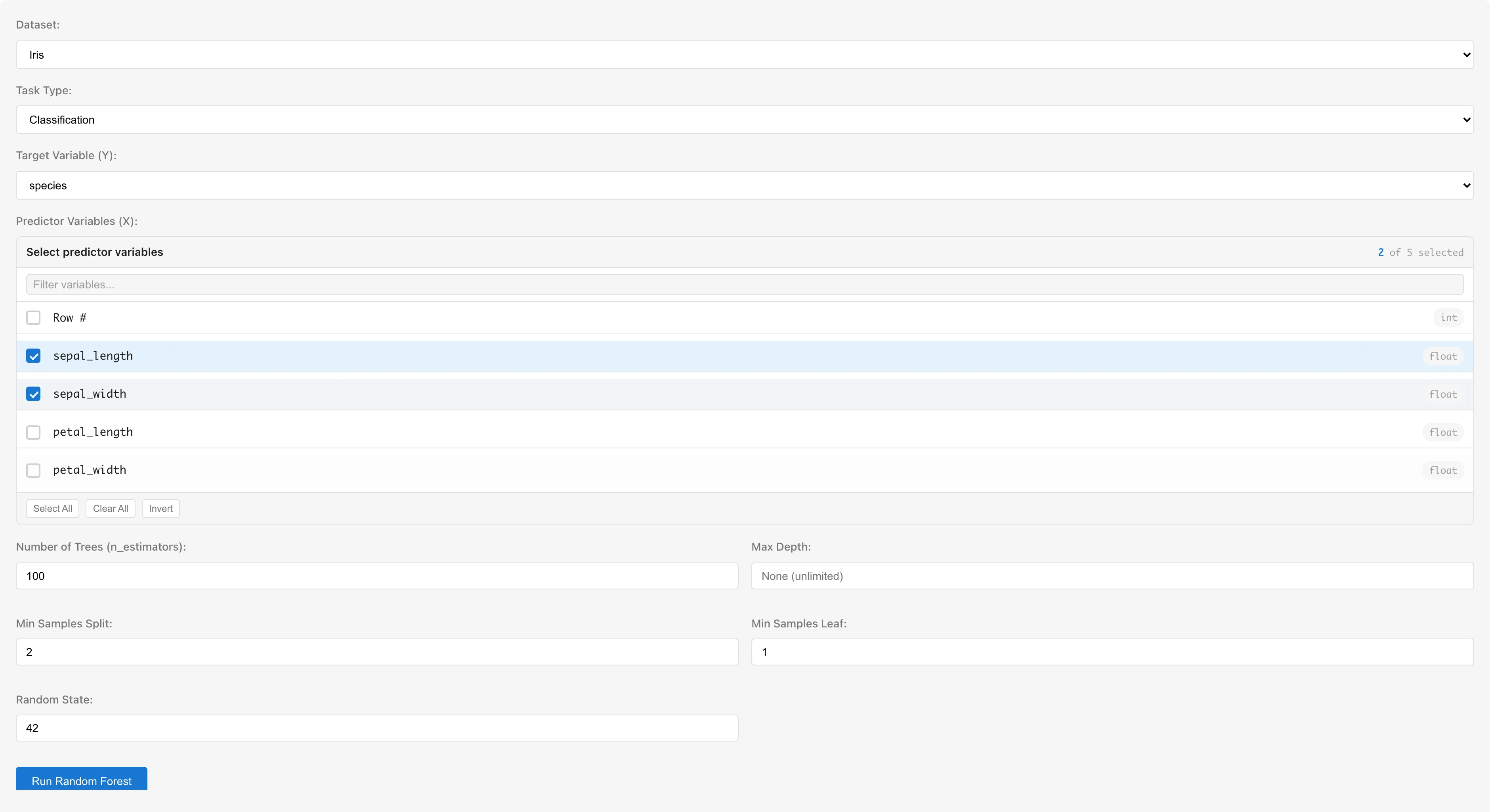
Setting Up Variables
The examples below use the Iris dataset.
Dataset selects the dataset to analyze.
Task Type selects the type of task.
- Classification: treats response variable values as class labels. All column types are selectable
- Regression: treats the response variable as a continuous value. Columns with an interval or ratio scale are selectable
Response Variable (Y) selects the response variable. In Regression mode, columns that cannot be selected are shown as "(requires conversion)". The check is based on the measurement scale, so a column whose scale is set to nominal or ordinal cannot be selected even if its data type is numeric. A boolean column has a nominal scale by default and therefore cannot be selected as it is. Changing its scale to interval or ratio makes it selectable, and its values are read as 0 and 1.
Predictor Variables (X) selects predictor variables. Multiple columns with an interval or ratio scale can be selected. A boolean column also becomes selectable when its scale is changed to interval or ratio, and its values are treated as 0/1. Nominal- or ordinal-scale columns and date/datetime columns are not selectable — convert them to numeric dummy variables using the Dummy Coding tab first. The column selected as the response variable is automatically excluded from the candidates.
Tuning Parameters
| Parameter | UI Label | Default | Description |
|---|---|---|---|
| nEstimators | Number of Trees | 100 | Number of decision trees in the ensemble |
| maxDepth | Max Depth | Empty (unlimited) | Maximum depth of each tree. Shallower trees reduce overfitting |
| minSamplesSplit | Min Samples Split | 2 | Minimum number of samples required to split an internal node |
| minSamplesLeaf | Min Samples Leaf | 1 | Minimum number of samples required in a leaf node |
| randomState | Random State | 42 | Random seed. The same value produces the same results |
The number of predictors considered at each split is fixed at for both classification and regression, where is the total number of predictors. Some implementations use for regression, but MIDAS uses .
Running the Analysis
Click the Run Random Forest button. A progress message is displayed during fitting.
Changing the variable selection, the task type, or the tuning parameters after a run makes the displayed results no longer belong to the current settings. MIDAS removes those results from the view and shows a message asking you to run the analysis again. Restoring the previous settings brings the results back. Changing Dataset also resets the variable selection, so the results are discarded instead.
The displayed results also stop belonging to the current data when the dataset used for the fit changes after a run. Reloading the dataset, editing cells, and changing an upstream dataset all count as such changes. MIDAS removes the results from the view and shows a message saying the dataset was modified. In this case there is no setting to restore, so run the analysis again to get results for the current data.
Understanding Results
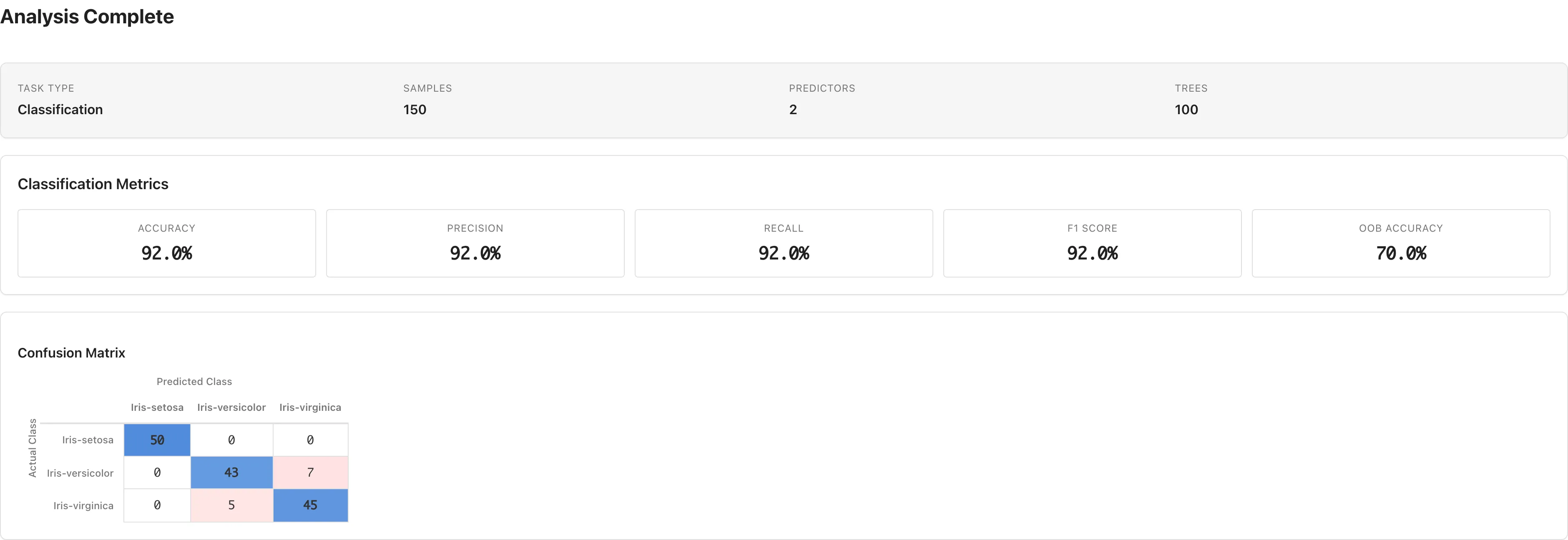
Classification Metrics
Shown when Task Type is Classification.
| Metric | Description |
|---|---|
| Accuracy | Proportion of correctly classified samples |
| Precision | Proportion of true positives among predicted positives |
| Recall | Proportion of true positives among actual positives |
| F1 Score | Harmonic mean of Precision and Recall |
| OOB Accuracy | Out-of-Bag accuracy (see OOB Score) |
For binary classification, Precision, Recall, and F1 Score are reported for the second class in the confusion matrix column order. For three or more classes, they are weighted averages using class sample counts as weights.
Accuracy and other metrics above are computed on the fitting data, so even an overfitting model can show high values. Use OOB Accuracy to judge generalization performance. For binary classification, verify that Precision, Recall, and F1 Score correspond to the intended class by checking the column order in the confusion matrix.
When the response variable has only one class (for example, when a filter leaves a single level), every sample belongs to that class, so Accuracy, Precision, Recall, and F1 Score are trivially 100% and every feature importance is 0. OOB Accuracy is also 100%, except when the OOB score is shown as "-". These results do not measure predictive performance. MIDAS shows a warning in this case.
Confusion Matrix
The confusion matrix is displayed below the classification metrics. Rows represent actual classes and columns represent predicted classes. Diagonal elements are the counts of correct classifications.
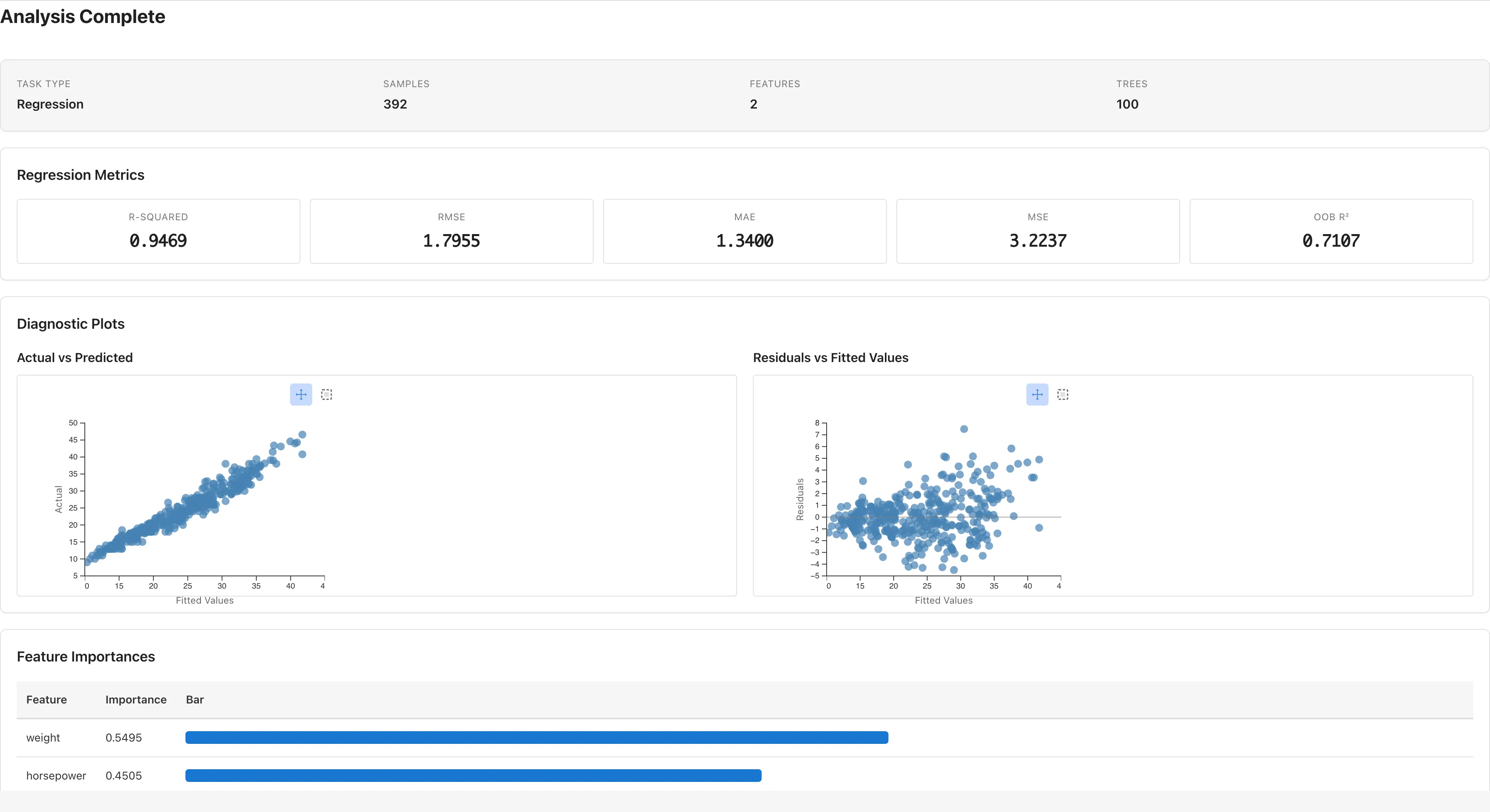
Regression Metrics
Shown when Task Type is Regression.
| Metric | Formula | Description |
|---|---|---|
| R² | Proportion of variance in the response explained by the model. Undefined when the response has effectively no variation (its spread is below floating-point precision), shown as "-" | |
| RMSE | Root mean squared error | |
| MAE | Mean absolute error | |
| MSE | Mean squared error | |
| OOB | — | Out-of-Bag (see OOB Score). Negative when the model predicts worse than the mean |
R², RMSE, and other metrics above are computed on the fitting data, so even an overfitting model can show high values. Use OOB to judge generalization performance.
Diagnostic Plots (Regression)
Two scatter plots are displayed in Regression mode. These plots are based on fitting data predictions and residuals.
Actual vs Predicted: plots actual values () on the vertical axis against predicted values () on the horizontal axis. Points clustered near the diagonal indicate predictions close to the actual values.
Residuals vs Fitted Values: plots residuals () against predicted values. A dashed line at zero is shown. Random Forest fits the data closely, so residuals tend to be small and this plot alone cannot detect overfitting. Use OOB to judge generalization performance.
Clicking or rectangle-selecting data points on either plot shows details (Row, Actual, Predicted, Residual) in a table below.
Feature Importances
Shown for both classification and regression. Each measure quantifies how much a predictor contributes to the model's predictions — higher values indicate greater contribution. Importance reflects the size of the contribution to predictions, not the causal effect of the predictor on the response. The direction of the effect (positive or negative) is also not shown. The table displays two importance measures — MDI and Permutation — with a bar chart. When continuous predictors are involved, rely mainly on Permutation, which is less prone to the MDI bias described below. Rows are sorted by Permutation descending.

MDI (Mean Decrease in Impurity) sums the total reduction in impurity each predictor contributes across all trees, normalized to total 1. Gini impurity is used for classification; variance is used for regression. MDI reflects how often a predictor is used for splits in the fitting data, so variables with many unique values (e.g. continuous variables) tend to score higher simply because they offer more split candidates. Conversely, expanding a categorical variable via Dummy Coding spreads its importance across multiple dummy columns, making it appear less important. In that case, interpret importance at the level of the original variable rather than judging each dummy column on its own.
Permutation is the OOB Permutation Importance. For each predictor, values are randomly shuffled among OOB samples — breaking the association between the predictor and the response — and the drop in prediction accuracy is measured. Accuracy is used for classification, for regression. The drop is computed per tree and averaged. For regression, trees whose OOB response is constant (so is undefined) are excluded from the average. Unlike MDI, it is not normalized to total 1 — the displayed value is the drop in accuracy or itself. Because MDI (a relative contribution to impurity reduction, summing to 1) and Permutation are on different scales, do not compare their values directly on the same bar chart. Unlike MDI, Permutation Importance measures the change in prediction accuracy on OOB samples, which reduces the bias toward variables with many unique values. Negative values indicate that the predictor is likely not contributing to predictions, though with a small number of trees negative values can also arise from sampling variability. Treat negative values as effectively no contribution (near zero). No test for whether an importance differs significantly from zero is provided. If negative values are a concern, increasing Number of Trees reduces sampling variability.
The importance-spreading effect of dummy coding applies to Permutation as well as MDI. When predictors are strongly correlated, shuffling one predictor has little effect because the other still carries similar information, so Permutation Importance tends to underestimate the contribution of correlated predictors. Among strongly correlated predictors, neither MDI nor Permutation can correctly separate the contribution of an individual variable, so be cautious about using the importance ranking as the basis for variable selection or explanation.
Saving the Model
Enter a name in the Model Name field below the results. The default format is "RF Classification - {dataset name} ({date})" or "RF Regression - {dataset name} ({date})".
Click Save Model to save the model to the project. Saved models can be used in Predict mode.
Prediction
Running Predictions
- Click the Predict button at the top of the tab to switch to prediction mode
- Select a saved model from the Model dropdown. Model information (Task Type, number of predictors, required predictor names, number of classes for classification) is displayed
- Select a dataset from Dataset for Prediction. The dataset must contain columns matching the model's predictor names
- Click Run Prediction

The prediction results belong to the model and the prediction dataset that produced them. Changing the model or the prediction dataset after a run removes the results from the view and shows a message asking you to run the prediction again. Restoring the previous selection brings the results back. The results are also removed when the contents of the prediction dataset change or when the model is re-estimated, and in those cases running the prediction again is the only way to get results.
Prediction Results
After prediction completes, the following are displayed.
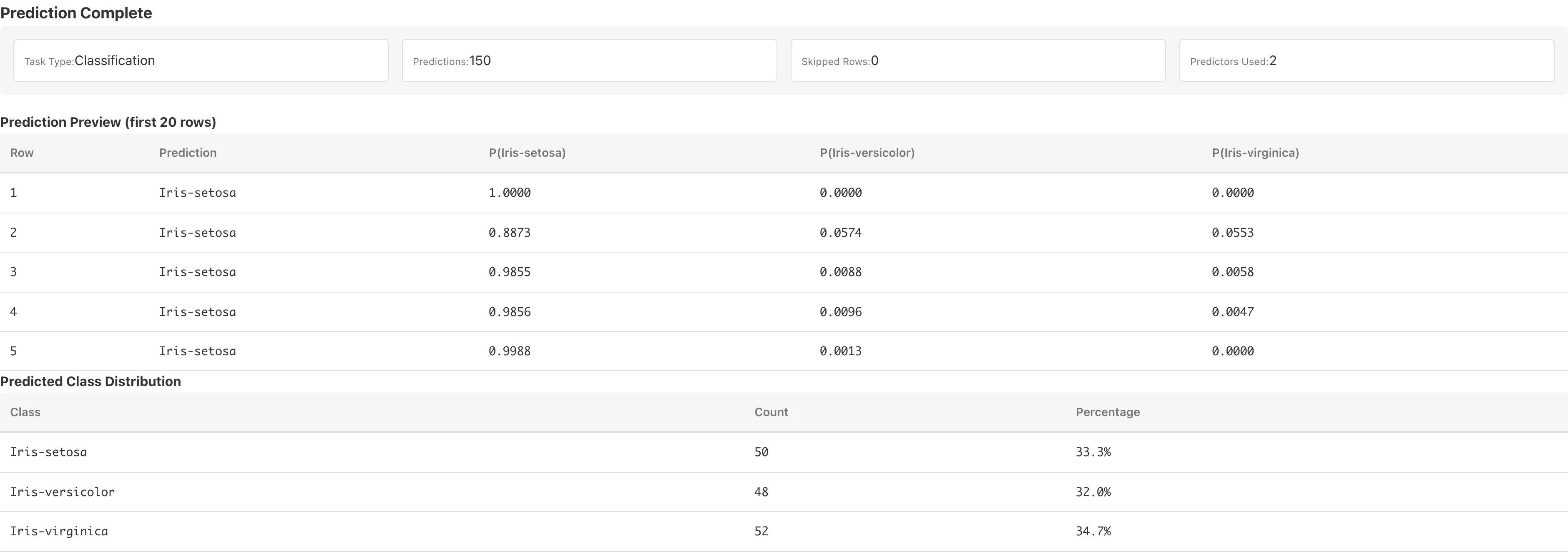
Preview table: the first 20 rows of predictions. For classification, predicted probabilities P(class name) for each class are also shown. These probabilities are the leaf class proportions averaged across all trees.
Predicted Class Distribution (classification only): counts and percentages for each predicted class.
Prediction Statistics (regression only): summary statistics of predicted values (Mean, Median, Std Dev, Min, Max).
Save as Dataset
Click Save as Dataset to save the predictions as a derived dataset.
| Column | Content |
|---|---|
| Predictor columns | Columns from the source dataset matching the model's predictors |
Prediction | Predicted value. Class label (string) for classification, numeric value (float64) for regression |
P(class name) | Predicted probability for each class (classification only, float64) |
Rows with missing predictor values have null in the prediction columns.
Notes
Using Categorical Variables
Numeric columns with an interval or ratio scale can be used as predictors. A boolean column can also be used once its scale is changed to interval or ratio; its values are treated as 0/1. To use nominal or ordinal categorical variables, convert them to numeric dummy variables using the Dummy Coding tab before running the analysis.
Automatic Exclusion of Missing Values
During fitting, rows containing missing values (null), non-numeric values, or infinity in the selected variables are automatically excluded. When exclusions occur, the Samples field in the results shows the number of excluded rows. No automatic warning is shown even when many rows are excluded, so check the excluded count in Samples. This is listwise deletion. See Missing Data Mechanisms for conditions under which it yields valid estimates.
During prediction, rows with missing predictor values are skipped and receive null in the prediction columns. The number of skipped rows is reported in the results.
Out-of-Bag (OOB) Score
Each tree is fitted on a bootstrap sample (sampling with replacement, same size as the original data). The OOB score is computed by predicting each sample using only the trees whose bootstrap samples did not include that sample. Accuracy is shown for classification; for regression. When MIDAS does not show the OOB score, it displays "-" with a warning explaining why. When no samples have out-of-bag predictions, the OOB score is undefined for both task types. When only one sample has out-of-bag predictions, the regression is undefined, and the classification accuracy, although computable, is either 0% or 100% and is therefore not shown. These cases can occur when the number of samples is very small; with two or more samples, increasing the number of trees makes them unlikely. For regression it also happens when the response has effectively no variation, or when the responses of the out-of-bag samples have effectively no variation.
Each bootstrap sample includes about 63.2% of the data; the remaining ~36.8% (, approaching for large ) serve as the OOB validation set. This provides a generalization estimate without a separate holdout. The OOB score is a valid generalization estimate only when observations are drawn independently. With small samples the estimate is unstable, and for data with temporal, cluster, or spatial correlation it tends to overestimate generalization performance.
Limitations
- Random Forest fitting runs in JavaScript within the browser. Large datasets or high numbers of trees may take noticeable time
- Cross-validation and split-sample validation are not available; the OOB score serves as the generalization estimate
- The number of predictors considered at each split (maxFeatures) is fixed at and cannot be changed from the UI
References
- Breiman, L. (2001). Random Forests. Machine Learning, 45(1), 5–32. https://doi.org/10.1023/A:1010933404324
See Also
- Linear Regression — parametric linear models
- The GLM Tab — regression with distributional assumptions
- Dummy Coding — convert categorical variables to numeric
Also available as a Markdown file.