SQL Editor
Use SQL to filter, aggregate, and join data.
Overview
SQL Editor allows you to execute SQL queries against datasets in MIDAS and save the results as new datasets (derived datasets). It is useful for joining multiple datasets or filtering with complex conditions.
Basic Usage
Opening SQL Editor
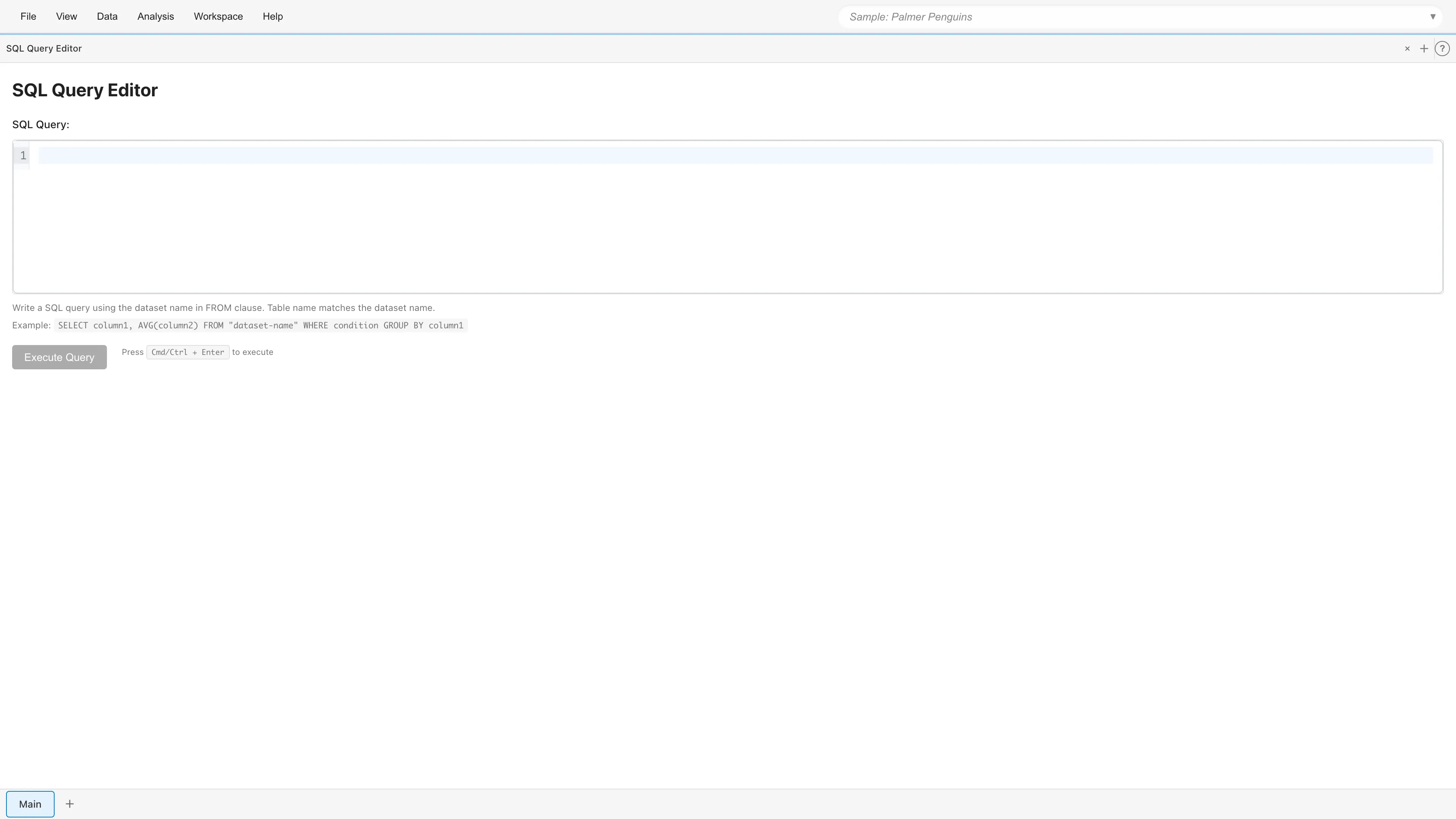
Select Data > SQL Query Editor from the menu bar to open a new SQL Editor tab.
Running Queries
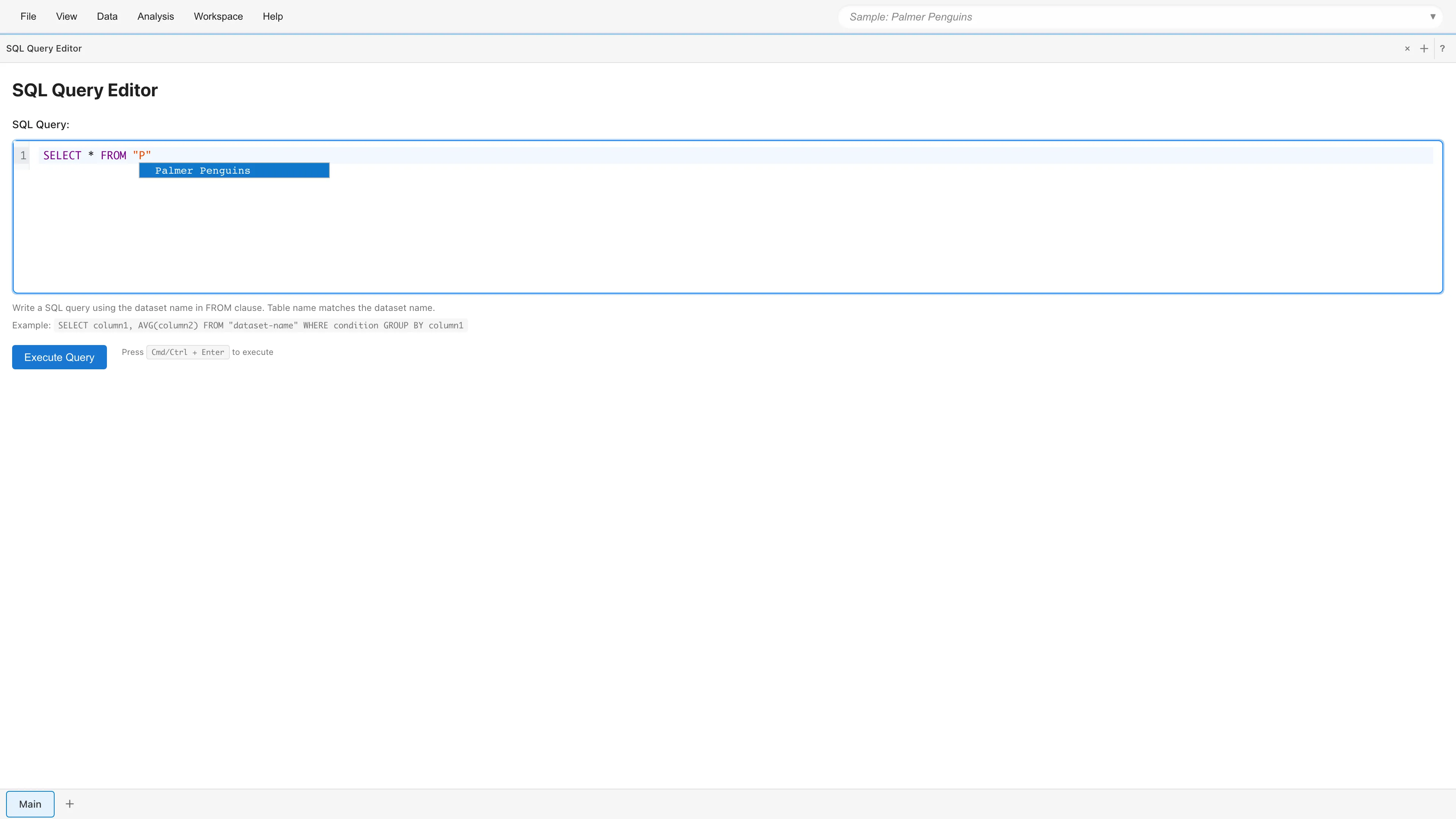
Enter a SQL query in the editor and click the Execute Query button, or press Cmd/Ctrl+Enter to execute.
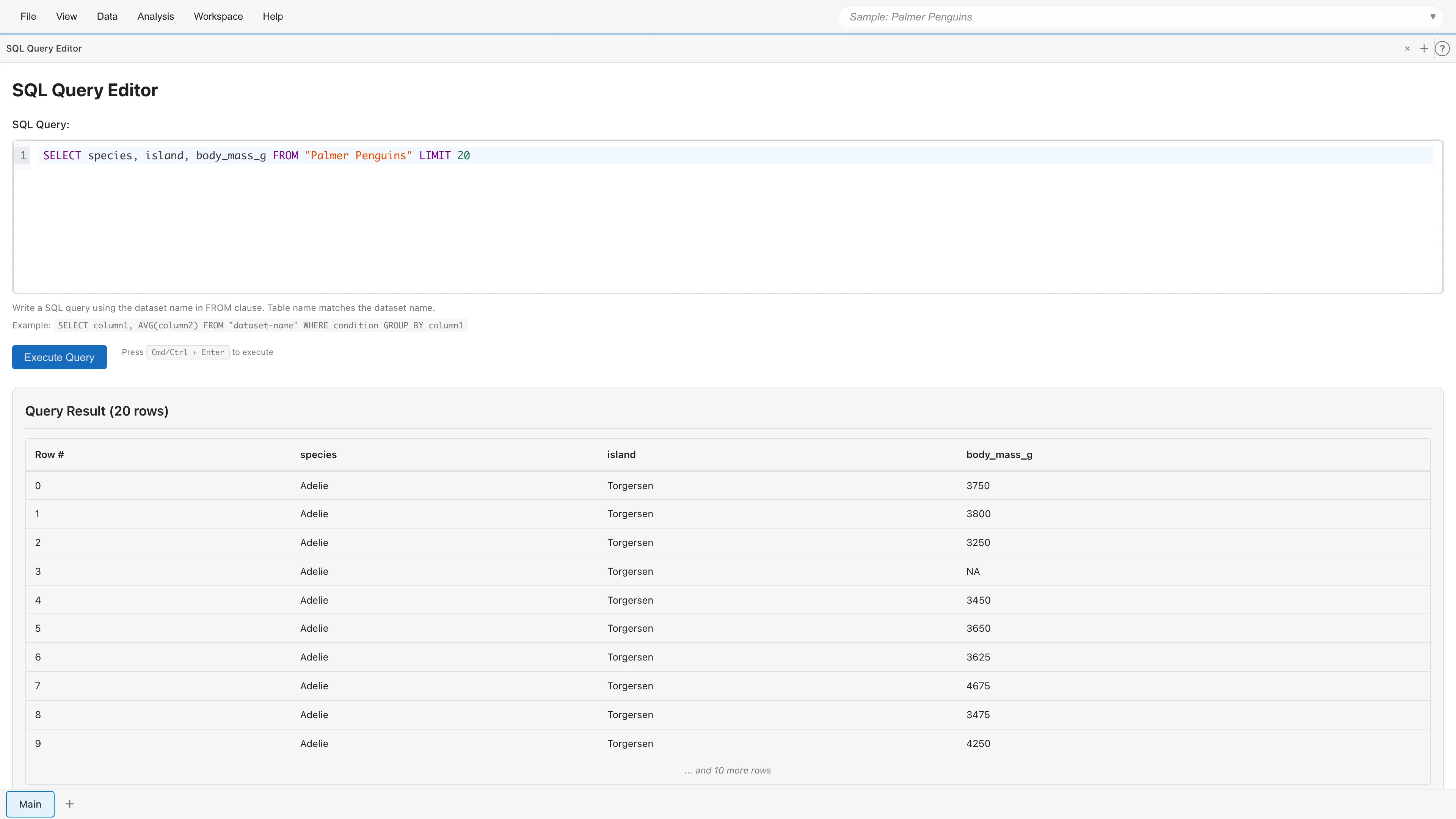
Results are displayed in the "Query Result" section. The first 10 rows are shown as a preview, and if results exceed 10 rows, "... and N more rows" is displayed.
Cancelling a Query
While a query is executing, the Cancel Query button is displayed. Click this button to cancel the query. After cancellation, you can execute a new query.
Saving Results
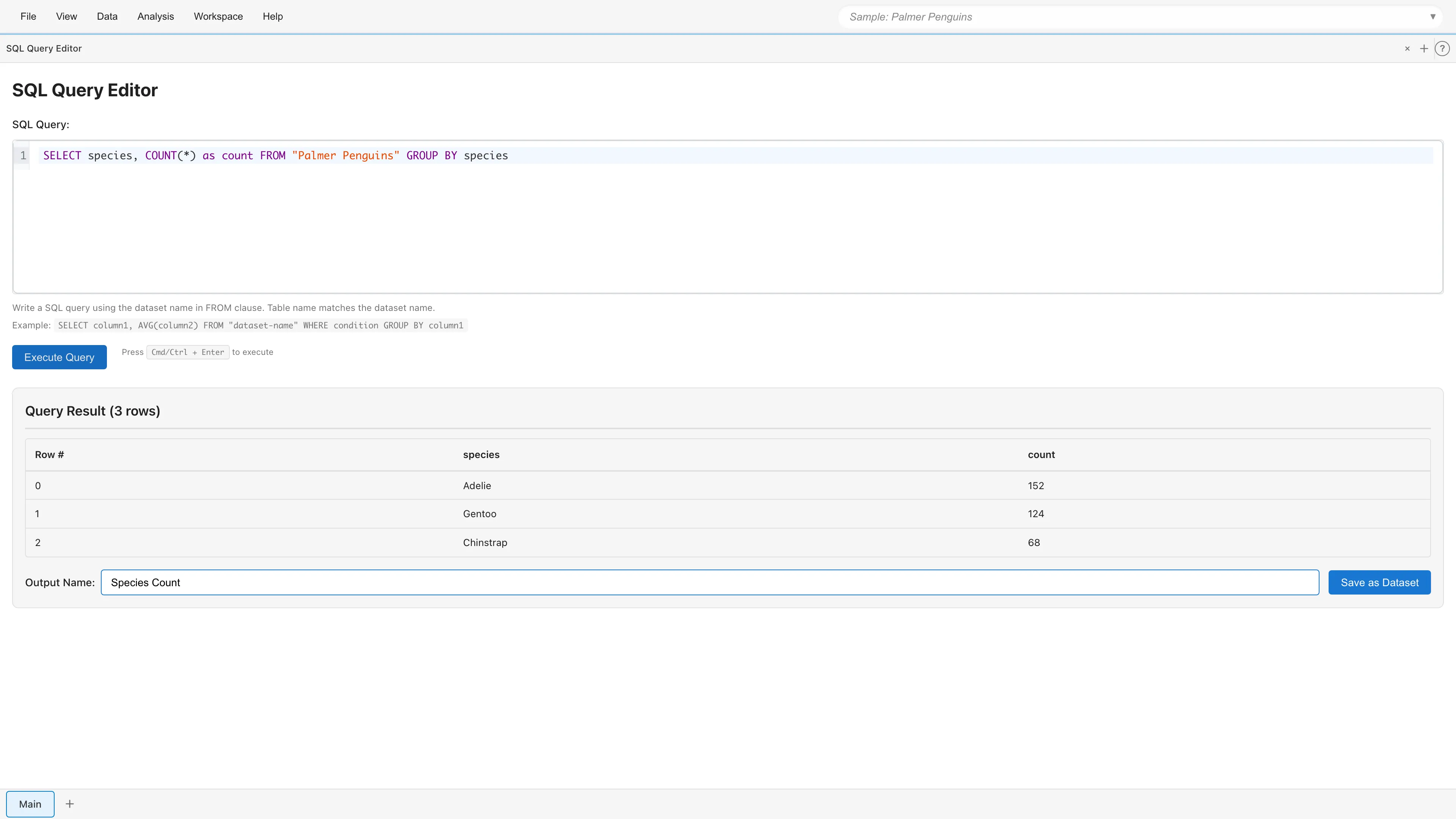
Save query results as a new dataset. Enter a name in the Output Name field and click Save as Dataset to add the derived dataset to your project.
Writing Queries
Basic Query Examples
To retrieve specific columns, specify column names in the SELECT clause.
SELECT species, island, body_mass_g
FROM penguins
Use the WHERE clause to extract only rows matching conditions.
SELECT *
FROM penguins
WHERE body_mass_g > 4000
Combine GROUP BY with aggregate functions for group-level calculations.
SELECT species, COUNT(*) as count, AVG(body_mass_g) as avg_mass
FROM penguins
GROUP BY species
Use ORDER BY to sort results and LIMIT to restrict row count.
SELECT *
FROM penguins
ORDER BY body_mass_g DESC
LIMIT 10
Joining Multiple Tables
Use JOIN to combine multiple datasets.
SELECT a.*, b.category
FROM sales a
JOIN products b ON a.product_id = b.id
Table Names
Use dataset names directly in the FROM clause. You can check dataset names in Project Overview.
SELECT * FROM penguins
Dataset names are case-sensitive. Names containing special characters like hyphens or spaces must be enclosed in double quotes.
SELECT * FROM "bike-sharing"
Supported SQL Features
MIDAS SQL Editor is based on DuckDB and supports standard SQL features.
- SELECT, FROM, WHERE, GROUP BY, HAVING, ORDER BY, LIMIT
- INNER/LEFT/RIGHT/FULL/CROSS JOIN
- Subqueries
- UNION, INTERSECT, EXCEPT
- Window functions (ROW_NUMBER, RANK, LAG, LEAD, etc.)
- WITH clause for CTEs (Common Table Expressions)
- CASE expressions
- Aggregate functions (COUNT, SUM, AVG, MIN, MAX, STDDEV, etc.)
See the DuckDB SQL syntax documentation for details.
Autocomplete
SQL Editor displays autocomplete suggestions as you type.
- Dataset names (in FROM clause)
- SQL keywords (SELECT, FROM, WHERE, GROUP BY, etc.)
- Aggregate functions (COUNT, SUM, AVG, MIN, MAX)
Keyboard Shortcuts
| Shortcut | Action |
|---|---|
| Cmd/Ctrl + Enter | Run query |
| Cmd/Ctrl + F | Search |
| Tab | Insert indentation |
Derived Datasets
Datasets created in SQL Editor are saved as "Derived Datasets". Derived datasets record dependencies on source datasets, which can be viewed in the Project Lineage tab. When source data is updated, derived datasets can be recalculated.
Editing Derived Datasets
Existing derived datasets created with SQL can be edited. Right-click a dataset in the Project Lineage tab and select "Edit SQL Query" to open SQL Editor in edit mode.
In edit mode, a warning is displayed if other datasets or reports depend on this derived dataset. Click the Update Query button after modifying the query to apply changes.
Limitations
MIDAS SQL Editor only supports SELECT statements (data retrieval). Data modification commands like INSERT, UPDATE, DELETE, and DDL commands like CREATE TABLE are not available.
Additionally, since it runs in the browser, there are memory limitations that may restrict processing of very large datasets.
See also
- Datasets - Differences between Primary and Derived Datasets
- Data Reshape - GUI-based data reshaping
- Column Type Conversion - Manual data type changes
- Project Lineage - Dependency visualization