Data Reshape
Convert data between Wide format and Long format. Use this to restructure data layouts to match the requirements of different analysis methods.
Basic Usage
Opening Reshape
Select Data > Reshape (Wide/Long)... from the menu bar to open a new Reshape tab.
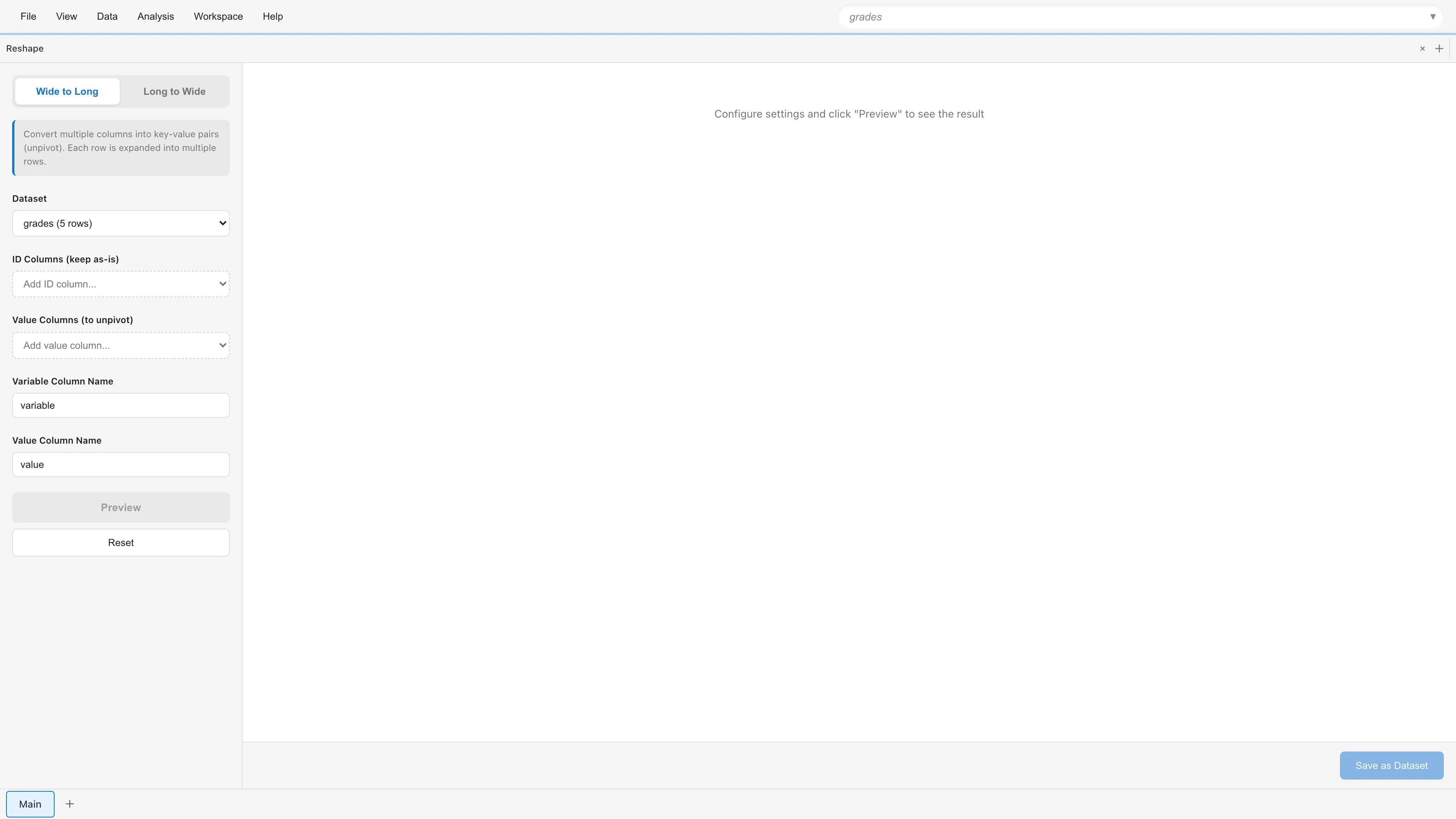
The screen consists of a settings panel on the left and a preview area on the right. Switch between Wide to Long and Long to Wide using the tabs at the top of the settings panel.
Sample Data Used in This Page
The examples on this page use a grades dataset (grades.csv) containing test scores for 5 students. Each subject has its own column in Wide format.
| name | math | science | english |
|---|---|---|---|
| Alice | 90 | 85 | 88 |
| Bob | 75 | 92 | 80 |
| Carol | 88 | 78 | 95 |
| Dave | 92 | 88 | 82 |
| Eve | 78 | 95 | 90 |
Wide to Long
Collapse multiple columns into a single column (unpivot). Each row expands into multiple rows.
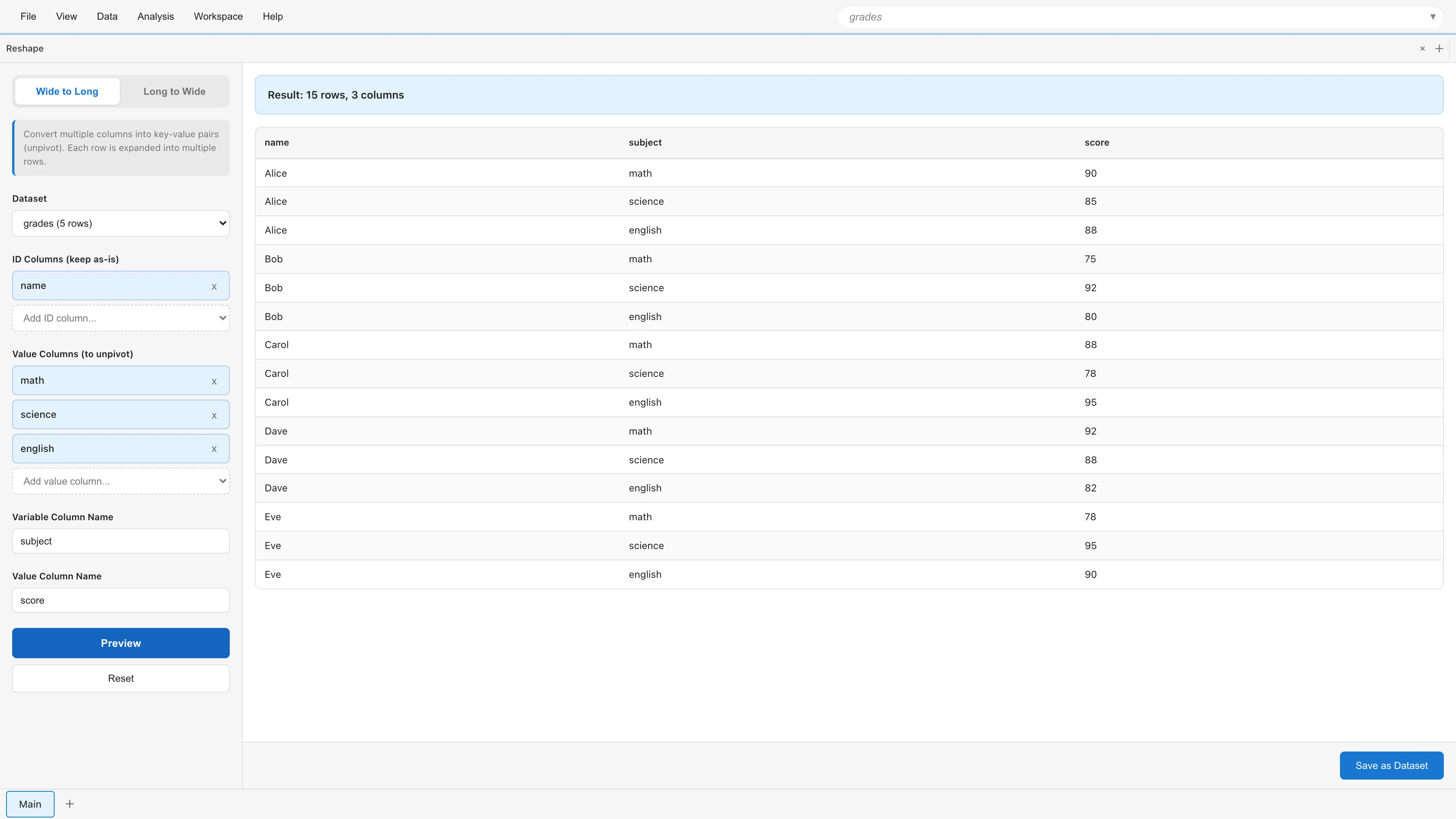
For example, convert the grades data above into a "one row per subject" format. The result looks like this:
| name | subject | score |
|---|---|---|
| Alice | math | 90 |
| Alice | science | 85 |
| Alice | english | 88 |
| Bob | math | 75 |
| ... | ... | ... |
Parameters
Dataset - Select the dataset to transform.
ID Columns - Select columns to keep as-is. In the example above, name is the ID column. Optional.
Value Columns - Select columns to unpivot. In the example above, math, science, and english. At least one column is required.
Variable Column Name - Name for the new column that holds the original column names. Defaults to variable.
Value Column Name - Name for the new column that holds the values. Defaults to value.
Click Preview to see the result.
Long to Wide
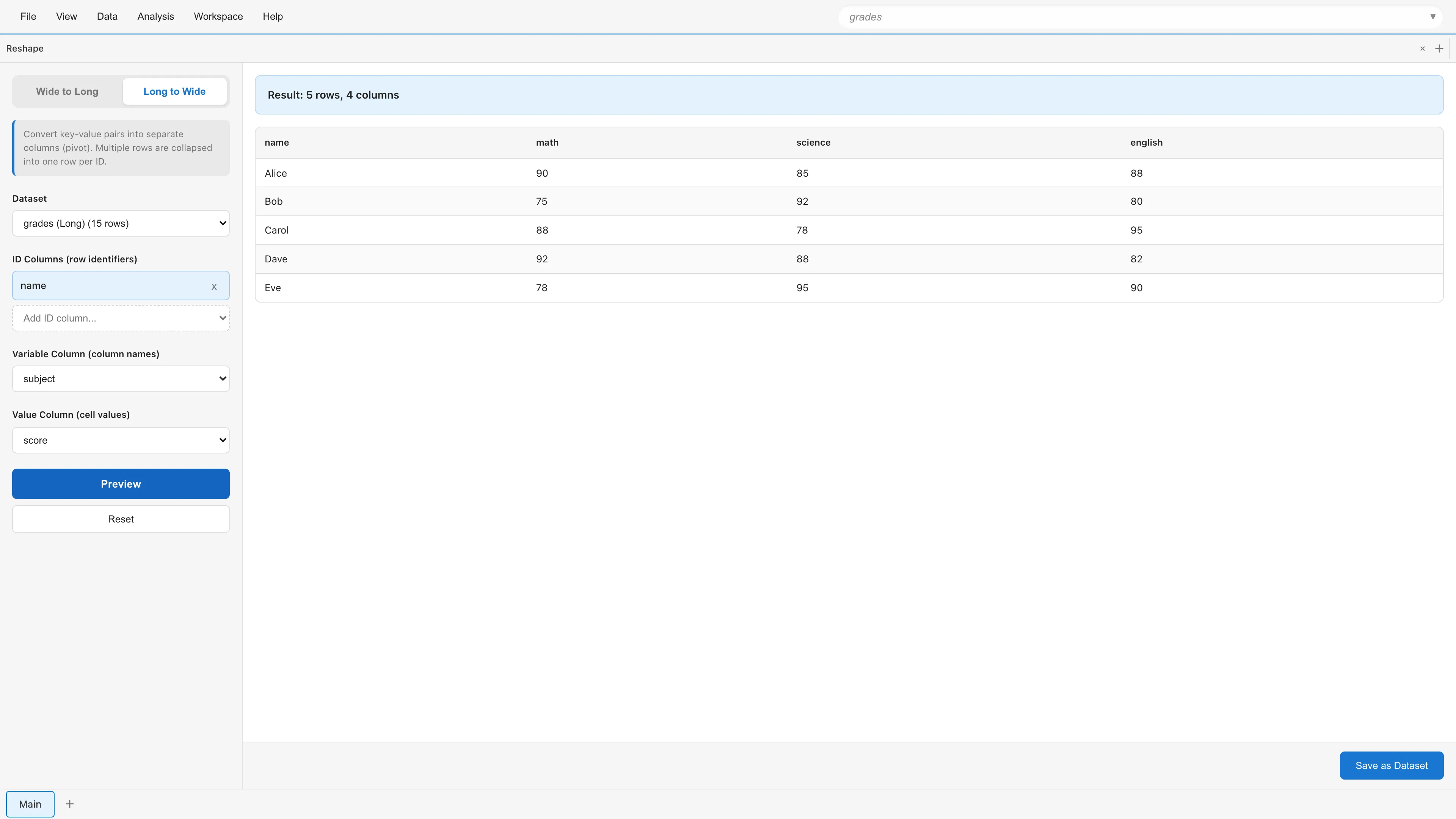
Expand key-value data into columns (pivot). Multiple rows are collapsed into a single row.
Use this for the reverse of Wide to Long, or to arrange aggregated results into a tabular layout.
Parameters
Dataset - Select the dataset to transform.
ID Columns - Select columns that identify each row. Optional.
Variable Column - Select one column whose unique values become new column names.
Value Column - Select one column whose values fill the new columns.
Preview and Save
Click Preview to check the result. The preview shows up to 100 rows along with the total row and column counts.
When the result looks correct, click Save as Dataset. Enter a dataset name and save to create a new derived dataset.
Notes
- If value columns have mixed data types in Wide to Long, the value column is converted to string type
- In Long to Wide, duplicate combinations of ID columns and variable column cause an error. Add more ID columns to uniquely identify each row
- In Long to Wide, missing combinations result in null values
See also
- Datasets - Differences between Primary and Derived Datasets
- Data Processing with SQL Editor - Advanced data transformation with SQL
- Data Table - Viewing and manipulating data