Workspace and Layout Management
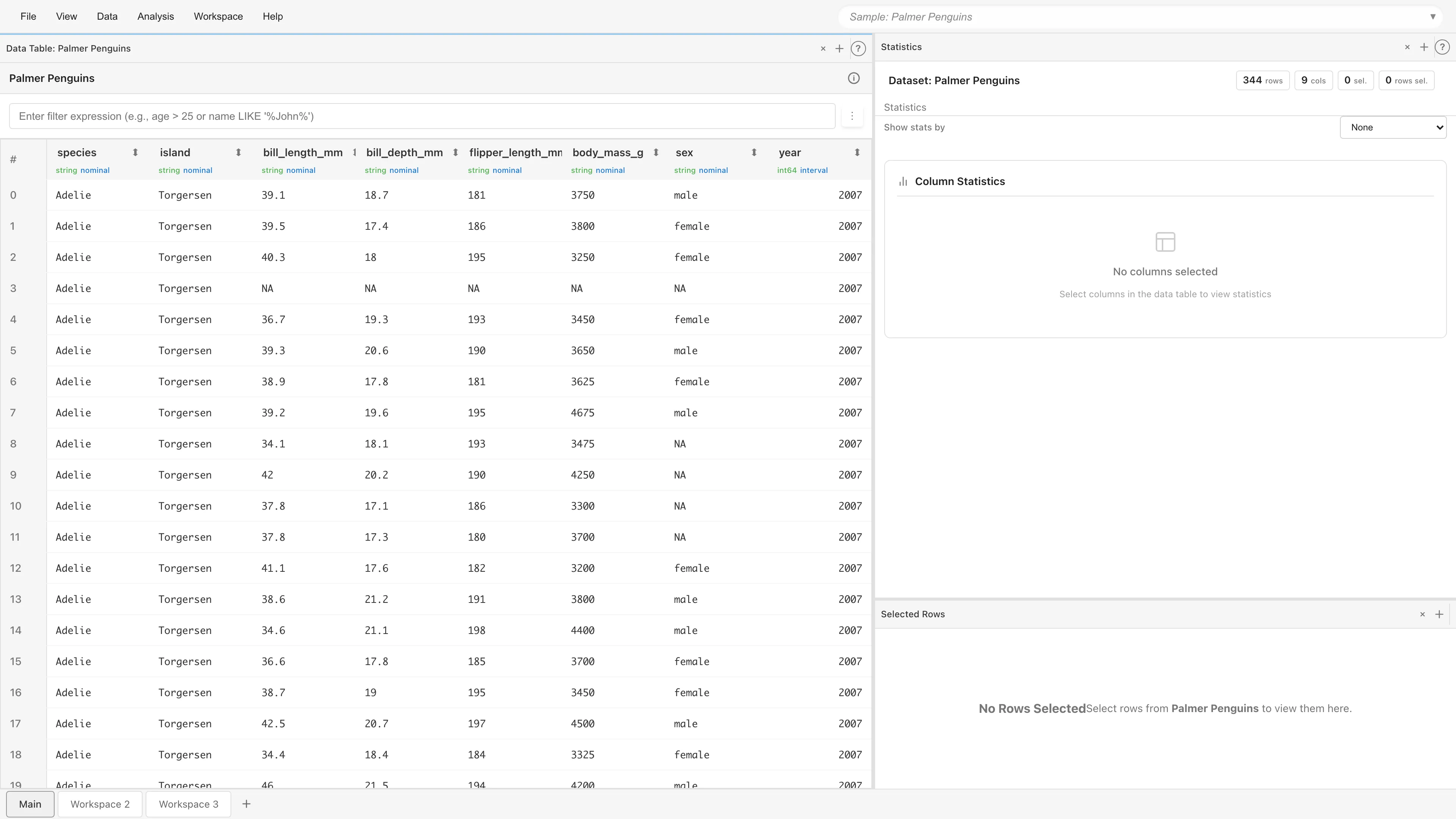
Use workspaces to manage multiple analysis tasks in parallel. Each workspace has its own layout (pane configuration and tab arrangement), which is saved and restored with MDS files.
Workspace Operations
Creating a Workspace
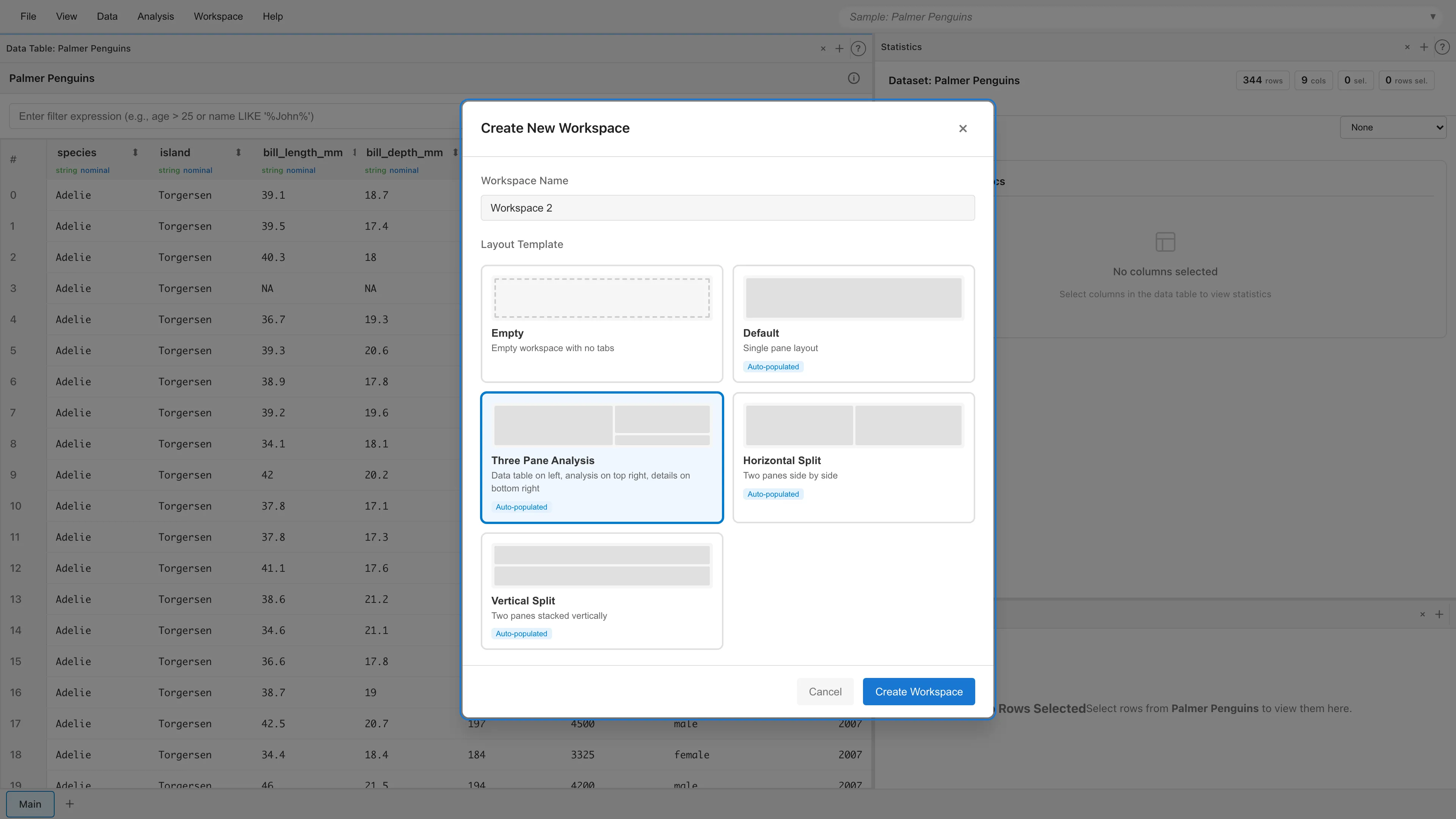
Click the + button in the workspace tab bar at the bottom of the screen to open the New Workspace dialog. Select a template to create the workspace.
Switching Workspaces
Click a workspace tab to switch to that workspace.
Reordering Workspaces
Drag and drop workspace tabs to change their order.
Context Menu
Right-click a workspace tab to access the following options:
- Rename - Change the workspace name
- Move Left / Move Right - Move the workspace left or right
- Delete - Delete the workspace (cannot delete the last one)
Layout Templates
The following templates are available when creating a workspace:
| Template | Description | Auto-created Tabs |
|---|---|---|
| Empty | Empty workspace | None |
| Default | Single pane | Data Table |
| Horizontal Split | Left-right split | Data Table + Statistics |
| Vertical Split | Top-bottom split | Data Table + Statistics |
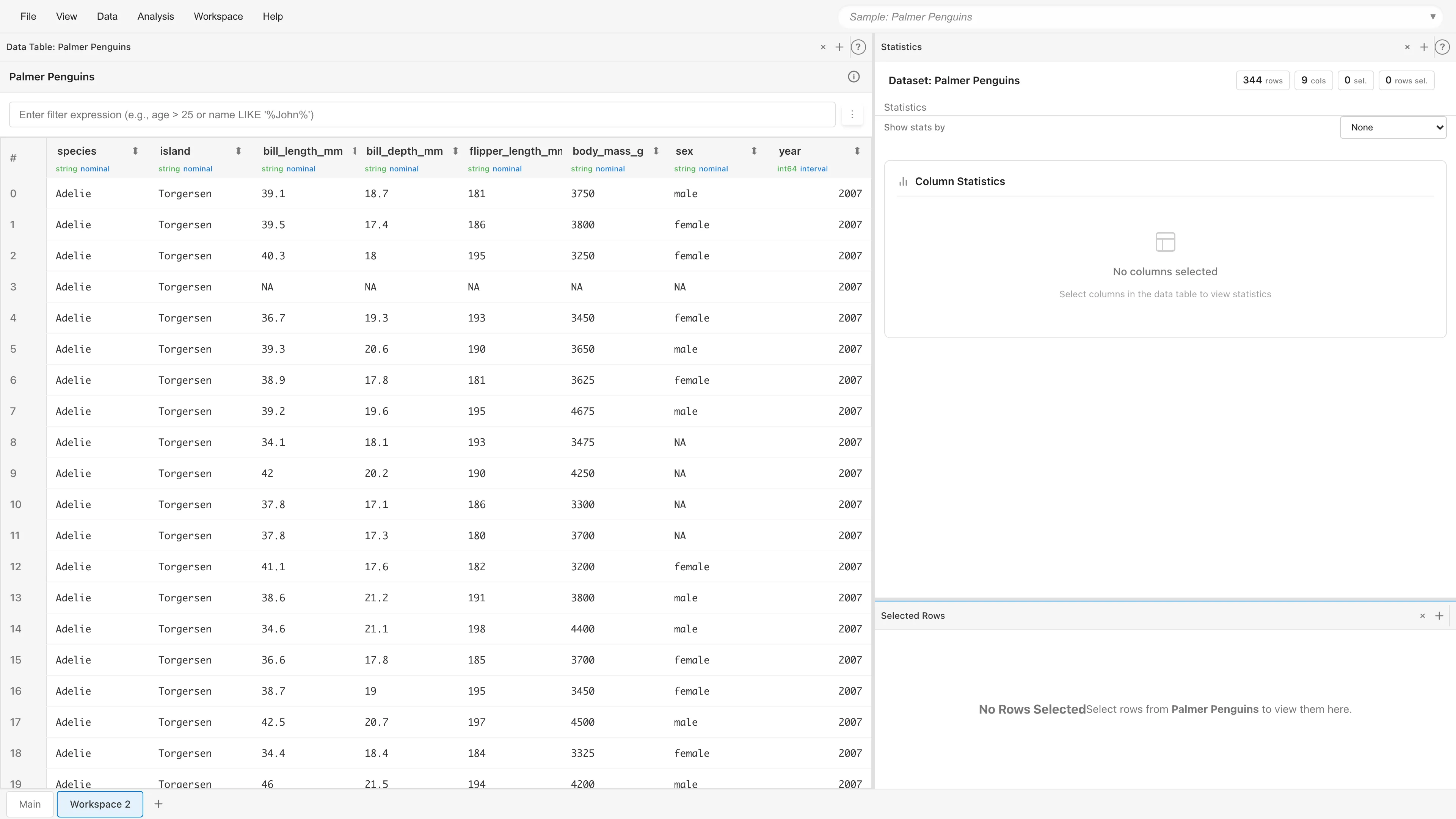
| Three Pane Analysis | Left 60% + right top-bottom split | Data Table + Statistics + Selected Rows |
Pane Operations
Splitting Panes
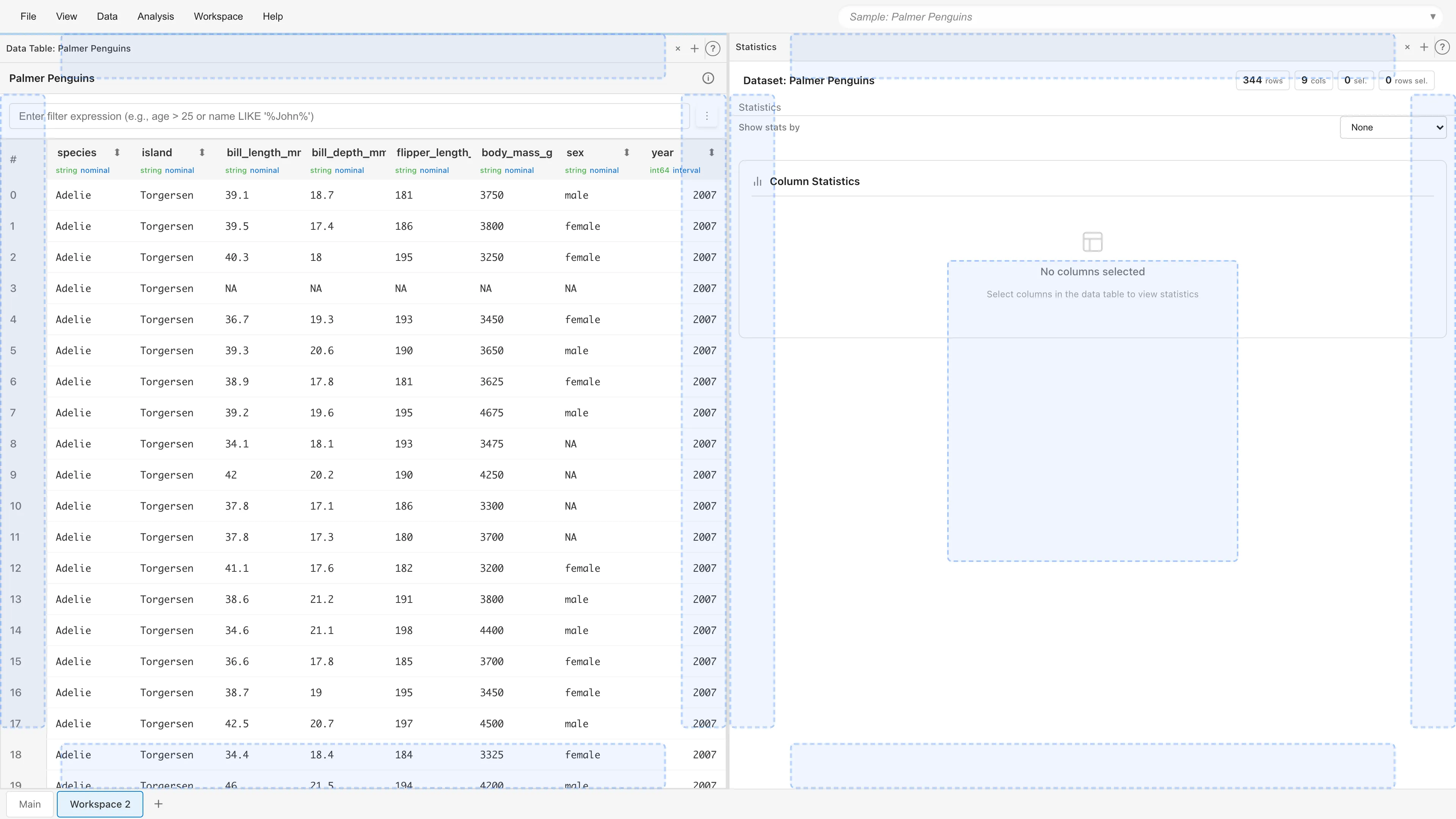
Drag a tab to the edge of a pane (top, bottom, left, or right) to display drop zones. Drop the tab to split the pane.
Adjusting Split Ratio
Drag the border between panes to adjust the split ratio.
Keyboard operations (when the border is focused):
| Key | Action |
|---|---|
| Arrow Left / Arrow Up | Shrink left/top pane (5% increments) |
| Arrow Right / Arrow Down | Shrink right/bottom pane (5% increments) |
| Home | Minimize left/top pane |
| End | Minimize right/bottom pane |
| Enter / Space | Reset to equal split (50%) |
Minimum size constraints: 250px horizontally, 200px vertically
Merging Panes
Close all tabs in a pane or move them to another pane to automatically remove that pane.
Active Pane
The most recently used pane is displayed with a light blue border. New tabs open in the active pane.
Tab Operations
Opening Tabs
Open tabs from the menu bar, the + button in a pane, or the command palette (Ctrl/Cmd+P).
Closing Tabs
Click the × button on the tab.
Moving Tabs
Drag and drop tabs to move them:
- Drop within the same pane: Reorder tabs
- Drop in a different pane: Move the tab
- Drop at the edge of a pane: Create a new pane and move the tab
Shift Modifier
Hold Shift while opening a tab to open it in the sibling pane (the adjacent pane if split). The active pane remains unchanged.
Keyboard Shortcuts
| Shortcut | Action |
|---|---|
| Ctrl/Cmd+P | Open command palette |
| Ctrl/Cmd+S | Save to browser |
| Ctrl/Cmd+Shift+S | Save as MDS file |
Saving and Restoring
- File > Save to Browser (Ctrl/Cmd+S) — Save to browser local storage
- File > Export Project... (Ctrl/Cmd+Shift+S) — Export as MDS file
Opening an MDS file restores all workspaces and layouts.
See also
- Data Table - View, filter, and sort data
- Basic Statistics - View basic statistics